Python Programming Fundamentals
Introduction to Python
What Is Python?
Python is a high-level programming language known for its clear, readable syntax. Created by Guido van Rossum and first released in 1991, its design philosophy emphasizes code readability, which is why its syntax looks a lot like plain English.
It's a versatile language, meaning it can be used for a huge variety of tasks. This flexibility is one of the main reasons for its immense popularity. From building websites and automating repetitive tasks to conducting complex data analysis and building artificial intelligence models, Python is a powerful tool for both beginners and seasoned professionals.
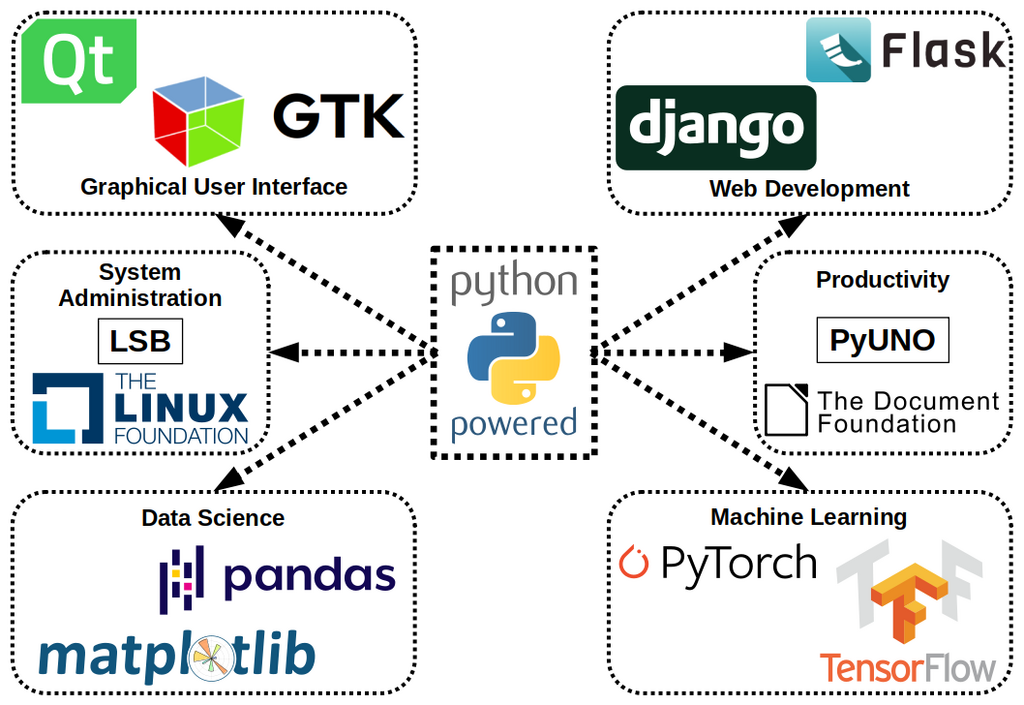
Think of it as a multipurpose tool. Big companies like Google, Netflix, and NASA use it for everything from web services to scientific research. If you're interested in data science, machine learning, or web development, you'll find that Python is a dominant language in these fields.
Setting Up Your Workspace
To start writing Python, you need two things: the Python interpreter and an Integrated Development Environment (IDE). The interpreter is the program that reads your Python code and carries out its instructions. An IDE is a software application that provides tools to make programming easier, like a text editor for writing code and a way to run it.
We'll use Thonny, an IDE specifically designed for beginners. The great thing about Thonny is that it comes bundled with the latest version of Python, so you only need to perform one installation.

To install it, head over to the official Thonny website (thonny.org) and download the installer for your operating system (Windows, Mac, or Linux). Running the installer is straightforward; just follow the on-screen instructions and accept the default settings. Once it's finished, you'll have everything you need to start coding.
Your First Program
It's a tradition in programming to start by writing a program that displays the text "Hello, World!" on the screen. It's a simple way to confirm that your setup is working correctly and to get a feel for a new language's syntax.
Open Thonny. You'll see two main areas: a large text editor at the top and a smaller area at the bottom called the "Shell." The editor is where you'll write your code, and the shell is where you'll see the output.
In the editor window, type the following line of code. Pay close attention to the parentheses and quotation marks.
print("Hello, World!")
This line uses Python's built-in print() function. A function is a named block of code that performs a specific task. The print() function's job is to display text on the screen. The text you want to display, called a string, goes inside the parentheses and must be enclosed in quotes.
Now, save the file by going to File > Save As. Name it hello.py. The .py extension is important because it tells the computer that this is a Python file. Finally, click the green "Run current script" button in the toolbar (it looks like a play symbol).
You should see the text Hello, World! appear in the shell at the bottom of the window. Congratulations, you've just written and executed your first Python program!
What is the primary design philosophy of the Python programming language?
To start writing and running Python code, what two essential components do you need?