Python Programming Fundamentals
Python Environment Setup
Getting Your Tools Ready
Before you can write Python code, you need the core component: the Python interpreter. Think of the interpreter as a translator that converts your human-readable Python commands into instructions the computer's processor can understand and execute. Every Python script you run passes through this interpreter.
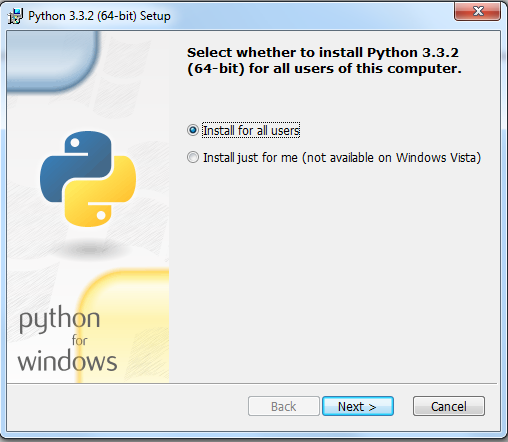
To get it, head over to the official Python website, python.org, and download the latest stable version. The installation process is straightforward, but there's one crucial step on Windows: make sure to check the box that says "Add Python to PATH." This allows you to run Python from any directory in your command line, which is essential for managing your projects later on.
Your Coding Workshop
While you could write Python in a basic text editor like Notepad, it would be like building a house with only a hammer. A proper Integrated Development Environment (IDE) is a specialized workshop that provides all the tools you need in one place. It combines a text editor with features like syntax highlighting, code completion, and tools for running and debugging your code, making the entire process much more efficient.
Two of the most popular choices for Python development are Visual Studio Code and PyCharm. is a lightweight and highly versatile code editor with a massive library of extensions. You can customize it for almost any language, but its Python support is top-notch. PyCharm, on the other hand, is a dedicated Python IDE. It comes with more Python-specific features out of the box, offering a powerful, integrated experience from the start.
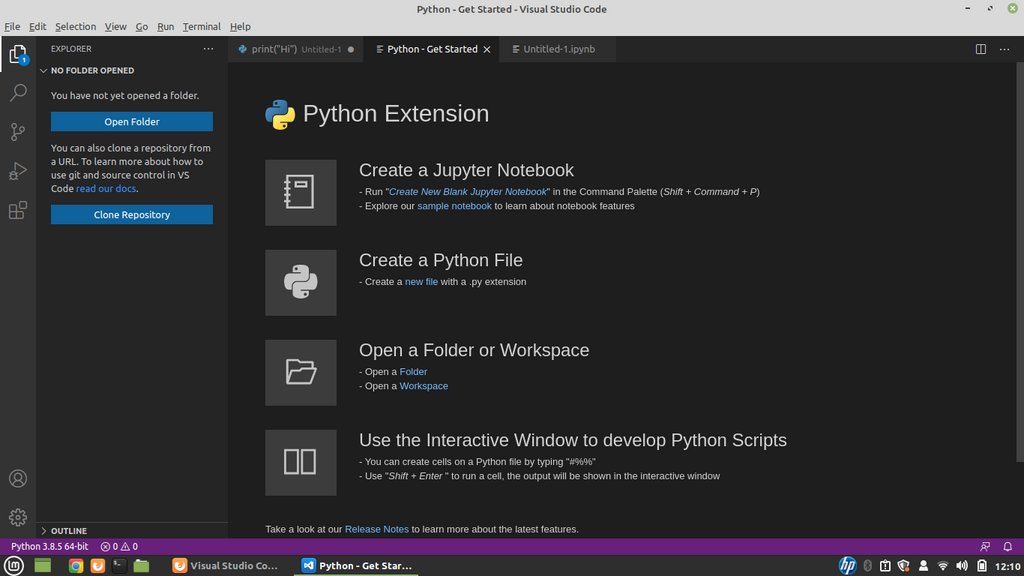
For VS Code, you'll want to install the official Python extension published by Microsoft. Just open the Extensions view (the icon with four squares on the side), search for "Python," and click install. This extension enables features like code completion and lets you select which Python interpreter to use for your project, ensuring your IDE knows where to find the Python installation we just completed.
Your First Program
With your environment set up, it's time to run some code. This is a rite of passage for every programmer. In your IDE, create a new file and save it as hello.py. The .py extension is how we tell the computer that this is a Python file.
Now, type the following line of code into your new file.
# This is a comment. The interpreter ignores it.
# The print() function displays output to the screen.
print("Hello, World!")
Most IDEs have a "Run" button (often a green triangle) that will execute the current file. When you click it, you should see the text "Hello, World!" appear in a terminal or output panel within your IDE. You've just run your first Python script.
It's also crucial to know how to run scripts from the command line. This is how programs are often executed in production environments. Open your system's terminal (like PowerShell on Windows or Terminal on macOS/Linux), navigate to the directory where you saved hello.py, and type the following command:
python hello.py
You should see the same "Hello, World!" output. This confirms that the Python interpreter is correctly linked to your system's PATH and can be accessed from anywhere.
Let's try a slightly more complex script to recall some familiar concepts. Create a new file named calculator.py and add this code:
# Assigning values to variables
apples = 10
oranges = 15

# Performing a basic arithmetic operation
total_fruit = apples + oranges

# Using an f-string to print a formatted message
print(f"The total number of fruits is: {total_fruit}")
Run this script from your IDE or the command line. The program uses variable assignment and addition, then prints the result inside a formatted string. This simple example reinforces how these basic building blocks come together in an executable script. Your environment is now fully configured and ready for more complex tasks.
What is the primary function of the Python interpreter?
When installing Python on Windows, why is it recommended to check the "Add Python to PATH" box?
You've successfully set up a professional coding environment and run your first scripts. You're now ready to move beyond the basics and start building more interesting programs.