Python Programming Foundations and Practical Logic
Development Environment Setup
Building Your Workspace
A professional development environment is more than just a text editor and an interpreter. It’s a carefully configured set of tools designed for efficiency, stability, and collaboration. Setting up your workspace correctly from the start prevents countless headaches down the line, especially when managing multiple projects.

The first step is installing an up-to-date version of Python 3, which you can download from the official Python website. During installation on Windows, it's crucial to check the box that says "Add Python to PATH." This allows you to run the python interpreter from any directory in your terminal. On macOS or Linux, you can use package managers like Homebrew or apt for a cleaner installation.
Isolating Projects
Imagine working on two different web applications. Project A requires version 1.9 of the Django framework, but Project B, a newer project, needs Django 4.0. If you install Django globally on your system, you can only have one version at a time. Upgrading for Project B would break Project A.
This is where virtual environments come in. They create isolated spaces for each project, each with its own set of installed packages and Python interpreter. This practice is essential for managing dependencies and avoiding version conflicts.
Every developer should have a virtual environment set up for each in-progress project.
Python includes a built-in module called venv for creating virtual environments. To create one, navigate to your project folder in the terminal and run the following command. This creates a new directory (here, named my-project-env) containing a copy of the Python interpreter and its standard libraries.
python3 -m venv my-project-env
After creating the environment, you must activate it. The command differs slightly between operating systems. Once activated, your terminal prompt will usually change to show the name of the active environment.
# For macOS and Linux
source my-project-env/bin/activate

# For Windows
my-project-env\Scripts\activate
Any packages you install while the environment is active will be isolated to that specific project, leaving your global Python installation clean.
Managing Packages
Once your virtual environment is active, you can install packages using pip, Python's package installer. pip connects to the Python Package Index (PyPI), a vast repository of third-party libraries. For example, to install the popular requests library for making HTTP requests:
pip install requests
A professional workflow involves tracking a project's dependencies in a file, conventionally named requirements.txt. This file lists all the necessary packages and their specific versions, making it easy for other developers (or your future self) to replicate the environment. You can generate this file automatically:
# This command freezes the current state of the environment's packages
# and saves it to the requirements.txt file.
pip freeze > requirements.txt
To install all the packages from a requirements.txt file into a new virtual environment, you use the -r flag:
pip install -r requirements.txt
Your Coding Cockpit
While you can write Python in any text editor, an Integrated Development Environment (IDE) provides tools that significantly boost productivity. IDEs combine a code editor with features like code completion, debugging tools, and version control integration. Two of the most popular IDEs for Python are VS Code and PyCharm.
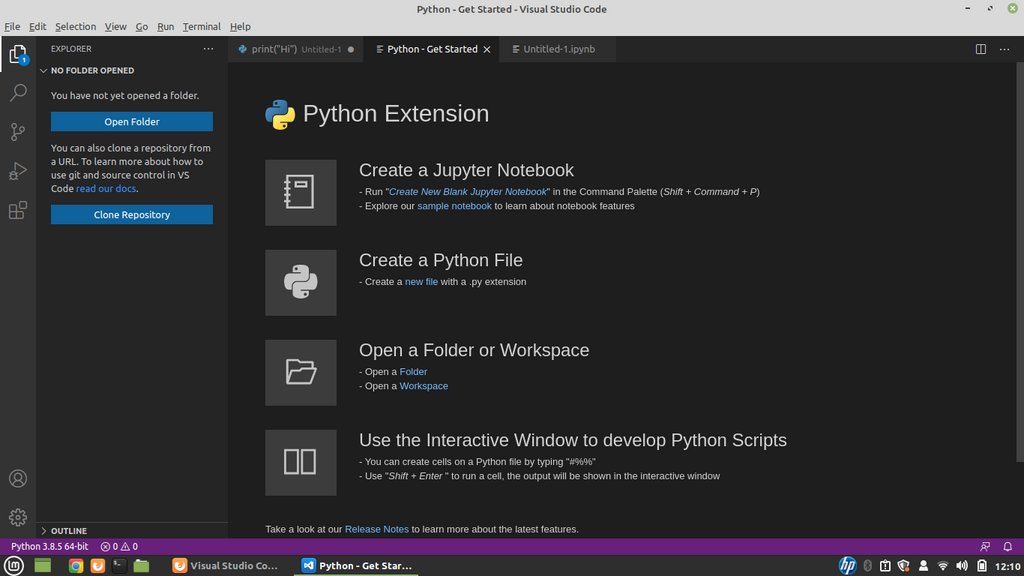
A key feature of a good IDE is its terminal integration. Instead of switching between your code editor and a separate terminal window, you can run commands, execute scripts, and manage your virtual environment directly within the IDE. Most IDEs will also automatically detect and use your project's virtual environment, ensuring the correct interpreter and packages are used when running or debugging code.
With your IDE configured, running a script is straightforward. You can typically run it from within the IDE's interface or directly from the integrated terminal, as long as your virtual environment is active.
# Assuming you have a file named main.py in your current directory
python main.py
What is the primary reason for using virtual environments in Python development?
You've joined a team and cloned their project repository. It contains a requirements.txt file. Your virtual environment is active. Which command should you run to install all the necessary packages for the project?
With a properly configured environment, you're ready to build robust and maintainable Python applications.