Python Commands for Beginners
Python Installation
Getting Python on Your Machine
Before you can start writing Python code, you need to install it. The best place to get Python is from its official website, python.org. This ensures you're getting the most recent, secure version.
Head to the downloads page and grab the installer for your operating system, whether it's Windows, macOS, or Linux. The website usually detects your OS and suggests the best version.

During installation on Windows, make sure to check the box that says "Add Python to PATH." This small step makes it much easier to run Python from your computer's command line, a tool we'll use to check if the installation worked. If you're on macOS or Linux, the installer typically handles this for you.
Verify Your Installation
Once the installer finishes, it's a good idea to confirm that Python is ready to go. You can do this using your system's command line interface. On Windows, this is the Command Prompt or PowerShell. On macOS and Linux, it's called the Terminal.
Open it up and type the following command, then press Enter.
python --version
If you see a version number like Python 3.11.3, you're all set. If that doesn't work, try python3 --version instead. Some systems use this command to distinguish between older and newer versions of Python.
If you get an error message saying the command is not recognized, it likely means Python was not added to your system's PATH. The easiest fix is to run the installer again, making sure to check the "Add Python to PATH" option.
Your Coding Workspace
Now that Python is installed, you need a place to write your code. While you could use a basic text editor like Notepad, most developers use an Integrated Development Environment, or IDE. An IDE is a software application that combines all the tools you need into one place, making coding much more efficient.
IDE
noun
An Integrated Development Environment is a software suite that consolidates basic tools required to write and test software. It typically includes a source code editor, build automation tools, and a debugger.
Let's look at two great options to get you started.
IDLE The Built-in Option
Python comes with its own simple IDE called IDLE (Integrated Development and Learning Environment). It's lightweight and perfect for beginners who are just starting out. You don't need to install anything extra; if you have Python, you have IDLE.
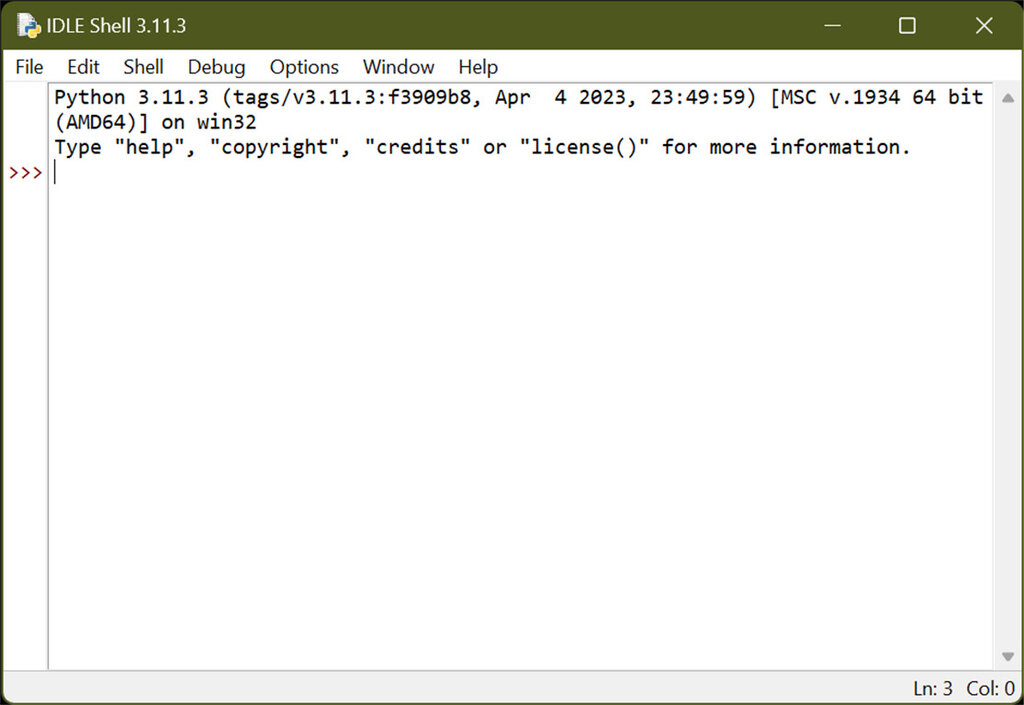
You can find IDLE in your applications menu. When you open it, you'll see the Python Shell, where you can type and run single lines of code. To write longer scripts, you can open a new file editor window from the File menu.
Visual Studio Code
For a more powerful and feature-rich experience, many developers use Visual Studio Code (VS Code). It's a free, open-source code editor developed by Microsoft that's highly customizable.
After downloading and installing VS Code from its official website, you'll want to add the official Python extension. This extension transforms VS Code into a full-featured Python IDE, with features like code completion, debugging tools, and code analysis.
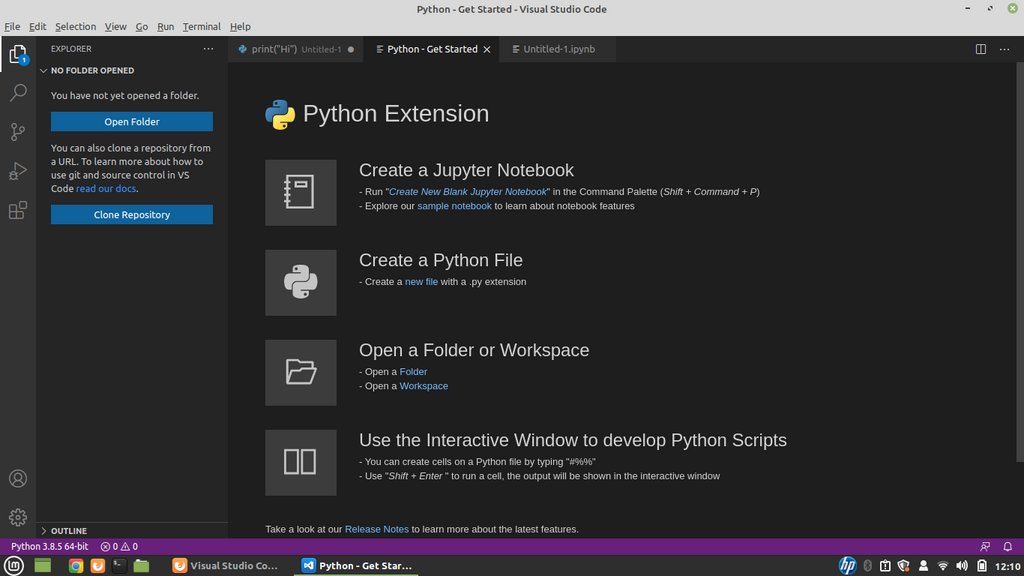
To install it, open VS Code, click on the Extensions icon in the sidebar (it looks like four squares), search for "Python," and install the one published by Microsoft.
With Python installed and your IDE set up, you now have a complete environment for writing and running your own Python programs.