Practical QBasic Programming
QBasic Environment Setup
Setting Up the Environment
To get started with a modern version of QBasic, we'll use . It's a self-contained compiler that works on Windows, macOS, and Linux, and it faithfully recreates the classic QBasic experience while adding modern features. Installation is straightforward. Head to the official QB64 website, download the package for your operating system, and unzip it into a folder. There's no complex installation process; you can run the executable directly from that folder.
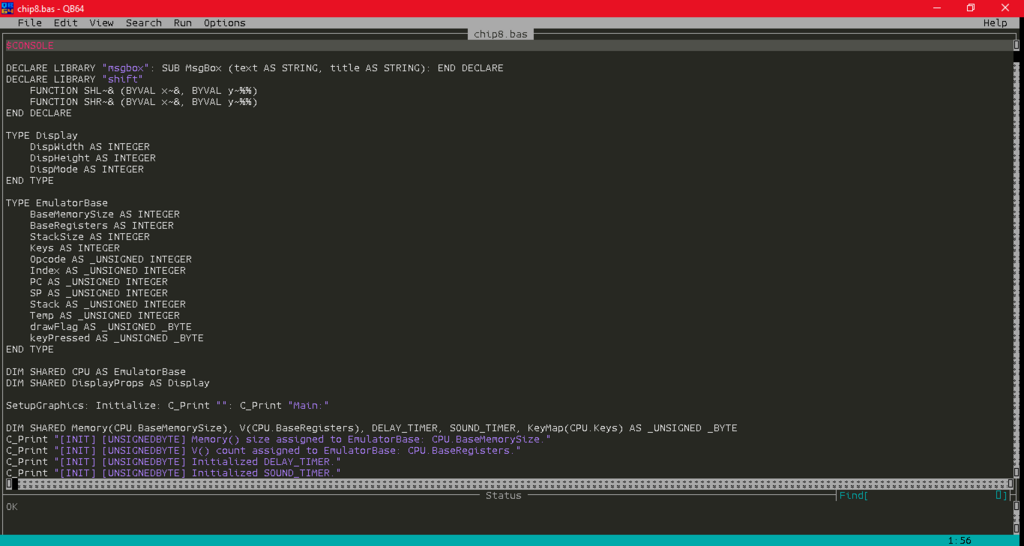
Once you launch QB64, you'll see the classic blue screen IDE. This environment is designed for keyboard-first navigation. While a mouse works for some actions, mastering the keyboard shortcuts is the key to working efficiently. The main part of the screen is the editor, where you'll write your code. At the top, a menu bar contains all the commands you'll need, accessible by pressing the Alt key plus the highlighted letter (e.g., Alt+F for the File menu).
You can get a list of all major shortcuts anytime by pressing
F1for help.
| Key | Action |
|---|---|
F5 | Run the current program from the beginning. |
Shift+F5 | Continue execution from the last stopping point. |
F2 | View subroutines and functions in your program. |
Alt+F | Open the File menu (New, Open, Save). |
Alt+E | Open the Edit menu (Cut, Copy, Paste). |
Immediate Gratification
The QBasic IDE offers a unique feature for quick testing: the . This is the area at the bottom of the screen, separate from the main code editor. You can type single lines of QBasic code here and press Enter to execute them instantly. It’s perfect for checking a variable's value, testing a mathematical formula, or trying out a command without having to run your entire program.
For example, type
PRINT 2 + 2into the Immediate Window and press Enter. The screen will switch to the output view and display4.
To switch your cursor between the main editor and the Immediate Window, just press F6. This allows you to fluidly move between writing your main program and testing small snippets of logic.
Running vs. Compiling
You'll be working with .BAS files, which is the standard file extension for BASIC source code. When you press F5 inside the QB64 IDE, the environment does two things: it first compiles your .BAS code into a machine-readable executable file, and then it immediately runs that file. This gives you the feel of an interpreted language, where you see results instantly.
' This is my first program.
' It will be saved as myprogram.bas

PRINT "Hello from the QB64 environment!"
However, you can also perform just the compilation step. By going to Run > Make EXE File, QB64 will compile your code and create a standalone executable (.exe on Windows). You can then share and run this file on other computers without needing the QB64 IDE installed. This is the key difference between simply running your code for a quick test and preparing it for distribution.
Now that you have the environment set up and understand the workflow, you're ready to start building programs.