Photoshop Fundamentals
Photoshop Interface
Your Digital Canvas
Opening Photoshop for the first time can feel like stepping into a cockpit. There are buttons, menus, and panels everywhere. But once you know the layout, it all starts to make sense. Let's break down the main parts of the screen.
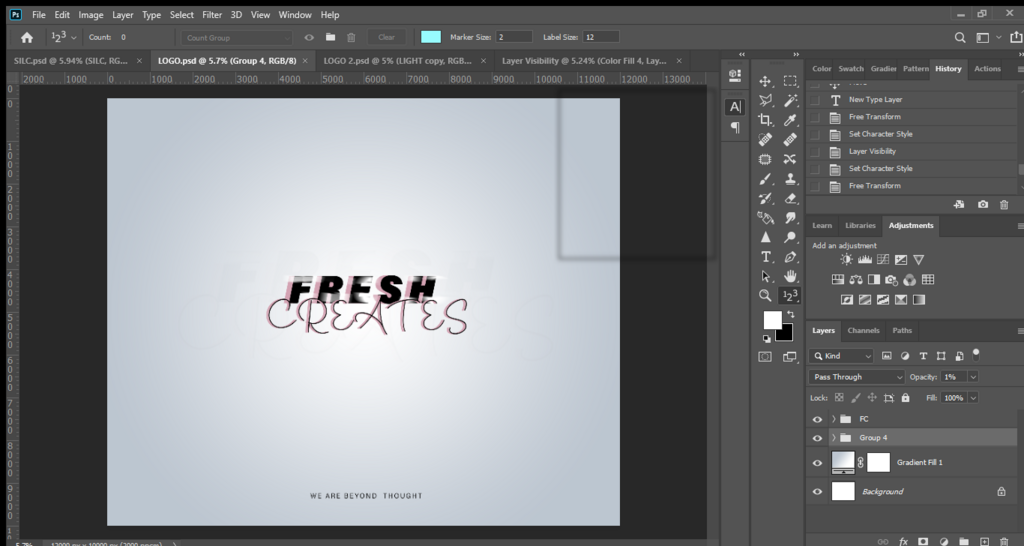
The main area is your Canvas, or Document Window. This is where your image lives and where you'll do all your work. Surrounding it are the tools and options you'll use to edit.
Think of it like an artist's studio. You have your canvas in the middle, your brushes and paints on one side, and your color palettes and other supplies on the other. Everything has its place.
The Core Components
The Photoshop interface is built around a few key areas.
At the very top of your screen is the Menu Bar. This is standard for most applications. You'll find options like File (for opening and saving), Edit (for undoing mistakes), and Image (for making adjustments). You won't use it for every little thing, but it's where the most powerful commands live.
Along the left side is the Toolbar. This vertical strip holds all of your primary tools: the Move tool for shifting things around, the Brush tool for painting, the Eraser, and so on. Clicking on a tool selects it. Some tools have a small triangle in the corner, which means you can click and hold to see related tools hidden underneath.
When you select a tool from the Toolbar, a new set of options appears just below the Menu Bar. This is called the Options Bar, and it lets you customize the selected tool's behavior.
On the right side, you'll find Panels. These are small windows that give you access to more complex features and information. The most important one is the Layers panel. We'll dive deep into layers later, but for now, just know that nearly everything you do in Photoshop involves this panel. Other common panels include Color for picking colors and Properties for adjusting settings.
Getting Started
To start a project, you can either create a new blank document or open an existing image.
To create a new file, go to File > New. A dialog box will appear. You don't need to worry about every setting, but the most important are Width, Height, and Resolution. For digital work, a resolution of 72 pixels per inch is standard. For print, you'll want 300.
To open an image you already have, just go to File > Open and navigate to your file. Photoshop can open a huge variety of file types, including JPEGs, PNGs, and GIFs.
One of the best things about Photoshop is that you can make it your own. Don't like where the Layers panel is? Just click its tab and drag it somewhere else. You can rearrange panels, group them together, or close them by clicking the 'x'.
If you ever feel like your workspace is a mess, you can reset it. Go to Window > Workspace > Reset Essentials. You can also explore other preset workspaces, like Painting or Photography, which arrange the panels in a way that's optimized for those tasks.
Ready to test your knowledge of the layout?
What is the name of the main area where your image is displayed and edited?
If you needed to open a new file or save your work, which part of the interface would you use?
Now that you're familiar with the basic layout, you're ready to start exploring what the tools can do.