Photoshop Essentials
Introduction to Photoshop Interface
Getting Started with the Workspace
Opening Photoshop for the first time can feel like stepping into the cockpit of a spaceship. There are buttons, menus, and panels everywhere. But once you know what the main controls do, it all starts to make sense.
Think of the Photoshop interface as your digital studio. Everything is arranged to help you work, but you can also move things around to fit your style. The default layout is called the 'Essentials' workspace, and it contains the most commonly used features.
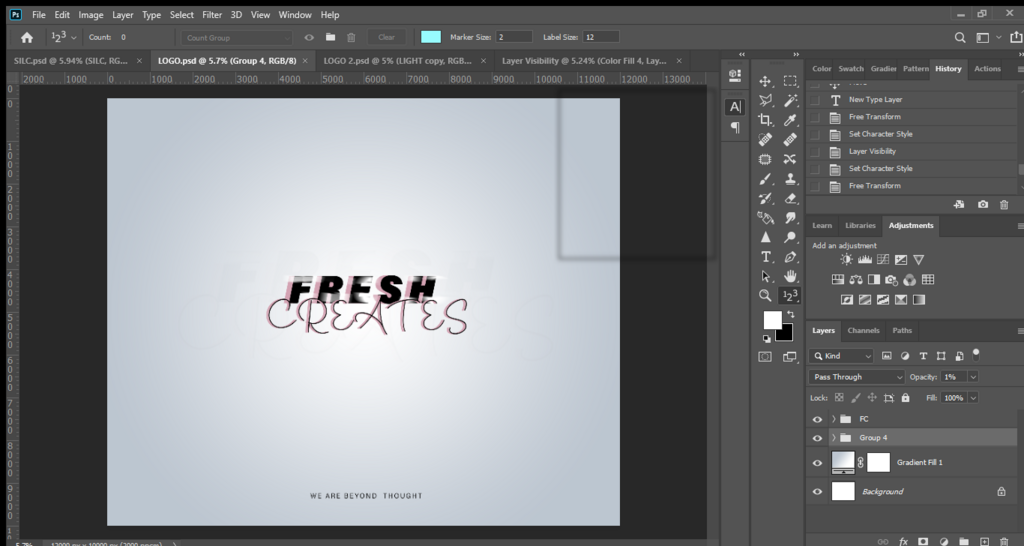
The interface is divided into a few key areas:
- Menu Bar (Top): This is where you'll find standard menu items like File, Edit, and Image, which lead to most of Photoshop's commands and settings.
- Options Bar (Below Menu Bar): This bar is context-sensitive. It changes to show the settings for the specific tool you're currently using.
- Toolbar (Left): This is your toolbox. It holds all the tools for selecting, painting, editing, and creating.
- Document Window (Center): This is your canvas, where your image or design lives.
- Panels (Right): These give you access to more complex controls and information, like layers, colors, and properties. You can open, close, and rearrange these as needed.
Your Toolkit and Options
The Toolbar on the left is the heart of Photoshop's creative power. It contains tools for drawing, painting, selecting parts of an image, retouching photos, and adding text. You don't need to know what every single tool does right away. Just know that this is where you'll go to perform an action on your image.
Many tool icons have a tiny triangle in the bottom corner. If you click and hold on one of these, a hidden menu will pop out, revealing similar tools. For example, holding the Rectangle tool will also show you options for drawing ellipses and polygons.
Every time you select a new tool from the Toolbar, watch the Options Bar at the top of the screen. It will change to show you all the available settings for that specific tool.
Let's say you select the Brush Tool. The Options Bar will update to show controls for the brush size, hardness, and blending mode. If you then switch to the Type Tool, the Options Bar will change to show settings for font, text size, and color. This direct link between the Toolbar and Options Bar is fundamental to working efficiently in Photoshop.
Navigating Your Canvas
Your image lives in the document window, or canvas. You'll often need to get a closer look at a specific detail or zoom out to see the whole picture. There are two main tools for this: the Zoom Tool and the Hand Tool.
The Zoom Tool, which looks like a magnifying glass, lets you zoom in and out. Select it, then click on your image to zoom in. To zoom out, hold the Alt key (or Option key on a Mac) and click. You can also click and drag left or right to smoothly zoom in and out.
The Hand Tool, which looks like a hand, allows you to pan around your image when you're zoomed in. It's like sliding a physical photo around on a desk. Select it, then click and drag your canvas to move it.
Pro tip: You can temporarily access the Hand Tool from any other tool by holding down the spacebar. When you release it, you'll go right back to the tool you were using.
Customizing Your Space
One of the best things about Photoshop is that you can tailor the interface to your needs. The panels on the right side of the screen can be completely customized. You can drag them around, group them together in different ways, or close them entirely.
To move a panel, just click and drag its title tab. You can drag it to another group to combine them or pull it out to let it float freely. A blue highlight will show you where the panel will 'dock' when you let go. You can also open new panels by going to the 'Window' menu and selecting the one you want.
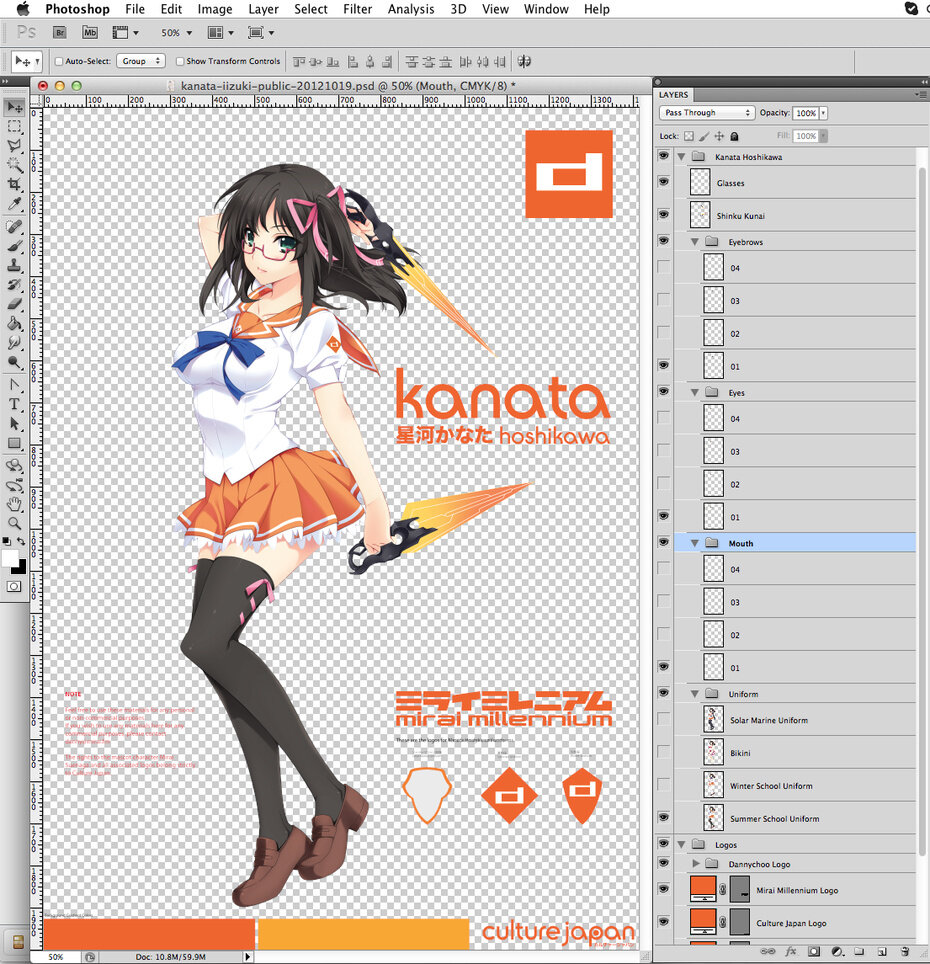
If you find a layout you really like, you can save it as a custom workspace. Just go to Window > Workspace > New Workspace. This is useful for setting up different layouts for different tasks. For example, you might want one workspace with lots of color and brush panels for digital painting, and another with just a few key panels for simple photo edits.
Don't worry about messing things up. You can always reset to the default layout by going to Window > Workspace > Reset Essentials.
Which part of the Photoshop interface changes to show settings for the specific tool you are currently using?
If you want to draw a circle but only see the Rectangle Tool icon in the Toolbar, what is the most likely way to find the Ellipse Tool?
Familiarizing yourself with the workspace is the first step to mastering Photoshop. Now you know where to find your tools, how to change their settings, and how to organize your digital studio to best suit your creative process.