Multivendor E-commerce with WordPress
WordPress Basics
What is WordPress?
Think of a website as a house. You need a foundation, walls, and a roof, but you also need a way to arrange furniture, paint the walls, and add new rooms. A Content Management System, or CMS, is like the toolbox and blueprint for your digital house. It lets you build and manage your website's content without needing to be a construction expert or a coder.
WordPress has grown from a simple blogging platform into the cornerstone of modern web publishing.
WordPress is the world's most popular CMS, powering a huge portion of the internet, from personal blogs to massive corporate websites. It's open-source, which means it's built by a community of developers and is free to use. This foundation provides the structure you need to create a website, giving you full control over your content and design.
Your Control Center The Dashboard
After you install WordPress, the first thing you'll see is the dashboard. This is your mission control for the entire website. From here, you can create content, change the site's appearance, and add new features. It might look a little intimidating at first, but you'll quickly get the hang of it.
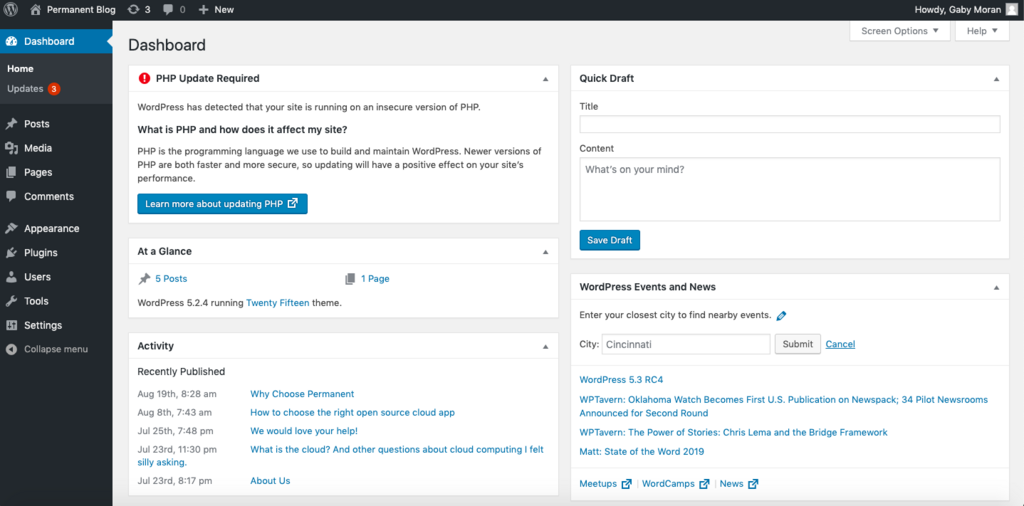
The dashboard has two main areas. On the left is the main navigation menu, which contains links to all the administrative screens. In the center is the main work area, where you'll see different options and settings depending on which menu item you've selected. Spend a few minutes clicking around to get a feel for where things are.
Building with Content Posts vs Pages
In WordPress, you'll primarily add content using Posts and Pages. They might seem similar, but they have distinct purposes.
Posts are timely entries, like blog articles or news updates. They are listed in reverse chronological order on your site and can be tagged and categorized. Think of them as journal entries.
Pages are for static, timeless content. This is where you put your 'About Us', 'Contact', or 'Services' information. They aren't tied to a specific date and usually live in your site's main navigation menu.
| Feature | Posts | Pages |
|---|---|---|
| Purpose | Timely content (blogs, news) | Static content (About, Contact) |
| Organization | Categories & Tags | Parent/Child hierarchy |
| Display | Reverse chronological order | Standalone, in menus |
Creating either is simple. From the dashboard menu, you just click on 'Posts' or 'Pages' and then 'Add New'. This will open an editor where you can add your title, type your text, and insert images. It feels a lot like using a standard word processor.
Designing Your Site with Themes
A theme controls the entire visual design of your website. It's like a set of clothes for your content. Changing your theme instantly changes your site's layout, colors, and fonts without affecting the posts and pages you've already written.
WordPress’s true superpower lies in its ecosystem of themes (design) and plugins (functionality).
You can find thousands of free and paid themes in the official WordPress directory. To install one, navigate to Appearance > Themes in your dashboard and click 'Add New'. You can browse or search for a theme that fits your vision. Once you find one you like, you can install and activate it with a couple of clicks.
After activating a theme, you can often customize it. Go to Appearance > Customize to access the Theme Customizer. Here, you can change things like your site's title, upload a logo, and adjust color schemes to make the site truly your own.
Supercharging with Plugins
If themes are the clothes, plugins are the accessories and gadgets. Plugins are small pieces of software you can install to add new features and functionality to your WordPress site. There's a plugin for almost anything you can imagine.
Want to add a contact form? There's a plugin for that. Need to improve your site's search engine optimization (SEO)? There's a plugin for that. Want to add social media sharing buttons? You guessed it, there's a plugin for that too.
Just like themes, there is a massive library of free and premium plugins available. You can add them by going to the Plugins > Add New section in your dashboard. You can search for the functionality you need, install the plugin, and then activate it.
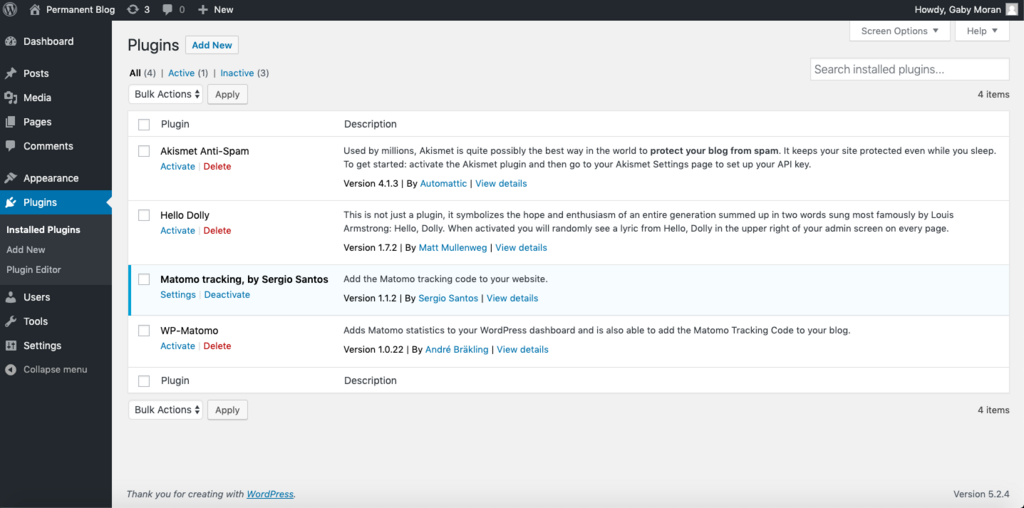
Plugins are incredibly powerful, but it's wise to be selective. Only install plugins from reputable sources and try to keep the number of active plugins to a minimum to ensure your site runs smoothly and securely.
What is the primary purpose of a Content Management System (CMS) like WordPress?
In WordPress, 'Posts' are typically used for timely content like blog articles, while 'Pages' are used for static content like an 'About Us' page.
With these basics, you have a solid foundation for building almost any kind of website with WordPress. You know your way around the dashboard and can now create content, shape its design, and extend its functionality.