Microsoft Teams Essentials for Beginners
Introduction to Microsoft Teams
Your Team's Central Hub
Think about a typical project. You have email chains for major decisions, a separate app for quick chats, and files stored in yet another location. It gets messy fast. Finding that one specific attachment or conversation can feel like a treasure hunt.
Microsoft Teams is designed to solve this problem. It pulls all your team's conversations, files, meetings, and apps into a single, shared workspace. Instead of jumping between different tools, everything you need is organized in one place, making collaboration smoother and more efficient.
Microsoft Teams is a digital hub that brings conversations, meetings, files, and apps together in one place.
This integration means less time searching and more time doing. When a file is shared in a chat, it doesn't get lost in an inbox; it lives alongside the conversation, easy for anyone in the group to find and access later.
Core Features
Teams is built around a few key functions that handle the most common parts of teamwork. Let's look at the main ones.

Chat and Conversations This is the foundation of Teams. You can have one-on-one chats with a colleague or create group chats for specific projects or topics. Unlike email, these conversations are quick, informal, and easy to follow. You can use @mentions to get someone's attention, react to messages with emojis, and share GIFs to keep things lively.
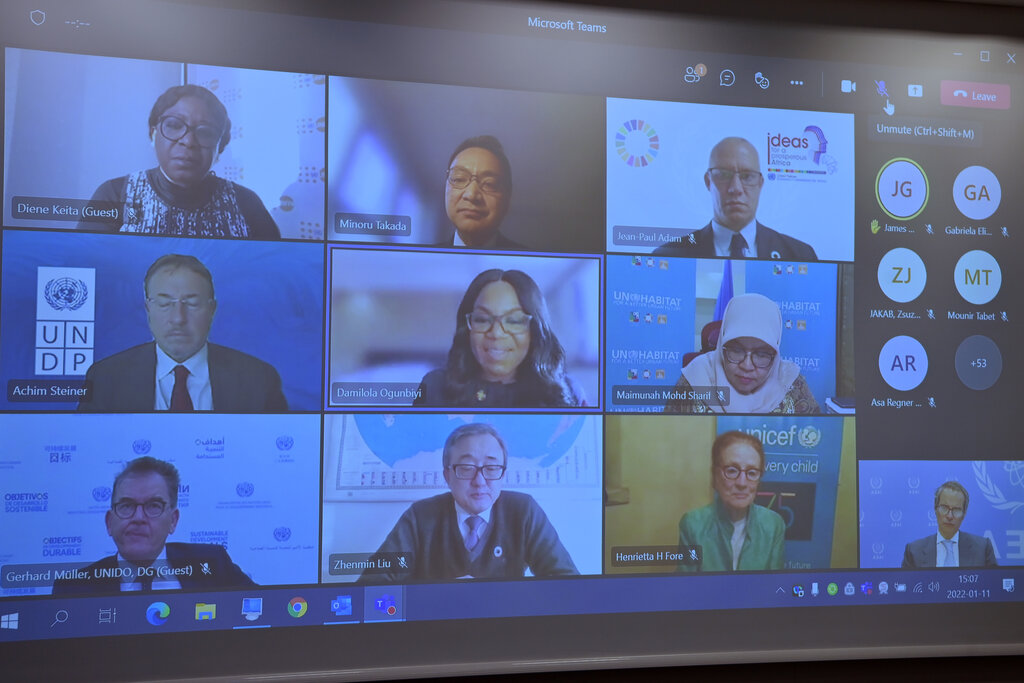
Meetings and Calls Teams is a powerful tool for video conferencing. You can schedule meetings, host impromptu video calls, or simply make a voice call. Standard features like screen sharing, background blur, and recording are all built-in. This makes it easy to connect face-to-face with colleagues, whether they're in the next office or across the globe.
File Storage and Collaboration Every time you share a file in a chat or a team channel, it's automatically saved to a cloud storage location connected to that conversation (either OneDrive or SharePoint). This means your files are organized by context. Better yet, Teams is integrated with Microsoft 365 apps. You can open a Word, Excel, or PowerPoint file directly within Teams and edit it with your colleagues in real time. No more emailing different versions back and forth.
Changes are saved automatically as you work, and everyone sees the latest version of the document.
Accessing Teams
One of the biggest benefits of Teams is its availability. You can access it from virtually anywhere, ensuring you stay connected to your work and your colleagues. There are three primary ways to use Teams:
| Platform | Best For | Key Characteristic |
|---|---|---|
| Desktop App | Daily, intensive use | Full-featured experience with the best performance. |
| Web App | Quick access on any computer | Runs in your browser with no installation needed. |
| Mobile App | On-the-go communication | Stay connected and join meetings from your phone or tablet. |
Your chats and files are synced across all devices, so you can start a conversation on your laptop and finish it on your phone without missing a beat.
A Quick Tour of the Interface
When you first open Teams, the layout is straightforward. The main navigation happens on the left-hand side using a menu called the App bar. This is your primary way to move between different sections.
Here’s what the main icons on the App bar mean:
- Activity: Your notification feed. It shows @mentions, replies to your conversations, and other updates.
- Chat: This is where your one-on-one and group chats live.
- Teams: If you're part of larger teams, this section organizes them into channels based on specific topics or projects.
- Calendar: Your meeting schedule, which syncs with your Outlook calendar.
- Calls: For making voice or video calls directly.
- Files: A quick way to see recent files you've worked on across all your chats and teams.
When you click an icon on the App bar, the pane next to it will show a list (like your recent chats), and the main area of the screen will display the content of whatever you've selected.
What is the primary problem Microsoft Teams is designed to solve?
In a busy group chat within Teams, what is the most effective way to ensure a specific colleague sees your message?
Getting comfortable with this basic layout is the first step to making the most of the platform. By keeping everything in one place, Teams helps streamline your workflow and keep everyone in sync.