Microsoft Excel Fundamentals
Excel Interface
The Excel Workspace
When you first open Excel, you're looking at a workbook. Think of it as a digital notebook. Each workbook contains one or more worksheets, which you can see as tabs at the bottom of the screen. By default, you start with one sheet, but you can add more.
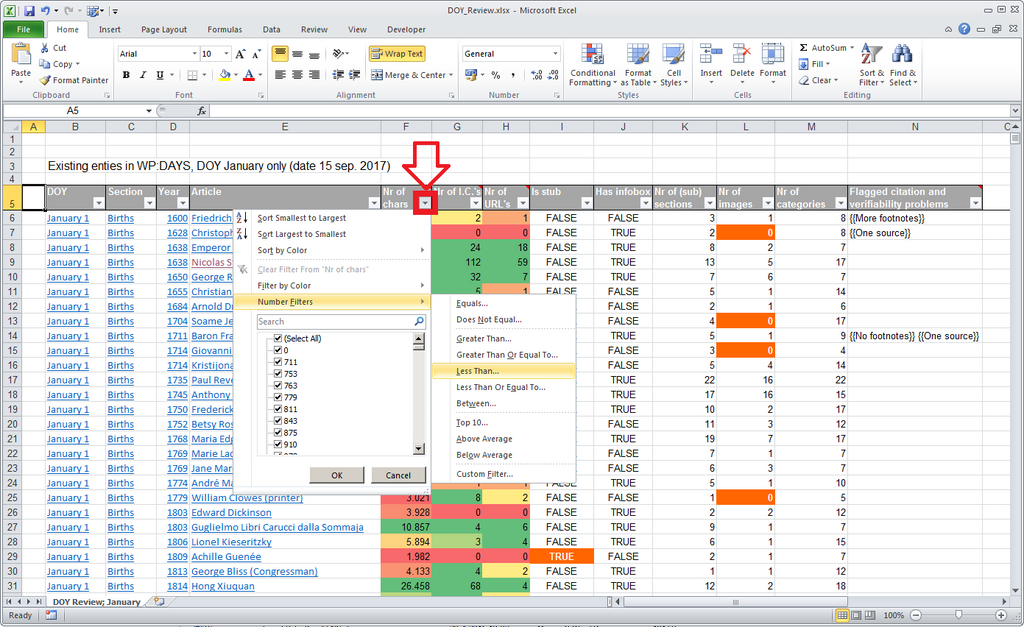
The main area of the worksheet is a grid of small boxes called cells. This is where you'll enter your data, like text, numbers, and formulas. Above the grid, you'll find the primary tools for working with your data.
The Ribbon and Toolbars
At the top of the Excel window is the Ribbon. It's a wide band that contains nearly all the commands you'll need. The Ribbon is organized into several tabs, such as Home, Insert, Page Layout, and Data. Clicking a tab reveals a new set of tools.
Each tab is further divided into groups of related commands. For example, on the Home tab, you'll find the Font group, which has buttons for making text bold, changing its size, or applying color. This setup keeps the interface organized and prevents it from feeling cluttered.
Above the Ribbon, in the very top-left corner, is the Quick Access Toolbar. This is a small, customizable toolbar that stays visible no matter which Ribbon tab you're on. By default, it holds commands like Save, Undo, and Redo. You can add your favorite, most-used commands here for easy access.
The Worksheet Grid
The worksheet itself is a grid made of columns and rows. Columns run vertically and are identified by letters (A, B, C...). Rows run horizontally and are identified by numbers (1, 2, 3...). The intersection of a column and a row is a single cell.
cell
noun
The basic box-like unit of an Excel worksheet, formed by the intersection of a column and a row, where data is entered.
Each cell has a unique address, or reference, formed by its column letter and row number. The cell in the top-left corner is A1. The cell to its right is B1, and the one below it is A2. This address system is crucial for creating formulas, which we'll cover later.
When you select a cell, its address appears in the Name Box, located just above the column headers. To the right of the Name Box is the Formula Bar. This bar displays the contents of the active cell. If you've typed a number, you'll see the number. If you've entered a formula, you'll see the formula itself, while the cell shows the result.
Every cell has a unique address, like a street address for your data. This helps Excel know exactly which value to use in a calculation.
Getting Around
Moving around a worksheet is simple. The easiest way is to use your mouse to click on any cell, which makes it the active cell. You can also use the arrow keys on your keyboard to move one cell at a time in any direction.
For bigger jumps, you can use a few handy keyboard shortcuts.
| Key(s) | Action |
|---|---|
| Arrow Keys | Move one cell up, down, left, or right |
| Page Up / Page Down | Move one full screen up or down |
| Ctrl + Arrow Key | Jump to the edge of the current data region |
| Ctrl + Home | Jump to cell A1 |
| Ctrl + End | Jump to the last cell containing data |
You'll also notice scroll bars on the right side and bottom of the worksheet. You can drag these with your mouse to move through large areas of your sheet quickly, which is especially useful when you have more data than can fit on the screen.
Ready to test your knowledge of the Excel interface?
What is the relationship between a workbook and a worksheet in Excel?
What is the unique address, or reference, for the cell at the intersection of column G and row 5?
Getting comfortable with the layout is the first step to mastering Excel. Once you know where to find your tools and how to navigate, you're ready to start working with data.