Microsoft Excel Essentials
Excel Basics
The Excel Workspace
When you open Microsoft Excel, you're looking at a workbook. Think of a workbook as a digital notebook, and inside, you have individual pages called worksheets. By default, you start with one worksheet, often named 'Sheet1'.
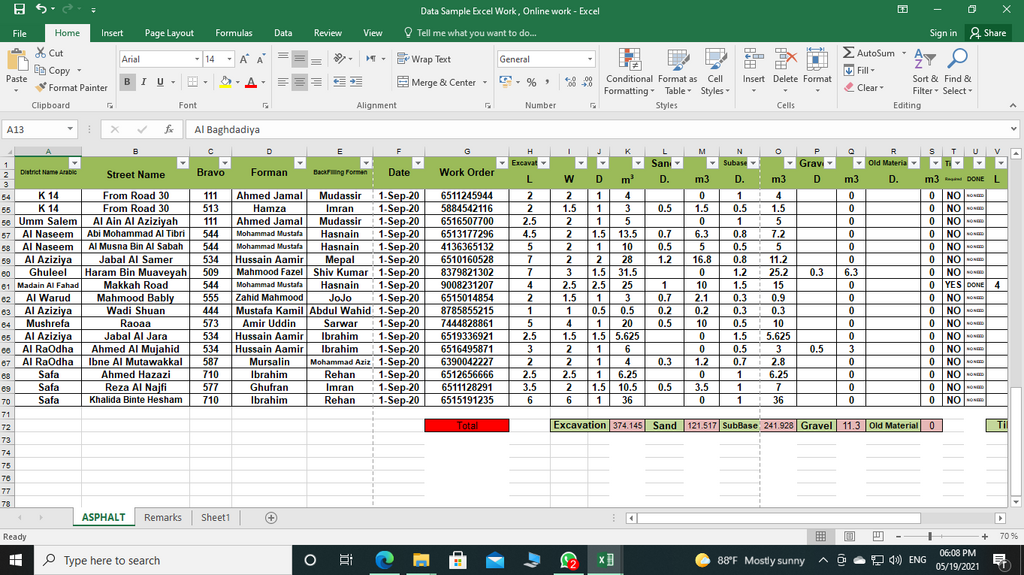
The main area is a grid of cells, organized into numbered rows and lettered columns. Each cell has a unique address, like A1, B2, or C15. This is where you'll enter your data.
Above the grid, you'll find the Ribbon, which is organized into tabs like 'Home,' 'Insert,' and 'Data.' Each tab contains groups of related commands. For now, we'll mostly use the 'Home' tab for basic formatting.
Just below the Ribbon is the Formula Bar. This bar shows the contents of the currently selected cell. It's also where you'll eventually write formulas, but for now, just know that it reflects whatever is in your active cell.
Moving Around
Navigating a worksheet is simple. You can click any cell to select it, making it the active cell. You can also use your keyboard's arrow keys to move one cell at a time in any direction.
To move more efficiently, you can use a few keyboard shortcuts. Pressing 'Enter' moves you down one cell, while 'Tab' moves you one cell to the right. Holding 'Shift' while pressing these keys reverses the direction ('Shift + Enter' moves up, 'Shift + Tab' moves left).
Your workbook can have multiple worksheets. To add a new sheet, click the plus (+) icon next to the existing sheet tabs at the bottom of the window. You can double-click a sheet's name to rename it.
| Key(s) | Action |
|---|---|
| Arrow Keys | Move one cell up, down, left, or right |
| Enter | Move one cell down |
| Tab | Move one cell right |
| Shift + Enter | Move one cell up |
| Shift + Tab | Move one cell left |
| Ctrl + Home | Go to cell A1 |
Entering and Formatting Data
To enter data, just click a cell and start typing. What you type appears in both the cell and the Formula Bar. Press 'Enter' when you're done.
Excel recognizes different types of data. You can type text, like 'January Sales,' or numbers, like '150'. You can also enter dates and times.
Once you have data in a cell, you can change how it looks. This is called formatting. Basic formatting options are in the 'Home' tab. You can make text bold, italicized, or underlined. You can also change the font color or add a background color to a cell to make it stand out.
Changing the format doesn't change the underlying data in the cell. For example, you can format a number to look like currency (e.g., $12.99) or a percentage (e.g., 50%), but the raw number itself remains the same in the Formula Bar.
Saving Your Work
It's important to save your workbook frequently. To save for the first time, go to the 'File' tab and select 'Save As.' This lets you choose a location on your computer and give your file a name. The standard Excel workbook format is .xlsx.
Once you've saved it, you can use the 'Save' command (or the shortcut Ctrl+S) to quickly save any changes you make. 'Save' updates the existing file, while 'Save As' is used to create a new copy with a different name or in a different location.
To open a workbook you've previously saved, go to 'File' and select 'Open,' then browse to find your file.
Let's review what we've covered.
In Microsoft Excel, what is the relationship between a workbook and a worksheet?
What is the primary function of the Formula Bar in Excel?
Getting comfortable with these basics is the first step. With this foundation, you're ready to explore more of what Excel can do.