Mastering Visual Studio Code
Installation and Setup
Your First Setup
Before you can write code, you need a place to write it. Think of a code editor as a specialized word processor for programming. It helps you write, organize, and manage your code with features like syntax highlighting and autocompletion. Visual Studio Code, or VS Code, is a popular, free code editor made by Microsoft that works on all major operating systems.
Download and Install
First, you'll need to download the correct installer for your system. Head over to the official Visual Studio Code website. The site should automatically detect your operating system and suggest the right download for you.
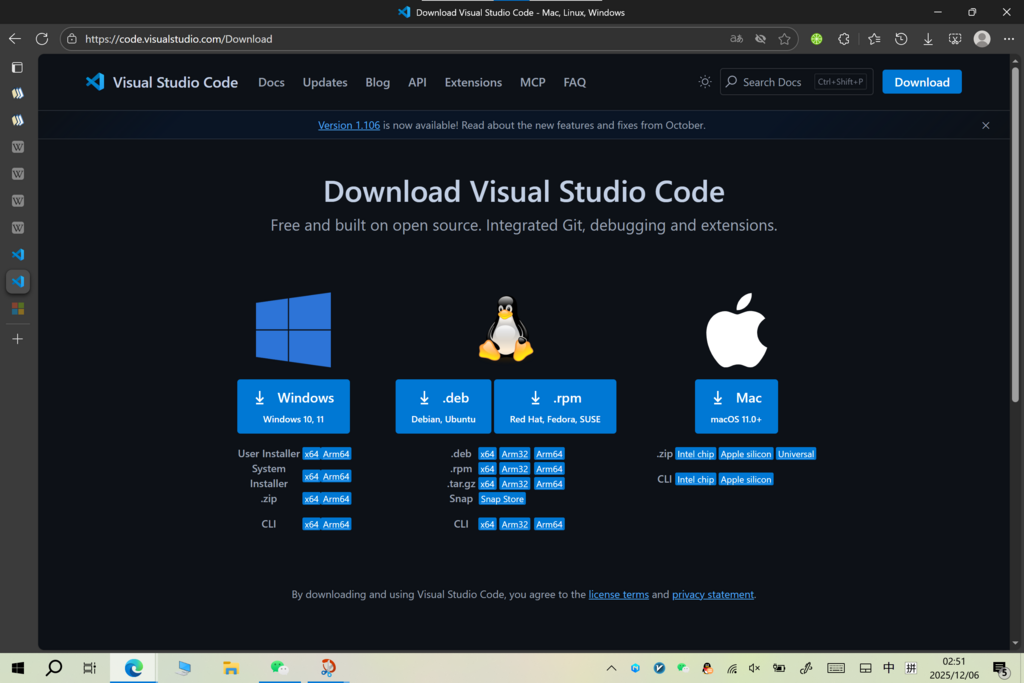
Once the download is complete, the installation process is straightforward.
- Windows: Run the installer. Accept the license agreement and follow the prompts. During the setup, make sure to check the box that says "Add to PATH." This lets you open VS Code from your command line.
- macOS: Open the downloaded
.zipfile. This will extract the Visual Studio Code application. Drag this application into your "Applications" folder. - Linux: Download the
.debpackage for Debian/Ubuntu or the.rpmpackage for Fedora/Red Hat. You can typically install it by double-clicking the file or using your distribution's package manager.
On Windows, adding VS Code to your PATH is a key step. It allows you to simply type
code .in a terminal to open your current project folder directly in the editor.
The Welcome Screen
When you open VS Code for the first time, you’ll be greeted by the Welcome screen. This screen is your starting point and provides quick access to common tasks.
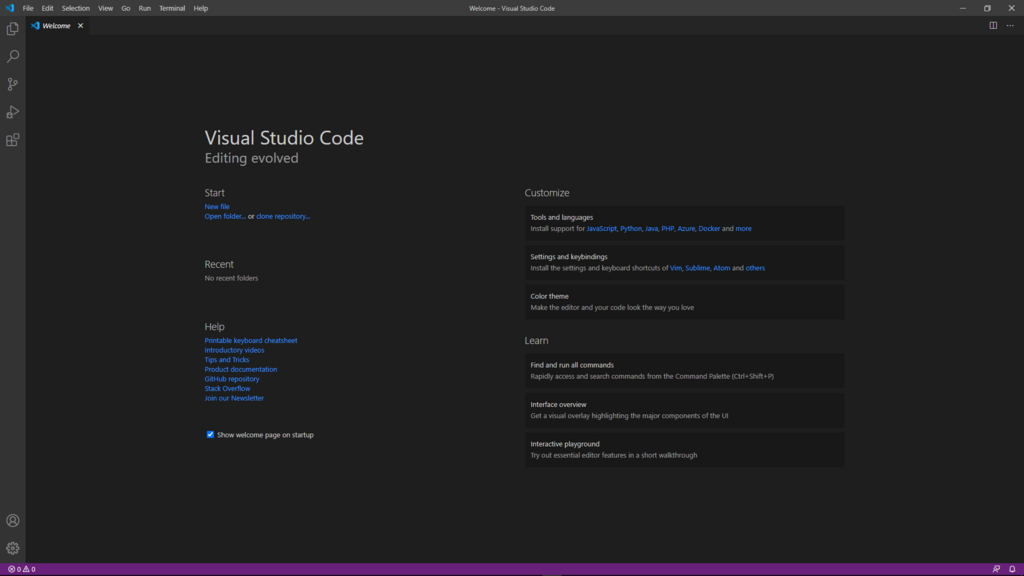
You'll see a few main sections here. The "Start" area lets you create a new file, open an existing file, or open an entire project folder. The "Recent" section will show a list of folders you've worked on before, which is handy for jumping back into a project.
VS Code might also prompt you to pick a color theme, like light or dark. This is one of the first and easiest ways to personalize your editor. For now, you can explore the Welcome screen links or simply close it to get a clean view of the editor.
Now that you have VS Code installed and have seen the welcome screen, let's test your understanding.
What is the primary function of a code editor like Visual Studio Code?
During the VS Code installation on Windows, which option is crucial for enabling you to launch the editor from the command line?
With the setup complete, you're ready to start exploring the editor's features.