Mastering the Cursor IDE
Introduction to Cursor IDE
What is Cursor?
Before we dive into Cursor, let's talk about what a code editor is. Think of it as a specialized word processor for writing code. An Integrated Development Environment, or IDE, takes this a step further. It bundles a code editor with other essential tools, like a debugger for finding errors and automation tools for building your software.
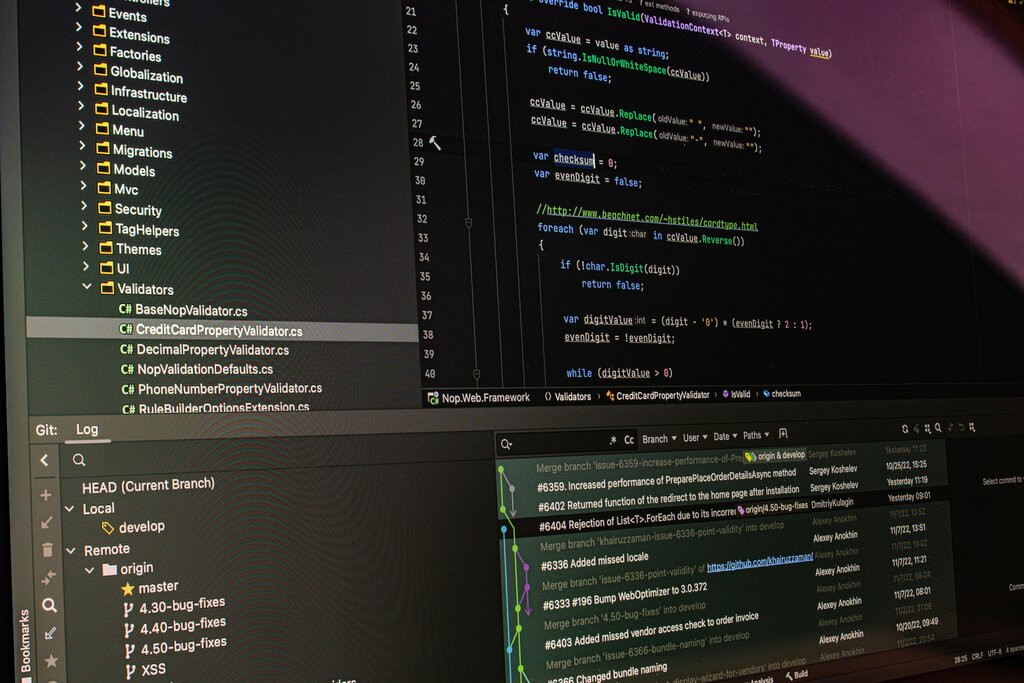
Cursor is an AI-first IDE. This means it's designed from the ground up to integrate artificial intelligence into your coding workflow. Its goal is to make you more productive by helping you write, understand, and debug code faster.
If you've ever used Visual Studio Code (VS Code), one of the most popular code editors, then Cursor will look very familiar. That's because Cursor is a "fork" of VS Code. It takes all the open-source code that makes VS Code great and builds powerful AI features directly on top of it.
Cursor is an AI-powered code editor built on VS Code. But it's not just another code assistant - it's like having a senior developer sitting next to you 24/7.
This approach gives you the best of both worlds. You get the robust, familiar environment of VS Code, including support for its vast library of extensions and themes, combined with AI that's deeply integrated into the editor, not just bolted on as an afterthought.
Installation and Setup
Getting started with Cursor is straightforward. The process is similar to installing any other application on your computer.
First, head over to the official Cursor website. The site will automatically detect your operating system and suggest the correct download. Simply click the download button to get the installer file. Once the download is complete, open the file and follow the on-screen instructions.
- On Windows, you'll run the
.exeinstaller. - On macOS, you'll drag the Cursor app into your Applications folder.
- On Linux, you may have a few options, like an AppImage or a
.debfile for Debian-based systems like Ubuntu.
Navigating the Interface
When you first open Cursor, you'll be greeted by a clean, modern interface. Because it's based on VS Code, the layout is intuitive for anyone who has done a bit of programming before. Let's break down the main areas.
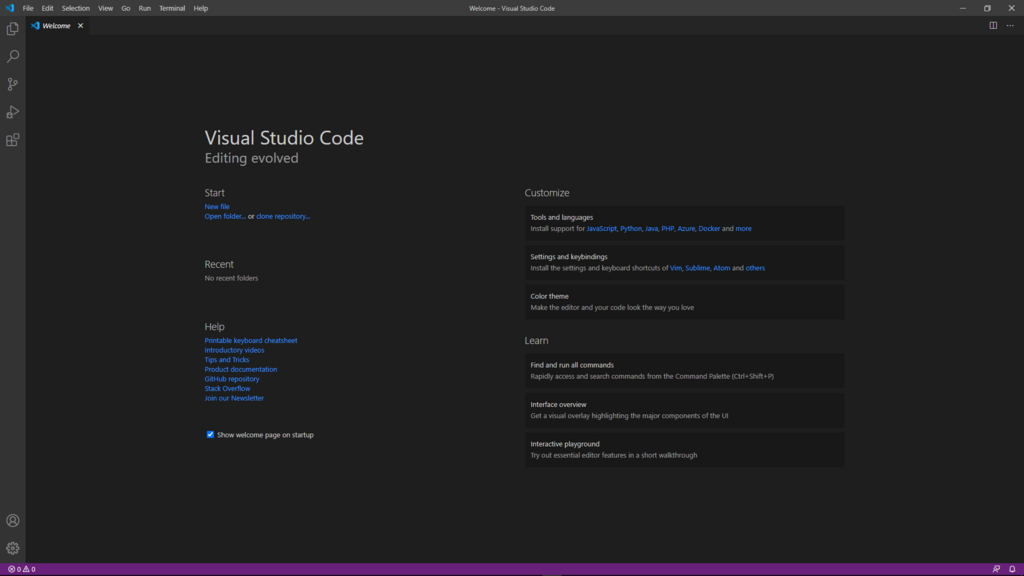
The interface is divided into a few key regions:
- Editor: The largest area in the center is where you'll write and edit your code.
- Side Bar: On the left, you have the main navigation area. The default view here is the File Explorer, which shows all the files and folders in your project.
- Activity Bar: The thin vertical bar on the far left contains icons to switch between different views in the Side Bar, such as the File Explorer, Search, and Source Control.
- Panel: At the bottom, you can open a panel that typically houses your terminal, debug console, and output windows. This is where you can run commands and see messages from your programs.
The main difference you'll notice in Cursor is the integration of AI chat and other intelligent features, which we'll explore in the next section. For now, just get comfortable with the basic layout.
What distinguishes an Integrated Development Environment (IDE) from a basic code editor?
How is Cursor related to Visual Studio Code (VS Code)?
Now that you have Cursor installed and are familiar with its interface, you're ready to start exploring its powerful AI capabilities.