Mastering Neovim
Introduction to Neovim
What is Neovim?
Neovim is a powerful text editor that grew out of a classic tool called Vim. Think of it as a modern reimagining of Vim, designed for today's developers. It was created to refactor Vim's codebase, making it easier to maintain and extend with new features.
At its core, Neovim keeps the thing that made Vim famous: modal editing. Instead of constantly reaching for your mouse or holding down modifier keys like Ctrl or Alt, you switch between different 'modes' to perform tasks. This might sound strange at first, but it can make you incredibly fast and efficient once you get the hang of it.
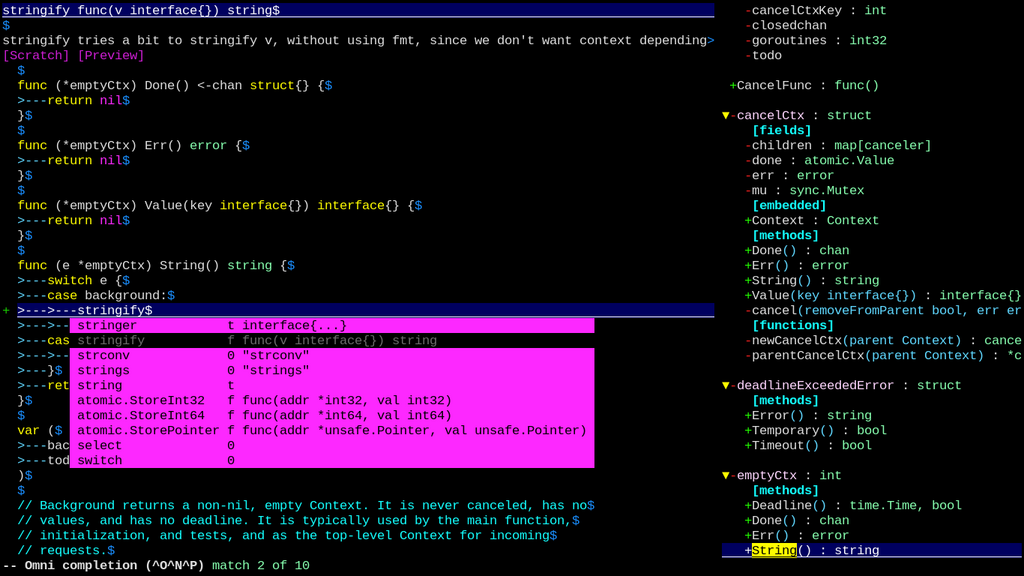
Why Choose Neovim?
While Neovim shares its DNA with Vim, it brings several key improvements. It offers better out-of-the-box settings, making it more approachable for newcomers. Its architecture is designed for better integration with modern programming tools, and it has a very active development community that is constantly pushing it forward.
| Feature | Vim | Neovim |
|---|---|---|
| Extensibility | Uses an older, single-threaded plugin system (Vimscript). | Has a modern API, allowing plugins in many languages (like Lua). |
| Defaults | Requires significant configuration to feel modern. | Comes with more sensible defaults, like better color support. |
| Development | Slower, more conservative development cycle. | Faster, community-driven development with more frequent updates. |
| Terminal | Lacks a built-in terminal emulator. | Includes a fully-featured, built-in terminal emulator. |
Installation
Installing Neovim is straightforward on most operating systems. Open your terminal and use the package manager for your system.
On macOS, using Homebrew:
brew install neovim
On Debian/Ubuntu, using APT:
sudo apt-get install neovim
On Windows, using Winget:
winget install Neovim.Neovim
Once installed, you can start it by typing nvim in your terminal. You'll be greeted by the default Neovim screen.
The Neovim Way
The most important concept in Neovim is its modal interface. You're always in one of several modes. Let's look at the three most common ones.
Normal Mode: This is the default mode you start in. You don't type text here. Instead, you use keyboard keys to navigate and manipulate text. For example, j moves the cursor down, k moves it up, h moves left, and l moves right. Pressing x deletes the character under the cursor, and pressing dd deletes the entire line.
Insert Mode: This is for typing text, like in a normal editor. You can enter Insert Mode from Normal Mode by pressing i (to insert before the cursor) or a (to append after the cursor). To get back to Normal Mode, you press the Esc key.
Visual Mode: This mode is for selecting text. From Normal Mode, press v to start visual selection. You can then move the cursor to highlight text. Once selected, you can perform actions on it, like deleting it with d.
The journey of a thousand edits begins with a single key press. Normal mode is your command center, and
Escis your reliable way to return to it.
Finally, to save your work and quit, you'll need to be in Normal Mode. Type :wq and press Enter. The colon (:) opens a command-line area at the bottom of the screen, w stands for write (save), and q stands for quit. If you want to quit without saving, use :q!.
This is just the beginning. The real power of Neovim comes from combining these simple commands to perform complex edits with just a few keystrokes.
What is the core philosophy that distinguishes Neovim's editing model from most traditional text editors?
You are in Normal Mode and want to delete the entire line the cursor is currently on. Which command would you use?