Mastering C# Programming
Introduction to C#
Meet C# and .NET
C# (pronounced “C Sharp”) is a programming language created by Microsoft. Think of it as a set of vocabulary and grammar rules for giving instructions to a computer. It's known for being powerful yet relatively straightforward to learn, making it a popular choice for everything from web applications and video games to business software.
C# doesn't work in isolation. It runs on a platform called the .NET framework. If C# is the set of blueprints for a house, .NET is the construction crew and all the tools they use to actually build it. The framework provides a massive library of pre-written code that handles common tasks, so you don't have to build everything from scratch.
This means you can focus on the unique parts of your application while .NET takes care of the underlying plumbing. This combination makes C# a versatile language for building robust and secure applications.
Setting Up Your Workspace
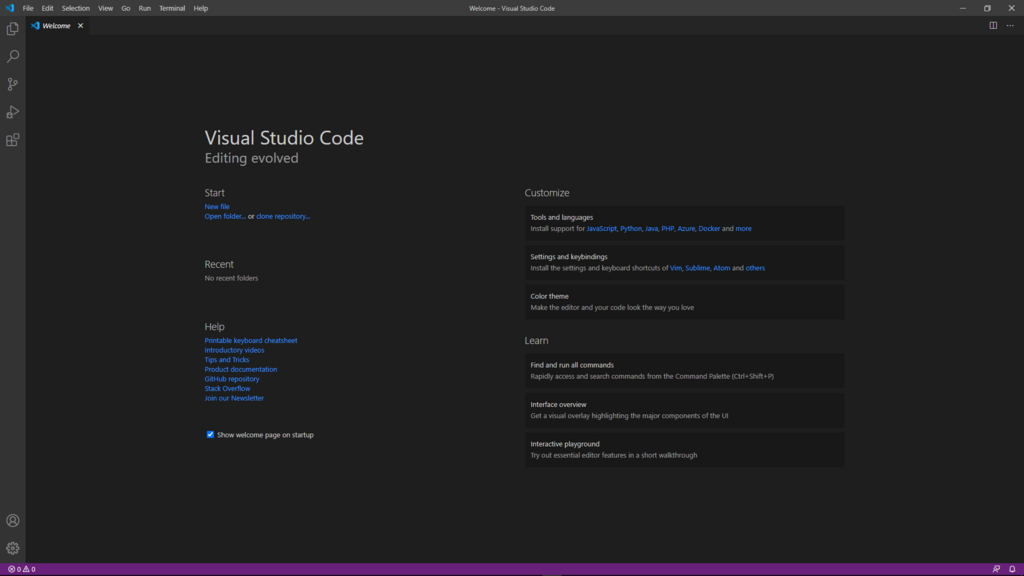
To write code, you need a special kind of text editor. We'll use Visual Studio Code, or VS Code for short. It's a free, popular code editor from Microsoft that works on Windows, macOS, and Linux. You can download it directly from its official website.
Once VS Code is installed, you need to teach it how to understand C#. By default, it's a general-purpose editor. You add capabilities by installing extensions. For C#, the main extension you'll need is the C# Dev Kit.
Installing it is simple:
- Open VS Code.
- Look for the icon with stacked squares on the left-hand side toolbar. This is the Extensions view.
- In the search bar at the top of the Extensions view, type
C# Dev Kit. - Find the official extension from Microsoft and click the
Installbutton. This will also install a few other required extensions for you automatically.
With your environment set up, you have everything you need to start writing and running C# code.
Your First Program
It's a long-standing tradition in programming to make your first program display the text "Hello, World!". This simple task confirms that your setup is working correctly and gives you a first taste of the language's syntax.
First, create a folder for your project. Then, open that folder in VS Code. Use the integrated terminal in VS Code (you can open it via View > Terminal) to create a new console application. Type the following command and press Enter:
dotnet new console
This command uses the .NET tools to create a new project with a file named Program.cs. The .cs extension stands for C Sharp. Open that file. It will contain some starter code. Replace its contents with this:
// A basic C# program to display text
Console.WriteLine("Hello, World!");
Let's break this down. Console is an object that represents the terminal window. WriteLine is a method (a command or action) that writes a line of text to that console. The text you want to display goes inside the parentheses and is wrapped in double quotes. Every C# statement must end with a semicolon ;.
To run your program, go back to the terminal and type:
dotnet run
The .NET tool will compile your code into instructions the computer can understand and then execute it. You should see Hello, World! printed in your terminal.
What is the primary role of the .NET framework in relation to the C# language?
To enable full C# development capabilities within Visual Studio Code, what is the primary extension you should install?
Congratulations on writing your first C# program. You've set up your tools and learned how to write, run, and display output.