Mastering Bear App Workflow
Customizing Keyboard Shortcuts
Tailor Bear to Your Workflow
Keyboard shortcuts are the key to unlocking speed and efficiency in any app. While Bear comes with a comprehensive set of default shortcuts, true productivity comes from customization. By tailoring shortcuts to your personal workflow, you can make the app an extension of your own thinking process, minimizing clicks and keeping your hands on the keyboard.
Creating your own shortcuts allows you to map your most-used commands to key combinations that feel natural to you. This reduces friction and keeps you in the flow of writing and organizing your notes.
Learn the keyboard shortcuts—or customize your own—as soon as you can in order to adopt a smoother workflow.
How to Customize Shortcuts
Customizing Bear's shortcuts isn't done within the app itself. Instead, you'll use the built-in keyboard settings of your operating system. This method allows you to override or create shortcuts for any menu item in Bear.
On macOS, you'll find these settings in System Settings > Keyboard > Keyboard Shortcuts > App Shortcuts. On iOS and iPadOS, this is handled differently, often through more advanced keyboard settings or specific accessibility features.
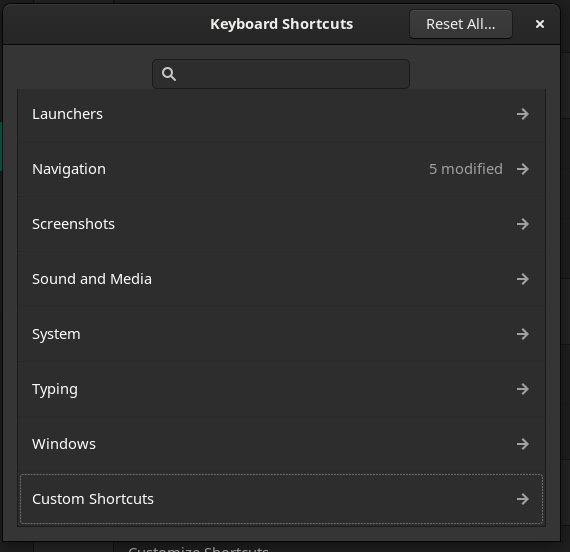
Let's walk through creating a custom shortcut on macOS. Imagine you frequently copy notes as HTML code and want a faster way to do it. The default menu path is Note > Copy as > HTML.
- Open
System Settingsand navigate toKeyboard > Keyboard Shortcuts. - Select
App Shortcutsfrom the list and click the+button. - In the
Applicationdropdown, selectBear.app. - For the
Menu Title, you must enter the command exactly as it appears in the Bear menu:HTML. - In the
Keyboard Shortcutfield, press the key combination you want to use, for example,Shift+Command+H. - Click
Done.
The Menu Title must be a perfect match. Pay close attention to capitalization, spacing, and any special characters like hyphens or ellipses (...).
Best Practices for Shortcuts
When creating your own shortcuts, a little planning goes a long way. The goal is to create a system that is intuitive and easy to remember.
Avoid Conflicts: Be careful not to override essential system-wide shortcuts (like Command+C for copy or Command+Q for quit) or other common Bear shortcuts you already use. If a shortcut doesn't work, it might already be in use by another app or the system.
Create a Logical System: Group related commands with similar shortcuts. For example, if you create shortcuts for different heading levels, you might use Command+Option+1 for H1, Command+Option+2 for H2, and so on. This makes them predictable and easier to commit to memory.
Start Small: You don't need to customize every command at once. Identify the three to five actions you perform most often that don't have a convenient default shortcut. Start with those, and expand your custom set as you become more comfortable.
Some useful Bear functions to consider for custom shortcuts include:
- Pinning or unpinning notes
- Merging notes
- Copying a note's unique identifier
- Exporting to specific formats like PDF or DOCX
- Applying specific tags
Where do you customize keyboard shortcuts for the Bear app on a Mac?
When creating a shortcut for the menu command Note > Copy as > HTML, what text must you enter in the 'Menu Title' field?
By investing a small amount of time in setting up custom shortcuts, you create a more efficient and personalized note-taking environment.