Linux and DevOps Essentials
Linux Basics
The Linux File System
Every Linux system organizes its files in a hierarchical directory structure. Think of it like a tree. The very top of the tree is the root directory, which is represented by a single forward slash (/). Every other file and folder on the system is located somewhere inside this root directory.
This structure is called the Filesystem Hierarchy Standard (FHS). It ensures that no matter what version of Linux you're using, you can generally expect to find files in the same places. For example, programs are in one place, user files in another, and configuration files in a third.
Here’s a quick rundown of what some of these directories hold:
/bin: Contains essential command-line programs, likelsandcd, which we'll see soon./etc: Holds system-wide configuration files. Think of it as the control panel for the whole system./home: This is where your personal files live. Each user gets their own directory inside/home./var: Stores variable data, like system logs. Files here are expected to grow and change.
Your First Commands
To navigate this file system, you'll use a program called the shell, or command-line interface (CLI). It's a powerful text-based way to interact with your computer. Don't worry, you only need to know a few commands to get started.
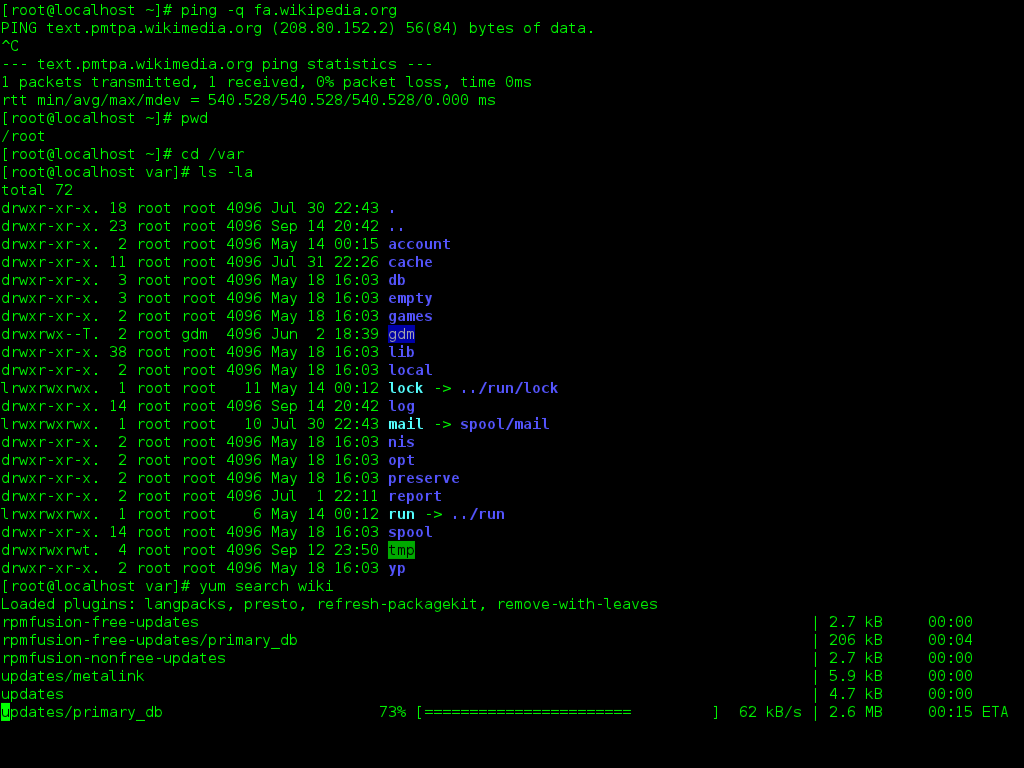
When you open a terminal, you are always inside a specific directory, called the present working directory. To find out where you are, use the pwd command.
# pwd stands for "print working directory"
pwd
This will likely output
/home/your_username.
To see what's inside your current directory, use the ls command, which stands for "list".
# List the contents of the current directory
ls
The most important navigation command is cd, or "change directory." This is how you move around the file system. Let's try moving to the root directory and listing its contents.
# Change directory to the root
cd /

# List the contents of the root directory
ls
You should now see the directories we talked about earlier, like bin, etc, and home. To get back to your home directory, you can type cd with no destination. It's a handy shortcut.
cd ..moves you up one level to the parent directory, whilecdby itself takes you back home.
Besides moving around, you can also create and manage files and directories. Here are a few essential commands:
| Command | Action | Example |
|---|---|---|
mkdir | Make a new directory | mkdir my_project |
touch | Create a new, empty file | touch notes.txt |
cp | Copy a file or directory | cp notes.txt notes_backup.txt |
mv | Move or rename a file or directory | mv notes.txt important_notes.txt |
rm | Remove a file | rm notes_backup.txt |
rmdir | Remove an empty directory | rmdir my_project |
Users and Permissions
Linux is a multi-user system, which means it's designed for multiple people to use the same computer without interfering with each other's files. This is managed through users, groups, and permissions.
Every file and directory on a Linux system is owned by a specific user and a specific group. Permissions define what the owner, the members of the group, and everyone else can do with that file.
To see this information, we use the ls command again, but with a -l flag for a "long" listing.
ls -l
The output will look something like this:
-rwxr--r-- 1 sam staff 1024 Oct 26 13:37 report.txt
It looks complicated, but it's easy to break down. The first part, -rwxr--r--, represents the file's permissions. The third and fourth columns show the user owner (sam) and the group owner (staff).
The first character indicates the file type. A
-means it's a regular file, and admeans it's a directory.
The next nine characters are the permissions, broken into three sets of three:
- User (Owner): The first set (
rwx) applies to the file's owner,sam. - Group: The second set (
r--) applies to members of thestaffgroup. - Other: The third set (
r--) applies to everyone else.
Each set consists of three possible permissions: read (r), write (w), and execute (x). If a permission is not granted, you'll see a dash (-).
| Permission | Meaning for a File | Meaning for a Directory |
|---|---|---|
r (read) | View the contents of the file. | List the contents of the directory. |
w (write) | Change the contents of the file. | Create, rename, or delete files within the directory. |
x (execute) | Run the file (if it's a program). | Enter the directory (i.e., cd into it). |
So, for our report.txt example, the owner sam can read, write, and execute it. Members of the staff group and all other users can only read it.
These fundamentals are the building blocks for working effectively on any Linux system. By knowing how the file system is laid out, how to move through it, and how permissions work, you have the foundation you need for more advanced tasks.
Time to check your understanding of these core concepts.
Which directory in a Linux system is primarily used for storing system-wide configuration files?
What is the primary purpose of the Filesystem Hierarchy Standard (FHS)?