JavaScript Fundamentals
Introduction to JavaScript
Making Webpages Come to Life
Think of a website as a person. HTML provides the basic structure, like a skeleton. CSS adds the style—the clothes, hair color, and so on. But what makes the person move, talk, and react? That's where JavaScript comes in.
JavaScript, often shortened to JS, is the programming language that brings interactivity to webpages. When you click a button that reveals a menu, see a photo gallery slideshow, or get live updates in a news feed, you're seeing JavaScript at work. It's the language of the browser, and it's what transforms static pages into dynamic, engaging experiences.
While it was born in the browser, JavaScript is now used everywhere—from servers (with Node.js) to mobile apps and even desktop software. It's a versatile, cross-platform language, which means code written in JavaScript can run on almost any device.
A Quick History
Back in 1995, the web was a very static place. A company called Netscape wanted to make its web browser, Netscape Navigator, more dynamic. They hired a programmer named Brendan Eich to create a new scripting language for it. He famously developed the first version in just ten days.
The language was first called Mocha, then LiveScript, and finally, in a marketing move to capitalize on the popularity of another language called Java, it was renamed JavaScript. Despite the name, JavaScript and Java are completely different languages.
To ensure that JavaScript worked consistently across different browsers, the language was standardized. This standard is called ECMAScript. When you hear people talk about new versions like ES6 or ES2020, they're referring to updates to the official ECMAScript standard that introduce new features to JavaScript.
Setting Up Your Workspace
Getting started with JavaScript is surprisingly simple. You don't need any complex software. In fact, you already have the most important tool: your web browser.
Here’s all you need:
- A modern web browser: Chrome, Firefox, Safari, or Edge will do. They all come with built-in developer tools that let you run and test your JavaScript code.
- A text editor: While you could use a basic program like Notepad or TextEdit, a code editor will make your life much easier with features like syntax highlighting and autocompletion. Popular free options include Visual Studio Code, Atom, and Sublime Text.
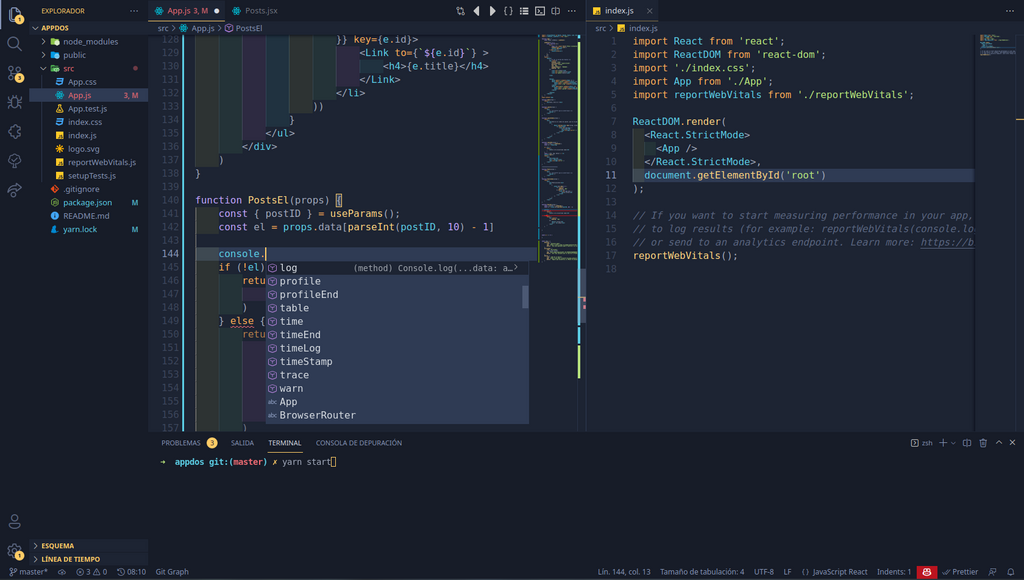
That's it. Once you have a browser and a text editor, you're ready to start writing code.
Your First JavaScript Program
Let's create a simple webpage that uses JavaScript to print a message. First, we need an HTML file. Open your text editor and create a new file named index.html. Add the following code to it.
<!DOCTYPE html>
<html lang="en">
<head>
    <meta charset="UTF-8">
    <title>My First JS Page</title>
</head>
<body>
    <h1>Welcome to My Page!</h1>

    <!-- JavaScript will go here -->

</body>
</html>
JavaScript can be added to an HTML page in two ways: directly inside the HTML file using <script> tags, or by linking to an external file.
For our first program, we'll place the code directly in the HTML. Add the following lines just before the closing </body> tag.
<script>
    console.log("Hello, browser!");
</script>
The console.log() command is a fundamental tool for any JavaScript developer. It prints messages to the browser's developer console, a special panel where you can see errors and other information from your code.
Now, save your index.html file. Find it on your computer and open it with your web browser. You'll see the heading "Welcome to My Page!" but nothing else. Where's our message?
To see it, you need to open the developer console:
- In Chrome or Firefox: Right-click anywhere on the page and select "Inspect," then click the "Console" tab.
- In Safari: You may first need to enable the Develop menu in Safari's preferences (Advanced > Show Develop menu in menu bar). Then, right-click and choose "Inspect Element" and go to the Console tab.
You should see the message "Hello, browser!" printed in the console. Congratulations, you've just run your first JavaScript program!
As your code gets more complex, it's better to keep it in a separate file. Let's try that. Create a new file in the same folder and name it app.js. Add this single line of code to it:
alert("This is an alert from an external file!");
Now, go back to your index.html file. Remove the <script> block you added earlier and replace it with this line, which links to your new JavaScript file.
<script src="app.js"></script>
Save both files and refresh index.html in your browser. This time, you should see a pop-up box with your message. The alert() function is a simple way to display information directly to the user.
And that's the basic setup. You now know how to create a simple webpage and run JavaScript code within it.
Time to check your understanding of these core ideas.
What is the primary role of JavaScript in web development?
The official standard for the JavaScript language is known as ________.