Java Programming Fundamentals
Setting Up Java
Get Your Tools Ready
Before you can write and run Java applications, you need to set up your development environment. This involves two key components: the Java Development Kit (JDK), which provides the compiler and runtime tools, and an Integrated Development Environment (IDE), a specialized editor that makes coding more efficient.
Installing the Java Development Kit
The JDK is the core package you need for Java development. It includes the Java Virtual Machine (JVM) for running compiled code, the Java Runtime Environment (JRE) which provides standard libraries, and the Java compiler (javac) for turning your source code into bytecode.
You can download the JDK from several providers. Oracle and the OpenJDK community are the most common sources. For most new projects, downloading the latest Long-Term Support (LTS) version is a safe bet, as it offers stability and extended maintenance.
Make sure you download the correct version for your operating system (Windows, macOS, or Linux) and system architecture (x64 or ARM64).
Your Workspace: The IDE
While you can write Java in a simple text editor and compile it from the command line, an IDE makes the process much smoother. It combines a powerful code editor with tools for debugging, project management, and automated builds.
Popular choices for Java development include:
- IntelliJ IDEA: Known for its intelligent code completion and robust refactoring tools. The Community Edition is free and powerful enough for most needs.
- Eclipse: A long-standing, open-source IDE with a massive ecosystem of plugins.
- Visual Studio Code: A lightweight but highly extensible code editor. With the right extensions, like the 'Extension Pack for Java', it becomes a full-featured Java IDE.
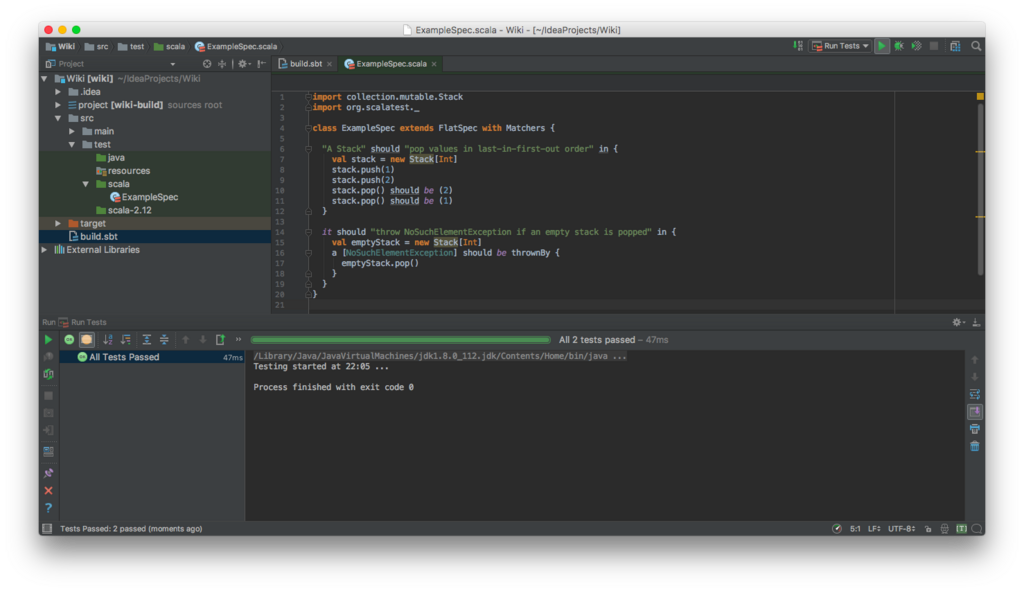
After installing your chosen IDE, you'll typically need to point it to your JDK installation. Most modern IDEs will detect installed JDKs automatically, but you can usually configure this path in the project or global settings if needed.
Configure Environment Variables
Setting environment variables tells your operating system where to find the Java compiler and other tools. This allows you to run Java commands, like java and javac, directly from your terminal or command prompt. The two most important variables are JAVA_HOME and PATH.
JAVA_HOME: Points to the root directory of your JDK installation.PATH: Includes thebindirectory from your JDK, making the command-line tools universally accessible.
Here’s how to set them up on different operating systems. The exact path will depend on where you installed the JDK and which version you are using.
For Windows
You can set these variables through the 'Environment Variables' dialog in the System Properties, or you can run these commands in an administrator Command Prompt. Remember to restart your terminal for the changes to take effect.
:::
# This path is an example. Use the actual path to your JDK installation.
setx JAVA_HOME "C:\Program Files\Java\jdk-17"

# The %JAVA_HOME% variable is expanded by the shell
setx PATH "%PATH%;%JAVA_HOME%\bin"
:::
For macOS and Linux
On Unix-like systems, you typically add these commands to your shell's configuration file, such as ~/.zshrc for Zsh (the default on modern macOS) or ~/.bashrc for Bash. After editing the file, load the new configuration by running source ~/.zshrc or opening a new terminal window.
:::
# This path is an example. Use the actual path to your JDK installation.
export JAVA_HOME=/Library/Java/JavaVirtualMachines/jdk-17.jdk/Contents/Home

# Add the JDK's bin directory to the system PATH
export PATH="$JAVA_HOME/bin:$PATH"
:::
Once configured, you can verify the installation by opening a new terminal and running java --version and javac --version. Both commands should execute and display the version of your newly installed JDK.
What is the primary purpose of the Java Development Kit (JDK)?
Which component is responsible for executing compiled Java bytecode?
With your environment set up, you are now ready to start creating Java applications.