Java Programming: From Setup to Advanced Concepts
Setting Up Java in VS Code
Get the Java Development Kit
Before you can write a single line of Java, you need the right tools. The most important one is the Java Development Kit, or JDK. Think of it as the engine for Java. It contains a compiler, which turns your human-readable code into instructions the computer understands, and a runtime environment to actually execute those instructions.
You can download the JDK from various providers, but a great place to start is Adoptium, which offers free, ready-to-use OpenJDK builds. Head to their website and download the latest stable version for your operating system. The installation is usually straightforward. Just run the installer and follow the on-screen prompts.
Once installed, the JDK gives you everything needed to compile and run Java applications from the command line, but a good code editor makes the process much smoother.
Configure VS Code
Visual Studio Code, or VS Code, is a lightweight but powerful code editor. By itself, it doesn't know much about Java. We need to teach it the language by installing extensions.
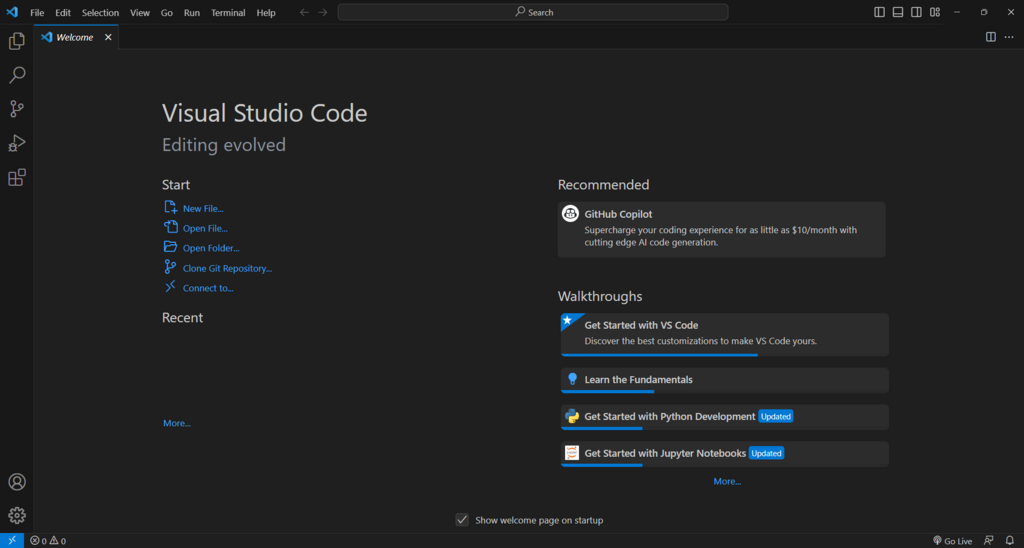
The easiest way to get everything you need is by installing the Extension Pack for Java from Microsoft. Open VS Code, click the Extensions icon on the left sidebar (it looks like four squares), and search for "Extension Pack for Java". Click install.
This single download bundles several essential tools:
- Language Support for Java™ by Red Hat: Provides code completion, error checking, and navigation.
- Debugger for Java: Lets you pause your program to find and fix bugs.
- Test Runner for Java: Helps you run unit tests to ensure your code works correctly.
Write and Run Your First Program
With the JDK and extensions installed, you're ready to code. Let's create a simple "Hello, World!" program to make sure everything works.
First, create a new folder for your project. Open this folder in VS Code. Then, create a new file named HelloWorld.java. The name of the file is important in Java; it must match the name of the class inside it.
public class HelloWorld {
    public static void main(String[] args) {
        // This line prints "Hello, World!" to the console.
        System.out.println("Hello, World!");
    }
}
Let's quickly break down this code:
public class HelloWorlddefines a class, which is a blueprint for objects in Java. All Java code lives inside a class.public static void main(String[] args)is the main entry point of the program. When you run this file, the code inside this method is the first thing that executes.System.out.println("Hello, World!");is the instruction that prints the text inside the parentheses to the console.
Thanks to the extensions you installed, you should see a small "Run" button appear just above the main method. Click it. The terminal panel will open at the bottom of your screen, and you should see the output: Hello, World!
If you see the output, your Java development environment is set up and ready to go.
Now, let's test your knowledge of the setup process.
What is the primary role of the Java Development Kit (JDK)?
According to the provided text, what is the easiest way to get all the necessary Java tools for Visual Studio Code?
You've successfully configured your machine for Java development. You're now equipped to start building more complex applications.