Introduction to Python Programming
Python Setup
Getting Python Running
Before you can start programming, you need to install Python on your computer. The best place to get it is from the official source, python.org. Head to their downloads page and grab the latest stable version for your operating system, whether it's Windows, macOS, or Linux.

The installation process is typically straightforward. On Windows and macOS, a graphical installer will guide you through the steps. A crucial step on Windows is to check the box that says "Add Python to PATH." This allows you to run Python from any directory in your command prompt.
Once the installation is complete, you can verify that it worked. Open your terminal (on macOS/Linux) or Command Prompt (on Windows) and type one of the following commands.
python --version
# or, on some systems:
python3 --version
If you see a version number like Python 3.12.0, you're all set. Python is successfully installed.
Your Coding Workspace
You can write Python code in any plain text editor, but most developers use an Integrated Development Environment (IDE). An IDE is a software application that provides comprehensive facilities for software development. Think of it as a word processor specifically for code, with features that help you write, test, and debug your programs more efficiently.
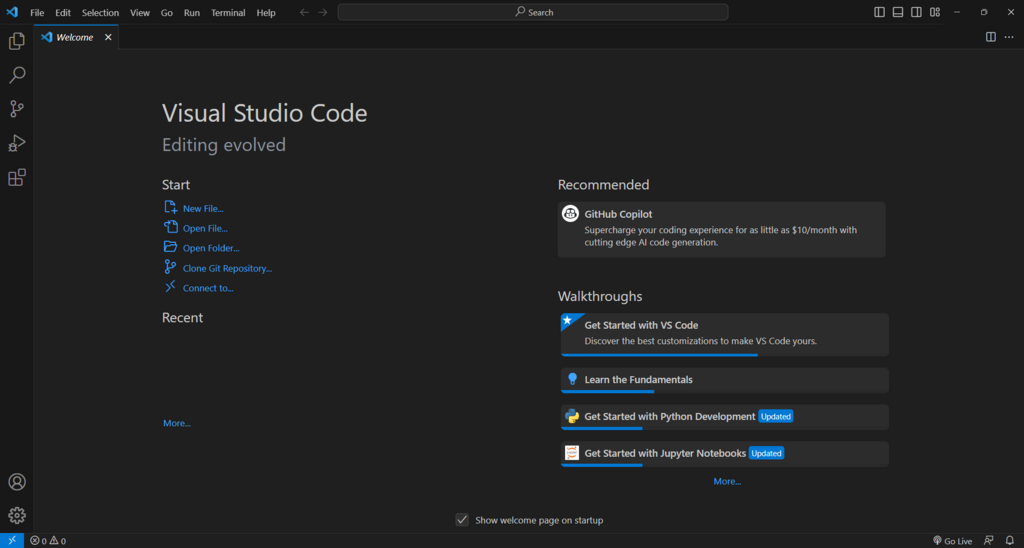
There are many great IDEs to choose from. Some popular options for Python include:
- Visual Studio Code (VS Code): A lightweight but powerful and highly extensible editor from Microsoft.
- PyCharm: A feature-rich IDE specifically for Python development. It has a free Community edition.
- Jupyter Notebook: A web-based tool that's especially popular in data science for its ability to mix code, text, and visualizations in one document.
For now, any of these will work perfectly. The key is to pick one and get comfortable with its basic features, like creating, saving, and running files.
Your First Program
It's a long-standing tradition in programming to write a "Hello, World!" program as your first step with a new language. This simple program just prints the text "Hello, World!" to the screen. Its purpose is to confirm that your entire setup—the Python installation and your editor—is working correctly.
Open your IDE or text editor, create a new file, and save it as hello.py. The .py extension is important because it tells your computer that this is a Python file.
Now, type the following line of code into your file.
print("Hello, World!")
This code uses the built-in print() function to display the text string inside the parentheses. After saving the file, you need to run it.
Navigate to the directory where you saved hello.py in your terminal or command prompt. Then, execute the script with this command:
python hello.py
# or, on some systems:
python3 hello.py
If everything is set up correctly, you'll see the text Hello, World! printed in your terminal. Congratulations, you've just written and run your first Python program!
What is the official, recommended source for downloading the Python installer?
When installing Python on Windows, what is the crucial checkbox to select to ensure you can run Python from the command prompt easily?