Introduction to Python Programming
Python Setup
Getting Your Tools Ready
Before you can start writing Python code, you need to set up your computer. This involves two main steps: installing the Python language itself and choosing a place to write your code. Think of it like learning a new spoken language. First, you need to learn the words and grammar (installing Python), and then you need a notebook and pen to practice writing (your code editor).
Installing Python
The first step is to download Python from its official source: python.org. You'll see a prominent button to download the latest version. It’s best to use the newest stable release.

The installation process is a standard wizard you can click through. There's one crucial step for Windows users: on the first screen of the installer, make sure to check the box that says "Add Python to PATH". This simple click allows you to run Python from your computer's command line, which is a powerful tool we'll use shortly. For macOS and Linux, Python is often pre-installed, but it’s still a good idea to install the latest version from the website to stay up to date.
Running Your First Code
With Python installed, you now have access to the Python interpreter. This is a program that reads and executes your Python code line by line. It's also called a REPL, which stands for Read-Evaluate-Print Loop. It reads what you type, evaluates it, prints the result, and loops back to wait for your next command. It’s perfect for trying out small snippets of code without having to save a file.
The interpreter is your direct line to Python. Use it to experiment and see immediate results.
To open it, launch your computer's command-line tool. This is called Terminal on macOS and Linux, or Command Prompt or PowerShell on Windows. Once it's open, type python3 (or just python on some systems) and press Enter. You should see a welcome message from Python and a >>> prompt. This prompt is Python's way of saying, "I'm ready for your command."
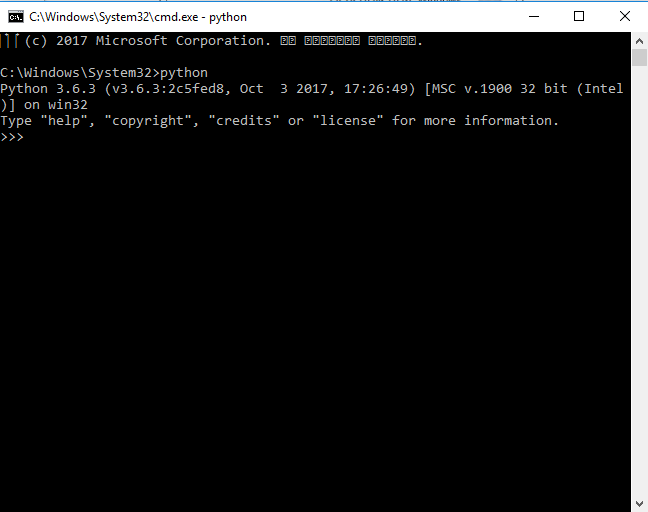
Let's give it a simple command. Type the following and press Enter:
print("Hello, Python!")
Python will immediately obey your command and print Hello, Python! on the next line. You can also do math directly.
2 + 2
The interpreter will respond with 4. When you're ready to leave the interpreter, you can type exit() or press Ctrl+D (on Mac/Linux) or Ctrl+Z then Enter (on Windows).
Choosing a Code Editor
While the interpreter is great for quick tests, you'll need a dedicated place to write and save longer programs. This is where a code editor or an Integrated Development Environment (IDE) comes in. An IDE is like a supercharged text editor designed specifically for programming. It often includes features like syntax highlighting (coloring your code to make it readable) and debugging tools.
Python actually comes with its own simple IDE called IDLE. You can find it in your applications menu after installing Python. It gives you both an interpreter window and a way to write and run files, making it a great starting point.
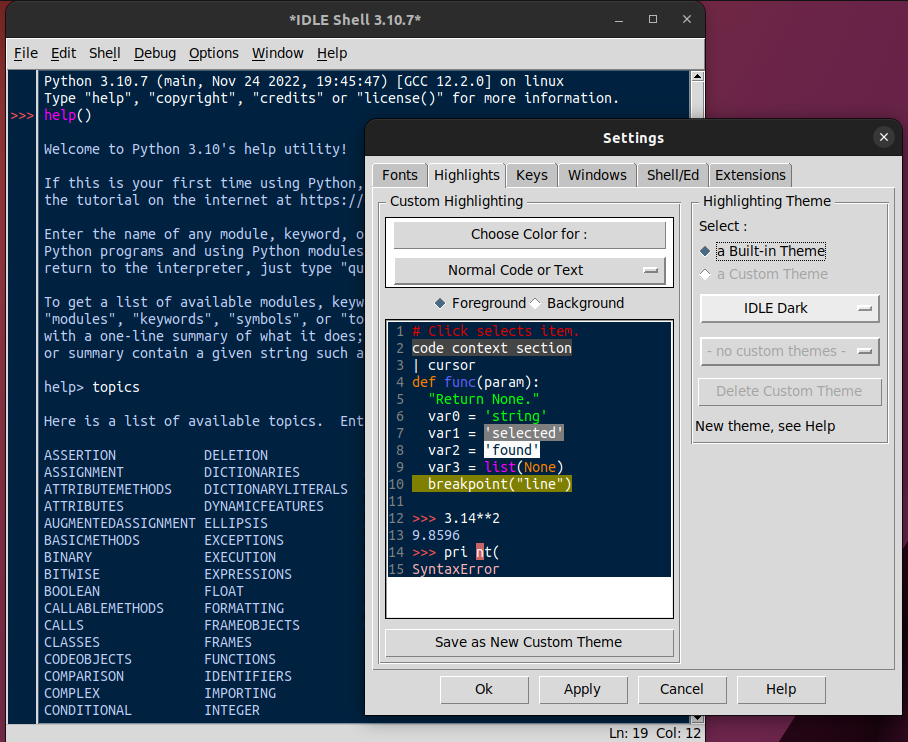
As you advance, you might want a more powerful tool. Visual Studio Code (VS Code) is a very popular, free code editor that works well for Python and many other languages. PyCharm is another excellent IDE built specifically for Python. For now, IDLE or a simple text editor is all you need.
Now that your environment is set up, you're ready to start building things.
When installing Python on Windows, what is a crucial checkbox to select on the first screen of the installer to make Python accessible from the command line?
The Python interpreter is often called a REPL. What does this acronym stand for?