Introduction to Python Programming
Python Basics
Setting Up Your Workspace
Before you can start writing Python code, you need to install it on your computer. Think of this as setting up your workshop. You need the right tools before you can build anything.
The best place to get Python is from its official website, python.org. Download the latest stable version for your operating system. The installation process is straightforward. During installation, make sure to check the box that says "Add Python to PATH." This small step makes it easier to run Python from your computer's command line.
Once installed, Python comes with a simple built-in development environment called IDLE. It’s a great place for beginners to start writing and running code.
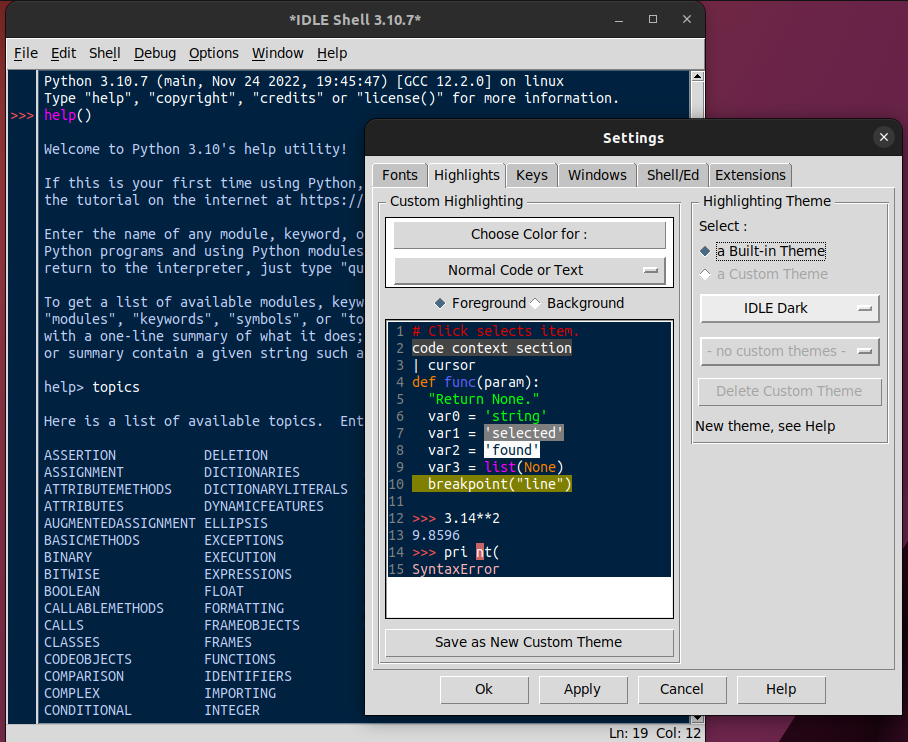
You can open IDLE or a terminal (Command Prompt on Windows, Terminal on Mac/Linux) and type python or python3. When you see a prompt like >>>, you’re in Python's interactive shell. This lets you run code one line at a time, which is perfect for experimenting.
Code That Talks Back
The classic first program for any language is one that prints "Hello, World!". It’s a simple way to confirm everything is working. In Python, this is incredibly easy. We use a built-in function called print().
print("Hello, World!")
Type that into your Python shell and press Enter. The computer will immediately respond with Hello, World!.
One of Python's defining features is its use of indentation. The spaces at the beginning of a line are meaningful. For now, just remember not to add extra spaces before your code unless it's required. You'll see why this matters as you learn about more complex structures.
Programming isn't just about telling the computer what to do; it's also about getting information from a user. The input() function lets your program pause and wait for the user to type something.
# The program will display the message and wait for you to type.
name = input("What is your name? ")

# It then prints a personalized greeting.
print("Hello, " + name)
Storing and Using Data
In the example above, name is a variable. A variable is like a labeled box where you can store information. You can put data in the box, and you can change it later. You create a variable by giving it a name and assigning it a value with the equals sign (=).
# Storing a number in a variable
age = 30

# Storing text (a 'string') in another variable
city = "New York"

# You can then use the variables
print("I am", age, "years old and live in", city)
Python is dynamically typed. This means you don't have to declare what type of data a variable will hold. Python figures it out automatically. The variable age holds an integer, and city holds a string of text. You could even reassign age to hold text later, though it’s good practice to keep a variable's data type consistent.
Python as a Calculator
Python is also a powerful calculator. You can perform calculations using standard arithmetic operators. These operators work just like they do in math class.
| Operator | Name | Example |
|---|---|---|
+ | Addition | 5 + 3 |
- | Subtraction | 5 - 3 |
* | Multiplication | 5 * 3 |
/ | Division | 5 / 3 |
% | Modulo | 5 % 3 |
** | Exponentiation | 5 ** 3 |
The modulo operator (
%) gives you the remainder of a division. For example,5 % 3is2because 3 goes into 5 once with a remainder of 2.
Besides numbers, Python can also evaluate conditions that are either true or false. These are called boolean operations, and they are the foundation of decision-making in code.
| Operator | Description | Example |
|---|---|---|
== | Equal to | 5 == 3 (False) |
!= | Not equal to | 5 != 3 (True) |
> | Greater than | 5 > 3 (True) |
< | Less than | 5 < 3 (False) |
>= | Greater than or equal to | 5 >= 5 (True) |
<= | Less than or equal to | 5 <= 3 (False) |
You can combine multiple conditions using logical operators like and, or, and not.
# Is x greater than 2 AND less than 10?
x = 7
print(x > 2 and x < 10)  # Prints: True

# Is y less than 0 OR greater than 20?
y = 25
print(y < 0 or y > 20)  # Prints: True

# Is z not equal to 5?
z = 5
print(not z == 5) # Prints: False
Now, let's test what you've learned.
When installing Python from the official website, which option is it highly recommended to check to make running Python from the command line easier?
Which line of code will correctly display the text 'Hello, World!' on the screen?
You've taken your first steps into Python. You know how to set up your environment, display and receive information, store data in variables, and perform basic operations. This foundation is key to building more complex and powerful programs.