Introduction to Python Programming
Setting Up Python
Get Python on Your Machine
First things first, you need to install the Python interpreter. This is the program that understands and runs your Python code. Think of it as the engine for your car. Without it, you're not going anywhere.
Head over to the official Python website, python.org. You'll see a 'Downloads' section. The site is usually smart enough to suggest the correct version for your operating system, whether it's Windows, macOS, or Linux. Download the latest stable version.
Once the download is complete, run the installer. The process is straightforward, but there's one crucial step for Windows users: on the first screen of the installer, make sure to check the box that says "Add python.exe to PATH." This allows you to run Python from your computer's command line, which is a useful skill to have. For macOS users, the installer handles this for you.
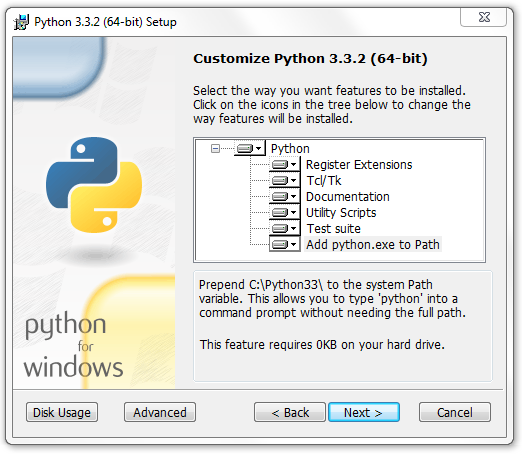
Follow the prompts to complete the installation. Once it's done, Python is ready to go on your computer.
Your Coding Workspace
Now you need a place to write and run your code. While you could use a simple text editor, it's much easier to use an Integrated Development Environment, or IDE. An IDE is software that combines a code editor, a debugger, and other helpful tools into one package. It makes writing code more efficient and helps you spot errors.
IDE
noun
An Integrated Development Environment is a software application that provides comprehensive facilities to computer programmers for software development. An IDE normally consists of at least a source code editor, build automation tools, and a debugger.
For beginners, we recommend an IDE called Thonny. It’s designed specifically for learning Python. Its interface is clean and simple, so you won't get lost in complicated menus. It also has a fantastic built-in debugger that helps you see what your code is doing step-by-step.
Visit the Thonny website at thonny.org and download the version for your operating system. The installation is as simple as the Python one. Just run the installer and follow the on-screen instructions.

Write Your First Script
With everything installed, it's time to write your first piece of Python code. This is a classic tradition in programming: making the computer say "Hello, World!".
Open Thonny. You'll see a large empty area for writing code, which is the editor. Type the following line directly into the editor:
print("Hello, World!")
This line of code uses Python's built-in print() function to display text on the screen. The text you want to display goes inside the parentheses, wrapped in quotation marks.
Now, let's run it. Go to the File menu and select Save as. Save the file somewhere you'll remember, like your Desktop or a new 'Python Projects' folder. Name it hello.py. The .py extension is important; it tells the computer that this is a Python file.
With the file saved, click the green "Run" button (it looks like a play symbol) on Thonny's toolbar. You can also press the F5 key on your keyboard.
Look at the bottom part of the Thonny window, in the area called the "Shell". You should see the output:
Hello, World!
Congratulations! You've just written and run your first Python program. This confirms that your installation of Python and Thonny is working perfectly. You're now all set to start exploring the world of programming.