Introduction to Python Programming
Setting Up Python
Setting Up Your Workspace
Before you can start writing Python, you need to set up your digital workspace. This involves two key steps: installing the Python language itself and choosing a code editor, which is a program that makes writing and running code easier. A good setup makes learning to program a much smoother experience.
Installing Python
First, let's get Python onto your computer. You'll need to download it from the official source, python.org. The process is slightly different depending on your operating system.
Always download Python directly from python.org to ensure you get the official, secure version.
On Windows:
- Go to the Python website's download page for Windows.
- Click the button for the latest stable version. This will download an installer file (usually an
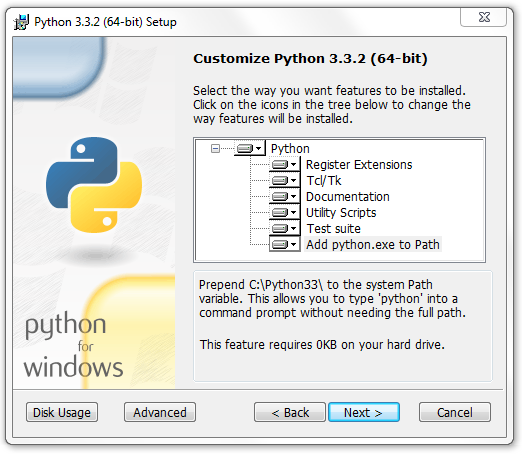
.exe). - Run the installer. A setup window will appear.
- Important: Check the box at the bottom that says "Add python.exe to PATH". This allows you to run Python from your computer's command line, which is very useful.
- Click "Install Now" and follow the prompts to complete the installation.
On macOS: Your Mac might already have an older version of Python installed, but it's best to get the latest one.
- Visit the Python website's download page for macOS.
- Download the latest stable release. It will be a
.pkgfile. - Open the downloaded file to run the installer.
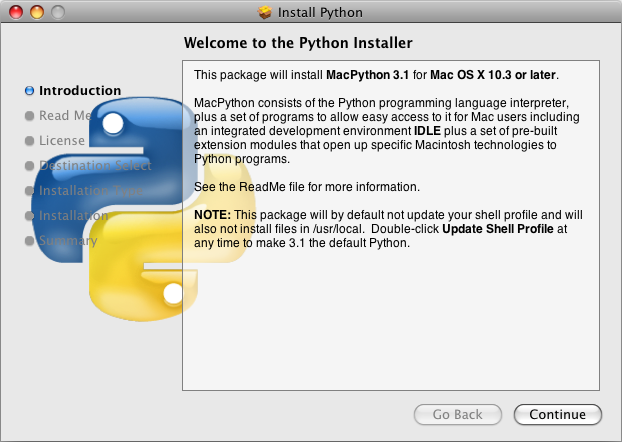
- Follow the on-screen instructions, agreeing to the license and confirming the installation location. It's a standard macOS installation process.
On Linux: Most Linux distributions make it easy to install Python using the system's package manager. Open your terminal and use the command for your specific distribution.
For Debian-based systems like Ubuntu or Mint:
sudo apt-get update
sudo apt-get install python3
For Fedora:
sudo dnf install python3
Python should now be installed on your system.
Your Code Editor: Thonny
IDE
noun
An Integrated Development Environment is a software application that provides comprehensive facilities to computer programmers for software development. An IDE normally consists of at least a source code editor, build automation tools, and a debugger.
While you can write code in a simple text editor, an IDE makes your life much easier. It highlights your code in different colors to make it readable, helps you find errors, and provides tools for running your programs.
For beginners, we recommend Thonny. It was built specifically for learning and teaching programming. It's simple, clean, and has Python built right in, so you don't have to configure anything.
To get Thonny:
- Go to the Thonny website at thonny.org.
- Find the download link for your operating system (Windows, Mac, or Linux) in the top right corner and click it.
- Run the downloaded installer and follow the on-screen instructions.
Once installed, open Thonny. You'll see a clean, simple interface ready for you to start writing code. The main area is your editor, and the bottom section is the "Shell," where your code's output will appear.

Your environment is now fully set up. You have both Python and a user-friendly IDE installed. You're ready to start programming.