Introduction to Python Programming
Setting Up Python
Getting Python on Your Machine
Before you can write any Python code, you need to install the language itself on your computer. This installation includes the Python interpreter, which is the program that understands and runs your code. Without it, your computer won't know what to do with a Python script.
Head over to the official Python website, python.org, and go to the downloads section. You'll see buttons to download the latest version. There are two major versions of Python, Python 2 and Python 3. We'll be using Python 3, as it's the modern, actively maintained version.
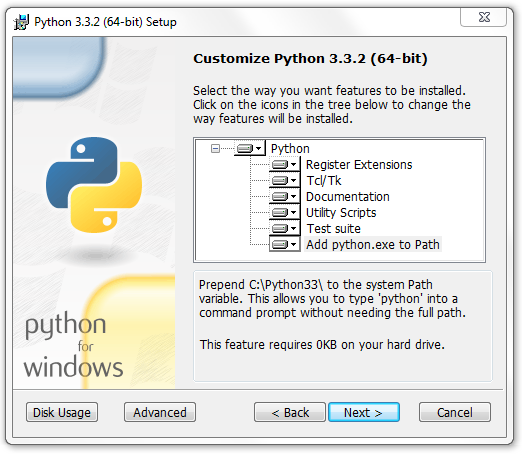
When you run the installer, you'll see a setup window. There's one very important checkbox you need to tick: Add Python to PATH. This simple step makes it much easier to run Python from your computer's command line, a tool we'll use briefly to verify the installation.
The 'PATH' is just a list of places your computer looks for programs. By adding Python to it, you're telling your computer where to find the Python interpreter, no matter which folder you're working in.
Once the installation is complete, let's make sure it worked. Open your computer's command line tool. On Windows, this is Command Prompt or PowerShell. On macOS or Linux, it's the Terminal. Type the following command and press Enter:
python --version
If you see a version number like Python 3.12.3, you're all set. Python is successfully installed.
Your Coding Workspace: Thonny
You can write Python code in any plain text editor, but it's much easier with an Integrated Development Environment, or IDE. An IDE is software that combines a code editor with other helpful tools, like a way to run your code and a debugger to help you find mistakes. Think of it as a specialized word processor just for programming.
We'll use an IDE called Thonny. It's designed specifically for beginners. It has a clean, simple interface that doesn't overwhelm you with options. You can download it for free from its website, thonny.org.

The installation is straightforward. Just run the downloaded file and follow the on-screen prompts. Once installed, open Thonny. You'll see a large white area at the top, which is the editor where you'll write your code. The bottom area is the shell, where you'll see the output of your programs.
Running Your First Script
Let's write a classic first program. In the Thonny editor (the top part of the window), type the following line of code:
print("Hello, Python!")
The print() function is a built-in Python command that displays text to the screen. Whatever you put inside the parentheses and quotes will be printed.
Before you can run the code, you need to save the file. Go to File > Save As. Name your file
hello.py. The.pyextension is important; it tells the computer that this is a Python file.
With the file saved, you can now run it. Click the green 'Run' button with the play symbol in Thonny's toolbar, or simply press the F5 key. You should see the text Hello, Python! appear in the shell at the bottom of the window.
That's it! You've successfully installed Python, set up an IDE, and run your very first script. You now have a complete development environment ready for you to start exploring the world of programming.