Google Sheets Essentials
Getting Started
Your First Spreadsheet
Google Sheets is a spreadsheet program that lives on the internet. Instead of saving a file to your computer, everything is stored in the cloud in your Google Drive. This makes it easy to work on your files from any device and share them with others for real-time collaboration.
You can get to Google Sheets in a few ways. On a computer, just open a web browser and go to sheets.google.com, or find it within your Google Drive. If you're on a phone or tablet, you can download the Google Sheets app for iOS or Android.
Finding Your Way Around
When you open a new spreadsheet, you'll see a grid of cells. This is where you'll enter your data. Let's break down the main parts of the screen.
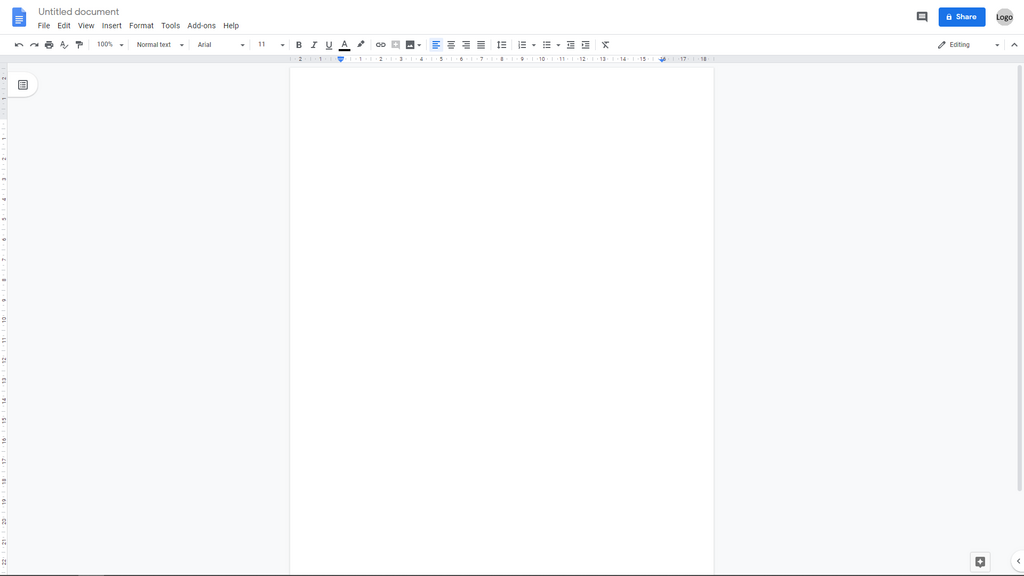
At the very top, you have the Menu Bar with options like File, Edit, and View. This is where you'll find most of the program's features.
Below that is the Toolbar, which has icons for common tasks like changing text bold, adjusting alignment, or adding borders. It's a shortcut for the most-used formatting options.
The Formula Bar, marked with an fx symbol, is where you can see and edit the contents of the selected cell. This is especially useful for writing formulas.
The main part of the screen is the Grid, made up of columns (labeled with letters) and rows (labeled with numbers). Each rectangle in the grid is a Cell, and each cell has a unique address, like A1 or B2.
Creating and Managing Files
To create a new spreadsheet, go to the Google Sheets homepage and click on the large plus sign for a blank document. You can also choose from a variety of pre-made templates for things like budgets or project plans.
If you're already in Google Drive, you can click the "New" button in the top-left corner and select "Google Sheets."
To open a file you've already created, simply find it in your Google Drive or on the Google Sheets homepage and double-click it.
One of the best things about Google Sheets is that it saves your work automatically. As you type, you'll see a message near the top of the page that says "All changes saved in Drive." You never have to worry about hitting a save button.
To give your file a name, click on "Untitled spreadsheet" in the top-left corner and type in a new title. This is also saved automatically.
What is the primary advantage of Google Sheets being a cloud-based application?
In the Google Sheets interface, where would you find icons for common tasks like changing text to bold, adjusting alignment, or adding borders?
Now you know how to get around the basic environment. You're ready to start filling those cells with data.