Go Programming for Experienced Java Developers
Go Environment Setup
Getting Go on Your Machine
Before you can write any Go code, you need to install the Go runtime. This is the engine that compiles and runs your programs. The official Go website is the best place to get it.
Head to
golang.org/dland download the installer for your operating system (Windows, macOS, or Linux). Run the installer and follow the on-screen instructions. The setup is straightforward and usually handles all the necessary configurations for you.
Once the installation is complete, you can verify it by opening a new terminal or command prompt and typing the following command:
go version
If everything is set up correctly, you'll see a message displaying the installed Go version, like go version go1.22.1 windows/amd64. This command confirms that your system can find and execute Go commands.
Your Go-To Code Editor
You can write Go in any plain text editor, but using a modern code editor makes life much easier. We recommend Visual Studio Code (VSCode). It's free, popular, and has excellent support for Go through extensions.
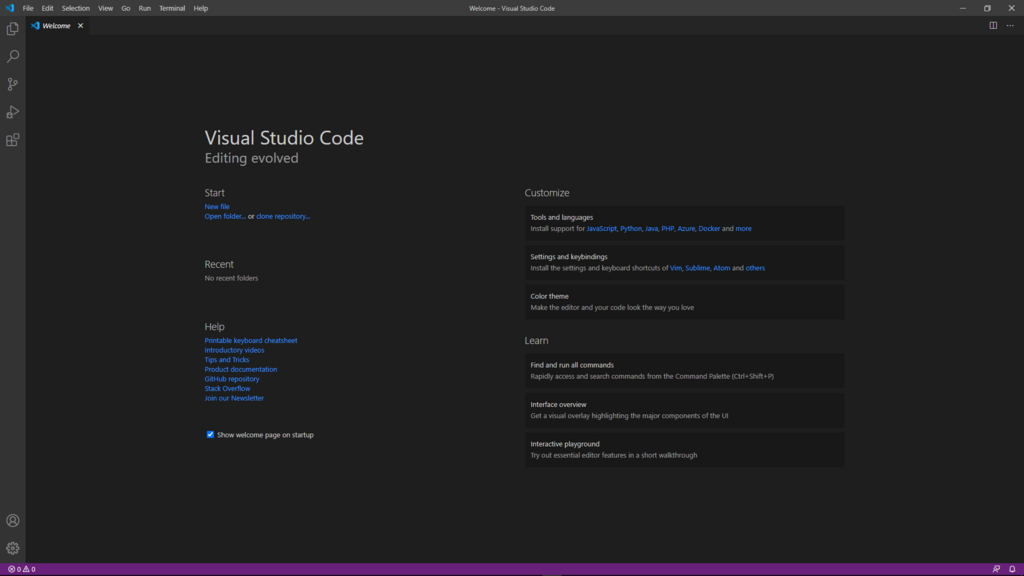
After installing VSCode, you'll want to add the official Go extension. Open VSCode, go to the Extensions view (the icon with four squares in the sidebar), and search for Go. Install the one published by the Go Team at Google.
Once you open a Go file for the first time, the extension might prompt you to install additional command-line tools. Go ahead and click “Install All.” These tools provide features like code completion, definition lookups, and debugging, which are incredibly helpful.
Workspace and Go Modules
In the past, Go was strict about where you saved your code, using a workspace defined by an environment variable called GOPATH. While GOPATH still exists, modern Go development uses Go Modules, which lets you create projects anywhere on your computer.
GOPATH
noun
An environment variable that specifies the root of your Go workspace. By default, it's a directory named go inside your home folder.
With modules, each project is self-contained. It has a file named go.mod that tracks its dependencies, which are other packages your code needs to run. This makes managing projects much simpler.
Writing Your First Program
Let’s put everything together and run a simple program.
First, create a new folder for your project. You can name it whatever you like, such as hello-go. Open a terminal, navigate into this new folder, and run the following command to initialize it as a Go module:
go mod init example/hello
This creates a go.mod file. The name example/hello is the module path, which is a unique identifier for your module. Now, create a new file in this folder named main.go and add the following code:
package main

import "fmt"

func main() {
    fmt.Println("Hello, World!")
}
This code defines the main package, imports the fmt package for formatting text, and prints the message "Hello, World!" to the console.
To run it, go back to your terminal (making sure you're still in your project folder) and use the go run command:
go run .
The . tells Go to run the package in the current directory. You should see Hello, World! printed to your screen. Congratulations, your Go environment is up and running!
Now, let's test your understanding of these setup steps.
What command should you run in your terminal to verify that Go has been installed correctly on your system?
In a modern Go project using modules, what is the primary purpose of the go.mod file?
With your environment set, you're ready to start exploring the fundamentals of the Go language.