Excel Fundamentals
Excel Interface
Your Excel Dashboard
Opening a new Excel file, called a workbook, presents you with a powerful dashboard for working with data. Think of it as your command center. Let's break down the main parts you'll be using.
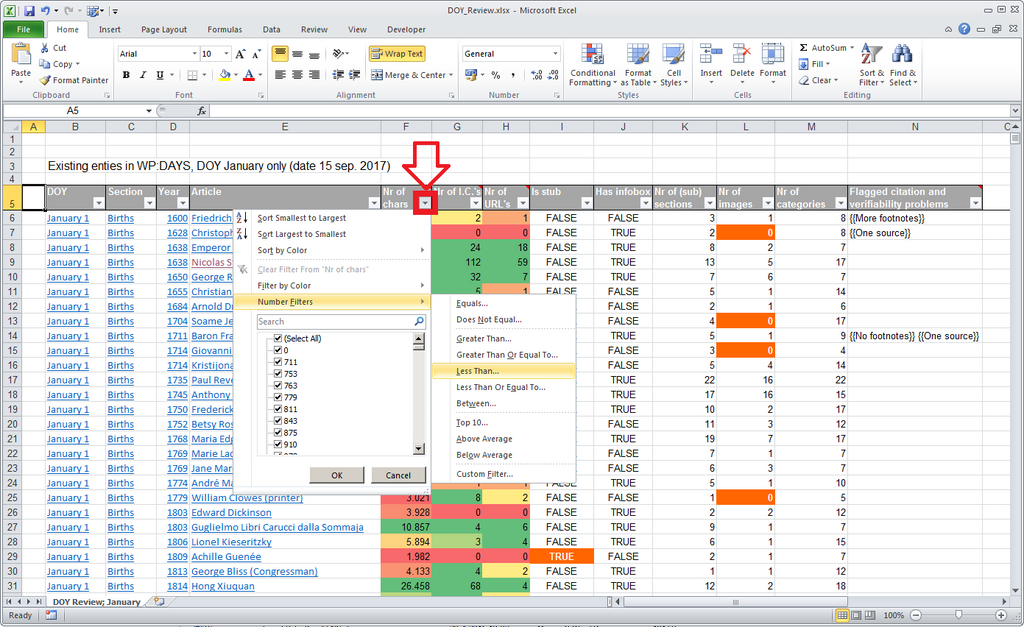
At the very top, you'll find the Ribbon. This is the large toolbar that stretches across the screen, organized into several tabs like Home, Insert, Page Layout, and Data. Each tab contains groups of related commands. For example, the Home tab has groups for formatting text (Font), aligning content (Alignment), and working with numbers (Number).
Above the Ribbon is the Quick Access Toolbar. This is a small, customizable area where you can place your most-used commands, like Save and Undo. It's designed to give you one-click access to the tools you need most often, no matter which tab on the Ribbon you're currently viewing.
The Grid System
The main part of the screen is the Worksheet area, which looks like a giant grid. This grid is made up of columns (labeled with letters: A, B, C...) and rows (labeled with numbers: 1, 2, 3...). The intersection of a column and a row is called a cell. Each cell has a unique address, or reference, like A1, B2, or C20. This is where you'll enter your data, text, and formulas.
A cell's address is always the column letter followed by the row number. For example, the top-left cell is always A1.
Selecting these elements is straightforward.
- To select a single cell: Just click on it.
- To select an entire column: Click the letter header at the top of the column.
- To select an entire row: Click the number header on the left side of the row.
- To select a range of cells: Click on the starting cell, hold the mouse button down, and drag to the ending cell.
Just above the worksheet grid is the Formula Bar. This bar shows the actual contents of the selected cell. If you've typed text or a number, you'll see it there. If you've entered a formula, like , the cell will show the result (e.g., 10), but the Formula Bar will show you the underlying formula. It's the best place to edit your cell's contents.
Navigating Your Workbook
At the very bottom of the window, you'll find the Status Bar. This handy tool displays useful information about your current selection. For instance, if you highlight a group of cells containing numbers, the Status Bar can automatically show you their sum, count, and average without you having to write a formula.
An Excel workbook can hold multiple worksheets, like pages in a book. You can switch between them by clicking the worksheet tabs at the bottom-left of the screen, typically labeled Sheet1, Sheet2, and so on. You can rename these tabs, add new ones, or delete ones you don't need, helping you organize complex projects.
Let's check your understanding of the Excel layout.
What is the primary function of the Ribbon in Excel?
If cell A3 contains the formula $$=A1+A2$$ and displays the value '25', what will you see in the Formula Bar when you select cell A3?
Now that you're familiar with the lay of the land, you're ready to start entering and organizing data.