Excel Fundamentals
Excel Interface
The Lay of the Land
When you first open Excel, you're looking at a workbook. Think of it as a digital notebook. Each page, or tab at the bottom, is a worksheet. The main screen is dominated by a grid of cells, which is where you'll enter your data.
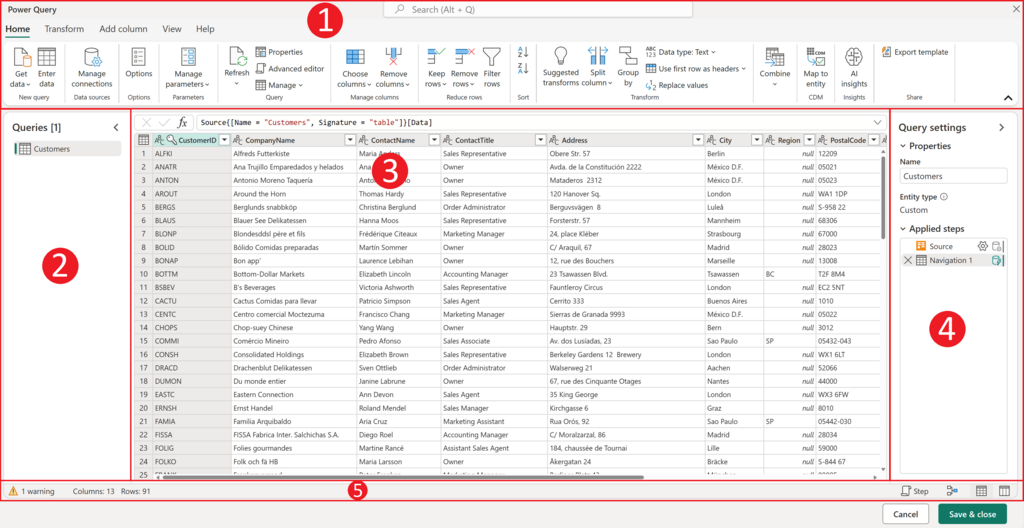
At the top of the screen is the Ribbon. This is your command center. It's organized into tabs like 'Home', 'Insert', and 'Page Layout'. Each tab contains groups of related commands. For example, the 'Home' tab has a 'Font' group with options for bolding text, changing font size, and adding color.
Above the Ribbon, you'll find the Quick Access Toolbar. It's a small, customizable toolbar that stays visible no matter which tab you're on. By default, it holds essentials like 'Save', 'Undo', and 'Redo', but you can add your favorite commands to it for one-click access.
Navigating Your Worksheet
The worksheet is a grid made of columns and rows. Columns are labeled with letters (A, B, C...) and rows with numbers (1, 2, 3...). The intersection of a column and a row is a cell, and each one has a unique address.
Cell
noun
A rectangular box in a worksheet where data is entered. Its address is formed by its column letter and row number (e.g., A1, B2).
Getting around is straightforward:
- Mouse: Click any cell to make it the active cell.
- Arrow Keys: Use the arrow keys on your keyboard to move one cell at a time in any direction.
- Name Box: For a direct jump, type a cell address (like 'Z100') into the Name Box to the left of the formula bar and press Enter.
To move between different worksheets in your workbook, just click the tabs at the bottom-left of the screen.
Selecting Cells
Before you can do anything with data, you need to select the right cells. Excel offers a few ways to do this, making it easy to work with single cells or large blocks of data.
- Select a range: Click a cell, hold the mouse button, and drag to highlight a rectangular group of cells.
- Select an entire row or column: Click directly on the row number or column letter header.
- Select non-adjacent cells: Click the first cell, then hold down the
Ctrlkey (orCmdon a Mac) and click other cells or drag to select other ranges.
Make Excel Your Own
You can customize Excel's interface to match your workflow. The easiest way to start is by personalizing the Quick Access Toolbar.
Let's say you often sort data alphabetically. Instead of clicking the 'Data' tab every time, you can add the 'Sort A to Z' command to your toolbar. Click the small down-arrow at the end of the toolbar and select 'More Commands...'. From there, you can find any command in Excel and add it to your toolbar for quick access.
Customizing the Quick Access Toolbar is a simple trick that can save you a lot of clicks over time. Add the tools you use most often.
You can even customize the Ribbon itself, creating your own tabs and groups with the commands you need. As you get more comfortable with Excel, tailoring the interface can make your work much faster and more intuitive.
In Excel, what is the term for the entire file, which acts like a digital notebook containing one or more pages?
Which part of the Excel interface contains your main command center, organized into tabs like 'Home', 'Insert', and 'Page Layout'?