Excel Essentials
Excel Interface
Finding Your Way Around Excel
Opening Excel for the first time can feel like looking at an airplane's cockpit. There are buttons, tabs, and grids everywhere. But once you know what the main controls do, you'll see it's all arranged quite logically. Let's take a tour of the basic layout. Mastering this is the first step to making Excel work for you.
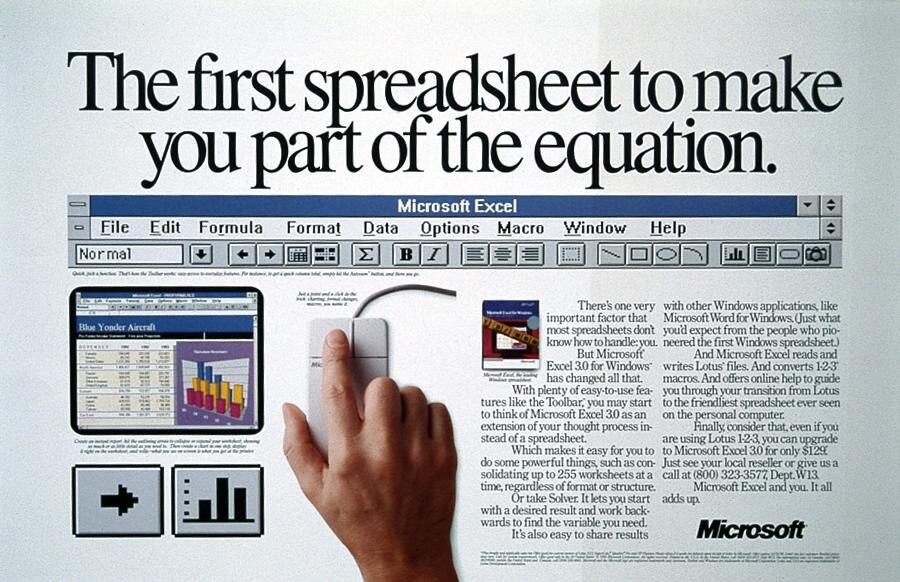
The Command Center: The Ribbon
At the top of the screen is a wide strip called the Ribbon. This is where most of Excel's commands live. The Ribbon is organized into a series of tabs, like 'Home', 'Insert', and 'Page Layout'. Each tab brings up a different set of tools related to a specific task.
For example, the 'Home' tab has all the common formatting tools for changing fonts and colors. The 'Insert' tab is where you'll go to add charts, pictures, or tables. Think of each tab as a specialized drawer in a toolbox.
| Tab | Primary Function |
|---|---|
| Home | Basic formatting, cutting, pasting, and number styles. |
| Insert | Add charts, tables, pictures, and other objects. |
| Page Layout | Adjust margins, orientation, and printing options. |
| Formulas | Access the function library for calculations. |
| Data | Tools for sorting, filtering, and managing large datasets. |
Your Favorite Tools
Above the Ribbon, you'll find the Quick Access Toolbar. It’s a small, customizable row of icons. By default, it holds essentials like 'Save', 'Undo', and 'Redo', but its real power is that you can add any command you use frequently.
Adding your most-used commands to the Quick Access Toolbar saves you from hunting through tabs every time.
To customize it, just click the small downward-facing arrow at the end of the toolbar. A menu will appear with common commands you can add instantly. You can also right-click any command on the Ribbon and select 'Add to Quick Access Toolbar'.
The Workspace
The main part of Excel is the worksheet, which looks like a giant grid. This grid is made up of columns (labeled with letters) and rows (labeled with numbers). The box where a column and row intersect is called a cell. Each cell has a unique address, like A1, B2, or C15. This is where you'll enter your data, text, and formulas.