Excel Essentials
Excel Interface and Navigation
Getting Around in Excel
Opening Excel for the first time can feel like stepping into a cockpit. There are buttons and panels everywhere. But once you know what the main controls do, you'll find it's a very organized space. Let's start with a tour of the main interface.
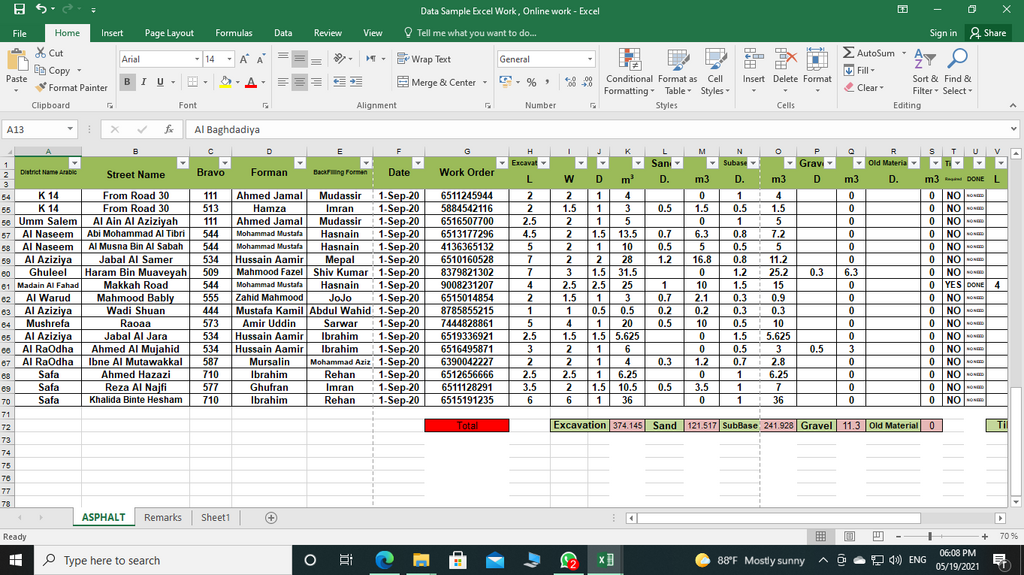
The Ribbon and Toolbar
The large menu area at the top of the screen is called the Ribbon. It contains nearly all the commands you'll need in Excel. The Ribbon is organized into a series of tabs, like 'Home', 'Insert', 'Page Layout', and 'Data'.
Each tab is dedicated to a specific type of task. For example, the 'Home' tab has common formatting tools like font styles, alignment, and number formats. The 'Insert' tab is where you'd go to add charts, tables, or pictures.
At the very top of the window, above the Ribbon, is the Quick Access Toolbar. It's a small, customizable toolbar that holds a few common commands, like Save, Undo, and Redo, so you can access them no matter which tab is active.
You can customize the Quick Access Toolbar by clicking the small downward-pointing arrow at its end. This allows you to add your favorite commands for even faster access.
The Grid System
The main part of Excel is the grid of columns and rows. The columns are labeled with letters (A, B, C...) and the rows are labeled with numbers (1, 2, 3...). The box where a column and row intersect is called a cell.
Every cell has a unique address, or cell reference, which is just its column letter followed by its row number. The cell in the top-left corner is A1. The cell to its right is B1. The cell below it is A2. The active cell, the one you're currently working in, is always highlighted with a border.
Workbooks and Worksheets
An entire Excel file is called a workbook. When you save your work, you're saving the workbook. Each workbook can contain one or more worksheets, which are like individual pages in a notebook. You can see your worksheets as tabs at the bottom-left of the screen, often named 'Sheet1', 'Sheet2', and so on.
To switch between worksheets, just click on the tabs. You can also rename them by double-clicking the tab name, which helps keep your workbook organized.
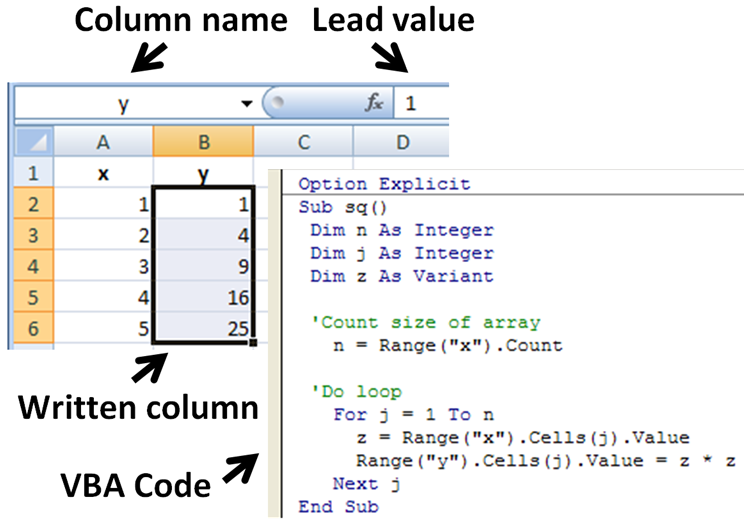
To open a new or existing workbook, you'll use the 'File' tab. Clicking 'File' takes you to a backstage view where you can select 'New' to start a blank workbook or 'Open' to find a file on your computer. When you're ready to save, you can choose 'Save' to update the current file or 'Save As' to save a new copy with a different name or in a different location.
Basic Navigation
You can move around the grid by clicking any cell with your mouse, but using keyboard shortcuts is much faster. Knowing a few basic shortcuts will make navigating your worksheets much more efficient.
| Key(s) | Action |
|---|---|
| Arrow Keys | Move one cell up, down, left, or right |
| Ctrl + Arrow Keys | Move to the edge of the current data region |
| Page Up / Page Down | Move one screen up or down |
| Ctrl + Home | Move to the beginning of the worksheet (cell A1) |
| Ctrl + End | Move to the last cell containing data |
Getting comfortable with these controls is the first step to using Excel effectively. Practice moving around the grid and switching between tabs, and soon it will feel completely natural.