Excel Essentials
Excel Interface
Finding Your Way Around
Opening a new Excel file is like opening a blank notebook. The entire file is called a workbook. Just like a notebook has pages, a workbook has worksheets, or sheets for short. You can see these sheets as tabs at the bottom of the screen, usually named Sheet1, Sheet2, and so on.
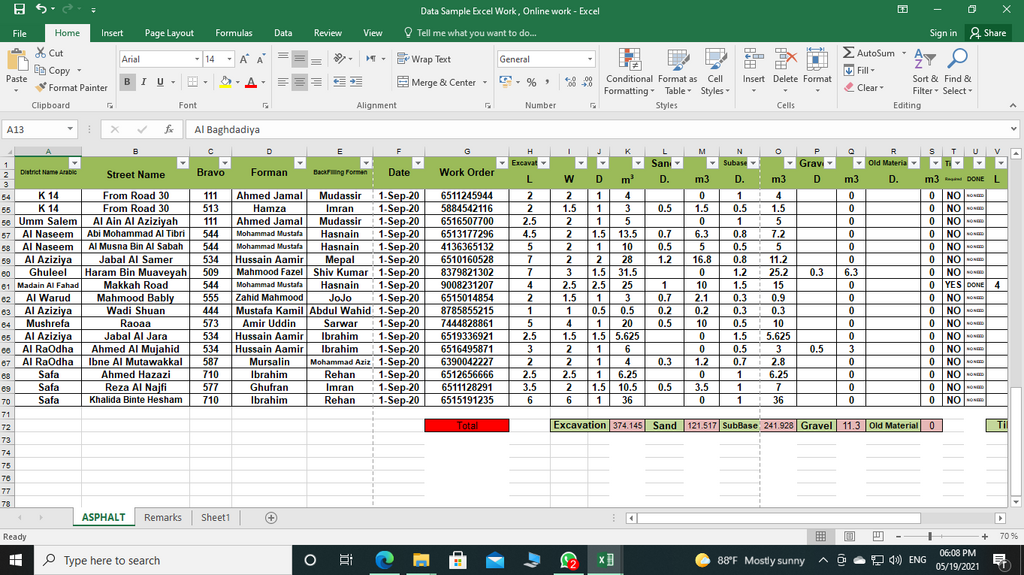
You can have many worksheets inside a single workbook. To switch between them, just click on the sheet tabs. To add a new worksheet, click the plus sign (+) next to the tabs. This is helpful for organizing different types of information within the same project. For example, you might have one sheet for a monthly budget and another for a list of expenses.
The Ribbon
At the top of the Excel window is the Ribbon. This is your main command center. The Ribbon is organized into a series of tabs, like 'Home,' 'Insert,' and 'Page Layout.' Each tab contains tools related to a specific type of task.
Within each tab, commands are sorted into groups. For instance, the 'Home' tab has groups for 'Font,' 'Alignment,' and 'Number.' This keeps related buttons together, so you don't have to hunt for them. The 'Font' group has everything you need to change text style, size, and color, while the 'Alignment' group helps you position your text within a cell.
Think of the Ribbon as a well-organized toolbox. The tabs are the drawers, and the groups are the compartments within each drawer.
Here's a quick look at some of the most common tabs:
- Home: Your go-to for basic formatting like bolding text, changing font sizes, and aligning content.
- Insert: Use this to add things to your sheet, such as charts, pictures, and tables.
- Page Layout: This tab helps you prepare your worksheet for printing, with options for margins, orientation, and themes.
- Formulas: A library of all the built-in calculations Excel can perform.
- Data: Contains tools for sorting, filtering, and managing large sets of information.
Your Personal Toolkit
Above the Ribbon, usually in the top-left corner, is the Quick Access Toolbar. It's a small, customizable toolbar that stays visible no matter which tab you're on. By default, it holds commands like Save, Undo, and Redo, but you can add any tool you use frequently.
Customizing it is simple. To add a command:
- Find the command you want to add on the Ribbon.
- Right-click the command's button.
- Select 'Add to Quick Access Toolbar.'
Your chosen command will now appear as a small icon on the toolbar, ready for a single-click action. This is a great way to speed up your workflow by keeping your favorite tools at your fingertips.
Adding your most-used tools to the Quick Access Toolbar saves clicks and makes your work smoother.
Now that you've had a tour of the Excel interface, let's check your understanding.
What is an entire Excel file called?
You've finished your budget and want to make sure it prints correctly on one page. Which tab on the Ribbon would you use to adjust margins and orientation?
With a good grasp of the layout, you're ready to start putting data into your worksheet.