Excel Essentials
Excel Interface
Your Digital Ledger
Opening Excel for the first time feels like unrolling a giant sheet of digital graph paper. This grid is organized into a file called a workbook. Think of a workbook as a three-ring binder. Inside this binder, you have individual pages, and in Excel, these pages are called worksheets, or just 'sheets' for short.
workbook
noun
The main Excel file, which contains one or more worksheets. It's like a digital notebook.
Each worksheet has its own tab at the bottom of the screen, usually named 'Sheet1', 'Sheet2', and so on. Clicking on these tabs lets you flip between the different pages in your binder. You can have many sheets in one workbook, each holding different sets of related information, like monthly sales data or employee contact lists.
The Command Center
At the top of the screen is your main toolkit: the Ribbon. This is where Excel keeps all its commands, neatly organized into tabs like 'Home', 'Insert', and 'Page Layout'. Each tab focuses on a specific type of task. For instance, the 'Home' tab has everyday tools for formatting text and numbers, while the 'Insert' tab lets you add things like charts and pictures.
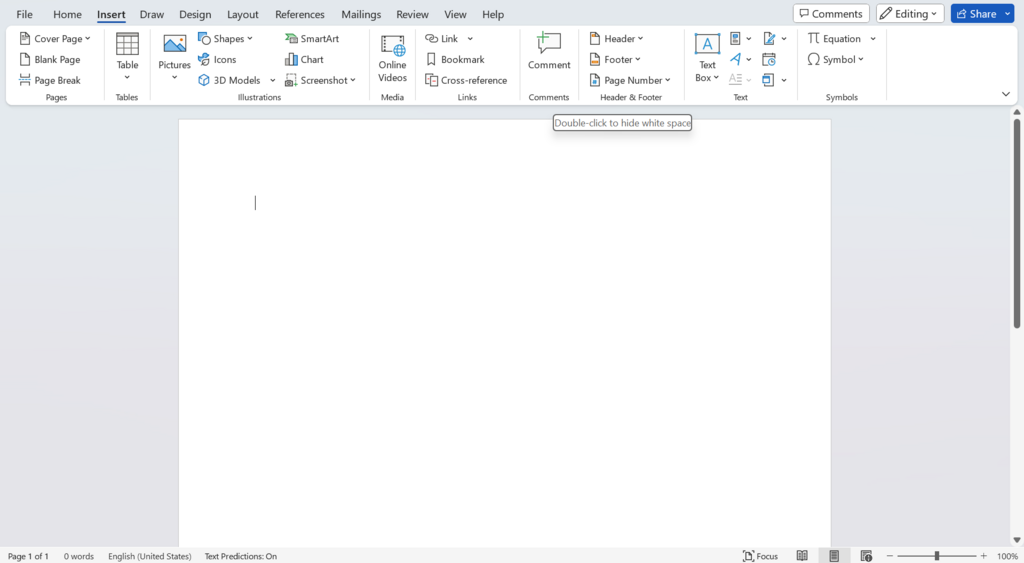
Within each tab, commands are grouped together. In the 'Home' tab, you'll find groups for 'Font', 'Alignment', and 'Number'. This keeps related buttons close to each other, so you don't have to hunt for what you need.
Above the Ribbon is the Quick Access Toolbar. This is a small, customizable row of icons for your most-used commands, like 'Save' and 'Undo'. By default, it doesn't have much, but you can add any command you want for one-click access.
The Ribbon is designed to be intuitive. If you want to change how something looks, the 'Home' tab is your first stop. If you want to add something new to your sheet, head to the 'Insert' tab.
Basic File Operations
Working with files in Excel is straightforward. To open a workbook, you'll typically go to File > Open. This lets you browse your computer for an existing Excel file. To create a new, blank workbook, you'd select File > New.
Saving your work is critical. The first time you save a new workbook, use File > Save As. This lets you choose a location on your computer and give your file a name. After that, you can just use File > Save (or the floppy disk icon in the Quick Access Toolbar) to quickly save any changes you make.
Make it a habit to regularly explore Excel features and learn something new every day.
As mentioned, moving between different worksheets is as simple as clicking the tabs at the bottom-left of the window. You can rename a sheet by double-clicking its tab, and you can add a new sheet by clicking the plus (+) icon next to the tabs. This flexibility is what makes workbooks so powerful for organizing complex projects.
Now, let's test your understanding of the Excel interface.
In Excel, what is the primary container for all your data, which holds one or more individual 'sheets'?
You have just created a brand new project in Excel and need to save it for the very first time. Which command should you use to name the file and choose its location?
With these fundamentals, you're ready to start navigating Excel with confidence. The interface is designed to help you find the tools you need to organize and analyze your data.