Excel Data Cleanup and Extraction
Excel Navigation Basics
The Excel Workspace
Opening Excel for the first time reveals a grid of cells, which might look a little intimidating. Think of it as a digital piece of graph paper with superpowers. The main workspace is organized to give you quick access to all the tools you need.
At the very top, you'll find the Ribbon. This is the wide band that contains tabs like Home, Insert, Page Layout, and Data. Each tab is filled with groups of related commands. For instance, the Home tab has everything you need for basic formatting, like changing fonts or aligning text.
Above the Ribbon is the Quick Access Toolbar. This small, customizable toolbar is for your most-used commands, like Save and Undo. You can add any command you want here for one-click access. Below the Ribbon is the Formula Bar, which shows the contents of the currently selected cell. This is where you'll enter and edit data, formulas, and functions.
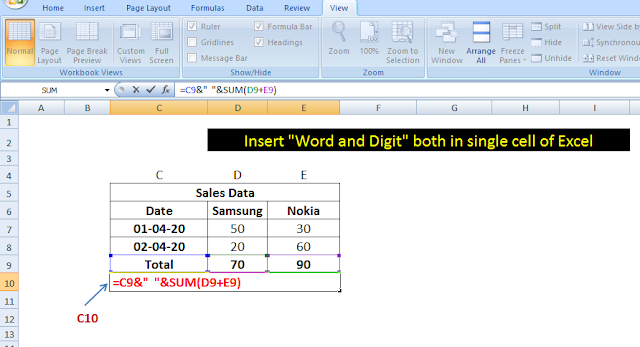
The main area of the screen is the worksheet itself, a grid of columns (labeled with letters) and rows (labeled with numbers). The intersection of a column and a row is a cell, and each one has a unique address, like A1, B2, or C15. This is where you'll input your data.
At the bottom of the window, you'll see tabs for different worksheets, usually starting with Sheet1. A single Excel file, called a workbook, can hold multiple worksheets, allowing you to organize related data in one place.
Moving Around and Entering Data
Navigating your worksheet is straightforward. You can click any cell to select it, or click and drag to select a range of cells. To select an entire column or row, just click on its lettered or numbered header.
Once a cell is selected, you can start typing to enter data. Press Enter to move down to the cell below, or Tab to move to the cell on the right. This makes entering rows or columns of data quick and easy. If you need to edit the contents of a cell, double-click it or select it and press F2.
Mastering a few keyboard shortcuts is the fastest way to speed up your workflow in Excel.
| Key(s) | Action |
|---|---|
| Arrow Keys | Move one cell up, down, left, or right |
Ctrl + Arrow Keys | Jump to the edge of the current data region |
Home | Move to the beginning of the row |
Ctrl + Home | Move to the beginning of the worksheet (cell A1) |
Ctrl + End | Move to the last cell containing data |
Page Up / Page Down | Move one screen up or down |
Basic formatting helps make your data readable. With a cell or range of cells selected, you can use the options in the Home tab to make text bold or italic, change font colors, or fill cells with a background color. These simple changes can make a big difference in how easy it is to understand your spreadsheet.
Managing Your Files and View
Working with files in Excel is handled through the File tab. Here you can open existing workbooks or save the one you're working on. When you save for the first time, you'll use Save As to choose a location and name for your file. Excel files are saved with the .xlsx extension. After that, you can just use Save (Ctrl + S) to update it with your changes.
You can also customize your view to make your workspace more comfortable. In the bottom-right corner, you'll find a zoom slider to zoom in for a closer look or zoom out to see more of your worksheet at once. If you find the grid distracting, you can turn it off by going to the View tab and unchecking the Gridlines box.
Customizing your view helps you focus on the data that matters most, without unnecessary visual clutter.
Let's check your understanding of these foundational concepts.
What is the main area of the Excel screen, consisting of a grid of columns and rows, called?
If you want to see the full contents of a selected cell, especially a long formula, where is the best place to look?
With these basics, you're ready to navigate Excel confidently and start organizing your data.