Docker and Kubernetes Orchestration
Docker Fundamentals
The “Works on My Machine” Problem
Every developer knows the feeling. You write some code, it runs perfectly on your computer, and you hand it off. Then you get the dreaded message: “It doesn’t work.” The problem is usually a difference in environments. Maybe your teammate has a different version of a programming language, a missing library, or a conflicting system setting.
This is where containerization comes in. It solves this problem by packaging an application and all its dependencies—libraries, system tools, code, and runtime—into a single, isolated unit called a container. This package can then run uniformly and consistently on any machine.
Container
noun
A lightweight, standalone, executable package of software that includes everything needed to run it: code, runtime, system tools, system libraries, and settings.
Docker is the most popular tool for creating and managing these containers. It provides a standard way to build, ship, and run applications, ensuring they work the same everywhere, from a developer's laptop to a production server.
You might be thinking this sounds like a virtual machine (VM). They're similar, but a key difference makes containers far more efficient. A VM virtualizes the hardware, meaning it bundles a full copy of an operating system on top of the host OS. Containers, on the other hand, virtualize the operating system itself. They share the host system’s kernel but run as isolated processes. This makes them much smaller and faster to start.
Docker's Architecture
Docker uses a client-server architecture. You interact with Docker through a client, which then communicates with a long-running service called the Docker daemon, or server. The daemon is responsible for building, running, and managing your containers.
There are three main components you should know:
| Component | Description |
|---|---|
| Docker Client | The command-line tool (like docker run) that lets you talk to the Docker daemon. |
| Docker Daemon | The background service (dockerd) that listens for API requests and manages Docker objects. |
| Docker Registry | A storage system for Docker images. Docker Hub is the default public registry. |
When you type a command like docker run nginx, the client sends this request to the daemon. The daemon first checks if it has the nginx image locally. If not, it pulls the image from the Docker Hub registry. Once the image is local, the daemon uses it to create and start a new container.
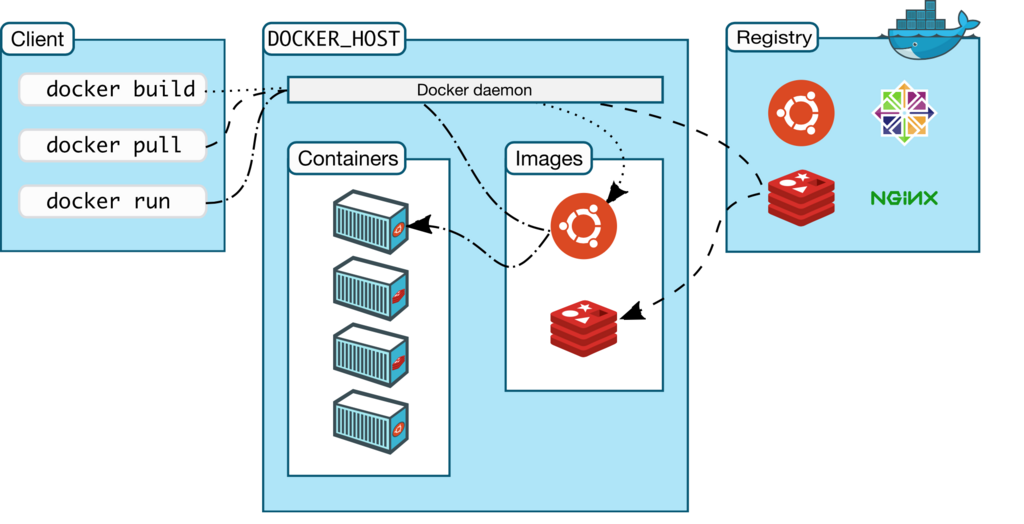
Images and Containers
The two most fundamental concepts in Docker are images and containers. It helps to think of them with an analogy: an image is a blueprint, and a container is the house built from that blueprint. You can build many identical houses (containers) from a single blueprint (image).
An image is a read-only template containing a set of instructions for creating a container. It includes an application and all its dependencies. For example, an image might contain an Ubuntu operating system with an Apache web server and your application installed.
A container is a runnable instance of an image. It's the live, running version of the blueprint. You can create, start, stop, move, and delete containers based on any image.
Image is the template. Container is the instance.
Let’s see this in action. The docker run command is a powerful shortcut that can pull an image (if it's not already on your machine) and start a container from it in one step.
# Pull the 'hello-world' image from Docker Hub and run it as a container
docker run hello-world
When you run this, Docker creates a new container from the hello-world image. The container executes its task—printing a confirmation message to your screen—and then exits. You can see all containers on your machine, including stopped ones, with docker ps -a.
Building Images with a Dockerfile
While you can pull thousands of pre-built images from Docker Hub, you'll often need to create your own to package your specific application. You do this by writing a Dockerfile.
A Dockerfile is a simple text file that contains a list of commands Docker uses to assemble an image. It's like a recipe for your application's environment. Let's look at a basic example for a simple Node.js web application.
# Use an official Node.js runtime as a parent image
FROM node:18

# Set the working directory in the container
WORKDIR /usr/src/app

# Copy the current directory contents into the container at /usr/src/app
COPY . .

# Install any needed packages specified in package.json
RUN npm install

# Make port 8080 available to the world outside this container
EXPOSE 8080

# Define the command to run your app
CMD [ "node", "server.js" ]
Let’s break down these instructions:
| Instruction | Purpose |
|---|---|
FROM | Specifies the base image to build upon. Every Dockerfile must start with this. |
WORKDIR | Sets the working directory for subsequent instructions like RUN, CMD, and COPY. |
COPY | Copies files or directories from your local filesystem to the container's filesystem. |
RUN | Executes commands during the image build process, like installing software. |
EXPOSE | Informs Docker that the container listens on the specified network ports at runtime. |
CMD | Provides the default command to execute when a container is run from the image. |
With this Dockerfile saved in your project directory, you can build your image using the docker build command. The -t flag lets you "tag" your image with a memorable name.
# Build an image from the Dockerfile in the current directory
# and tag it as 'my-node-app'
docker build -t my-node-app .
Once the build is complete, you have your very own image. You can now run a container from it, just like you did with hello-world.
What is the primary problem that containerization tools like Docker are designed to solve?
Which statement accurately describes the main difference between Docker containers and traditional virtual machines (VMs)?
Understanding these core concepts—containers, images, and Dockerfiles—is the first step to mastering containerization and streamlining your development workflow.