Cursor IDE and Claude AI for App Integration
Introduction to Cursor IDE
Meet Your AI Coding Partner
Cursor is a code editor designed from the ground up to work with artificial intelligence. Think of it as a regular text editor, but with a smart assistant built right in, ready to help you write, debug, and understand code faster. It's built on top of Visual Studio Code, so if you've used that before, Cursor will feel very familiar.
Cursor is an AI-first code editor—a smart development environment powered by artificial intelligence.
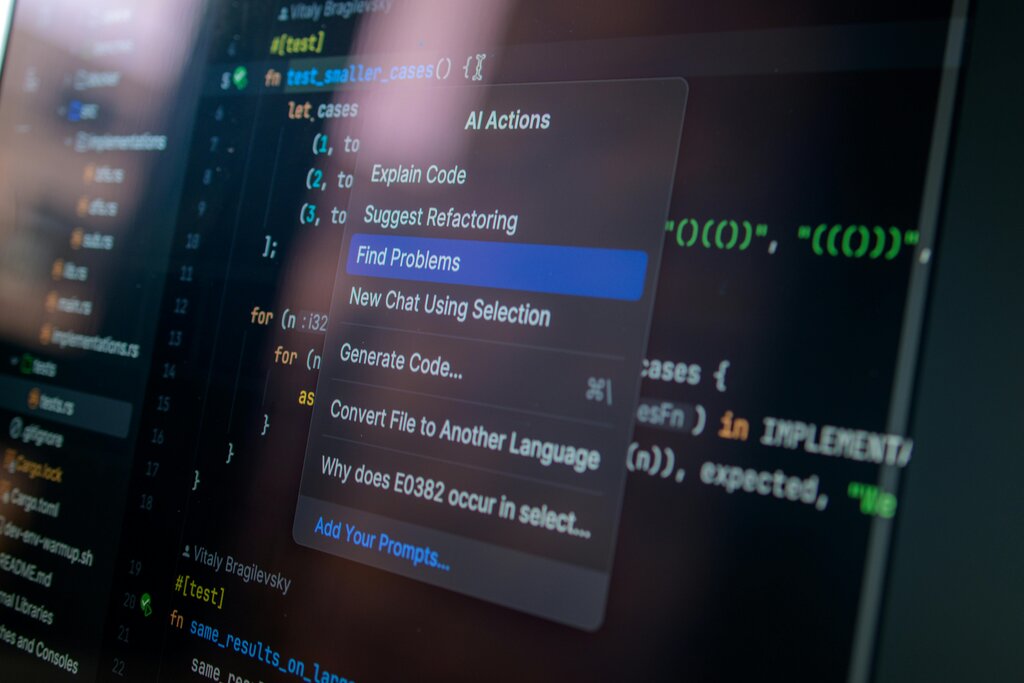
The goal is to let you code in a more natural way. Instead of searching through documentation or getting stuck on a bug, you can simply ask the AI for help. You can generate new code from a plain English description, ask for an explanation of a confusing function, or get help finding and fixing errors.
Installation and Setup
Getting Cursor is straightforward. It’s available for Windows, macOS, and Linux. The process is similar for each operating system.
| Operating System | Installation Steps |
|---|---|
| Windows | 1. Go to the Cursor website. 2. Download the .exe installer.3. Run the installer and follow the on-screen prompts. |
| macOS | 1. Go to the Cursor website. 2. Download the .dmg file for your chip (Intel or Apple Silicon).3. Open the .dmg and drag the Cursor app into your Applications folder. |
| Linux | 1. Go to the Cursor website. 2. Download the .AppImage file.3. Make the file executable ( chmod +x cursor-*.AppImage) and run it. |
When you open Cursor for the first time, it will ask you to log in. You can create a free account. It might also ask if you want to import your settings from VS Code, which can be a nice time-saver. After that, you're ready to start coding.
Navigating the Interface
The layout of Cursor is clean and functional. On the left, you'll see the file explorer, where you can open folders and files for your project. The large area in the center is the main editor, where you'll write and view your code. At the bottom, there's a terminal and panels for output and debugging, just like in many modern editors.
The key difference is the integrated AI. You'll primarily interact with it through a chat panel or directly within your code.
To bring up the main AI chat panel, you can use a keyboard shortcut. On Windows and Linux, it's Ctrl+L. On macOS, it's Cmd+L. This opens a chat interface where you can ask general questions about your code or programming concepts.
Using Basic AI Features
Cursor’s AI is most powerful when you use it directly with your code. There are two main ways to do this: generating new code and editing existing code.
For both actions, the shortcut is
Ctrl+Kon Windows/Linux andCmd+Kon macOS. This opens a small prompt right inside your editor.
Let's say you want to write a simple Python function to add two numbers. Instead of typing it out, you can press Cmd+K and type a prompt like, "a function that takes two numbers and returns their sum." Cursor will generate the code for you instantly.
# AI generates this code from your prompt
def add_numbers(a, b):
  """This function takes two numbers and returns their sum."""
  return a + b
Editing is just as easy. Highlight a block of code, press Cmd+K, and ask for a change. For example, you could highlight the function above and say, "add type hints to this function." The AI will modify the code to include them.
One of Cursor's best features is its ability to understand your entire project. By default, when you ask a question in the chat panel, you can toggle a "With Codebase" option. This gives the AI full context of all your files, allowing it to give much more accurate and helpful answers about your specific project.
Cursor is an AI-powered code editor that understands your codebase and helps you code faster through natural language.
Let's review what you've learned.
What is the primary characteristic that distinguishes Cursor from traditional code editors?
True or False: Cursor is an entirely new code editor built from scratch, with no connection to existing editors.
These basic features are just the beginning. As you get comfortable with chatting and inline editing, you'll find it fundamentally changes how you approach writing code.