Creating Presentation Files
Introduction to Presentation Software
Telling Your Story Visually
At its core, presentation software is a tool for storytelling. It helps you organize your ideas into a series of screens, called slides, to share with an audience. Think of it as a digital flip chart or a modern slide projector. Its main job is to provide visual support for the story you're telling, whether you're in a classroom, a business meeting, or a conference.
The goal is simple: to make your message clearer, more engaging, and easier for your audience to remember.
By combining text, images, charts, and even videos, these tools turn abstract concepts into something concrete. They give your words a visual anchor, helping your audience follow along and stay focused on your key points. A well-designed presentation doesn't just show information; it guides the viewer through a narrative.
Tools of the Trade
While many presentation tools exist, a few big names dominate the field. You've likely encountered at least one of them.
| Tool | What It's Known For |
|---|---|
| Microsoft PowerPoint | The long-standing industry standard, packed with features. It's part of the Microsoft Office suite. |
| Google Slides | A web-based tool that's great for collaboration. Because it lives in the cloud, multiple people can edit a presentation at the same time. |
| Apple Keynote | Known for its clean design and slick animations. It comes free with Apple devices. |
There are many other options, including Prezi, Canva, and Beautiful.ai, each with unique strengths. But no matter which one you choose, you'll find they share a common set of features.
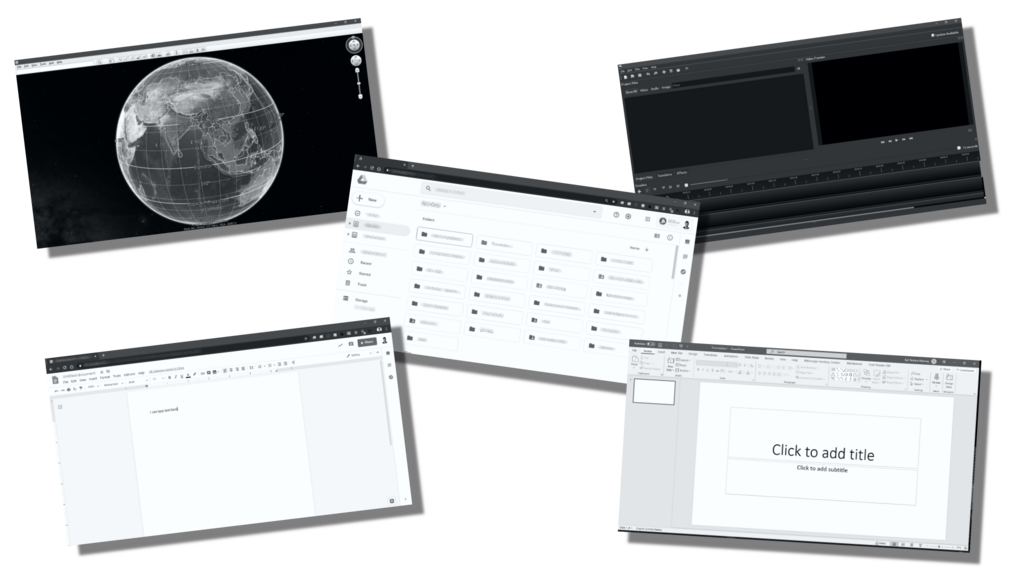
Software such as PowerPoint or Google Slides enable instructors – as well as students – to create valuable visuals to support either live or pre-recorded presentations, thus providing for a powerful way to convey content that is customized to a specific audience.
Core Features
Nearly all presentation applications are built around the same fundamental concepts. Understanding these will allow you to pick up any new tool with ease.
Slides: These are the individual pages of your presentation. Each slide typically contains a small piece of your overall message.
Layouts and Templates: To save time and keep your design consistent, you can use pre-designed layouts for different types of content, like a title slide or a slide with a picture and a caption. A template applies a consistent look (colors, fonts, logos) across all your slides.
Text and Visuals: The most basic function is adding and formatting text. You can also insert images, charts, graphs, and videos to illustrate your points and make the presentation more dynamic.
Transitions and Animations: Transitions are effects that introduce a new slide, while animations add movement to individual elements on a slide. They can help direct the audience's attention but are best used sparingly.
Presenter View: This is a special mode that shows your speaker notes and a preview of the next slide on your screen, while the audience only sees the main slide. It's a lifesaver for keeping your talk on track.
What is the primary role of presentation software?
In presentation software, what is the term for a pre-designed set of colors, fonts, and logos that ensures a consistent look across all slides?
Now that you understand the what and why of presentation software, you're ready to start building your own.