Canva Essentials
Canva Basics
Welcome to Your Canvas
When you first open Canva, you'll land on your dashboard. Think of it as your creative command center. This is where you'll find all your previous designs, team folders, and a big, inviting search bar that says, "What will you design today?"

On the left side, you'll see a navigation menu. This takes you to key areas like 'Projects' to see your saved work, 'Templates' to browse pre-made designs, and 'Brand' where you can save your brand's colors and logos if you have a Pro account. To start something new, you can either click the "Create a design" button in the top right or type what you're looking for into the search bar, like "Instagram post" or "presentation."
The Design Toolkit
Once you start a new design, you'll enter the editor. This is where the magic happens. The main area in the middle is your canvas. Everything on the left is your toolkit, filled with everything you need to bring your ideas to life.
Let's break down the most important tools:
| Tool | What It's For |
|---|---|
| Elements | Find shapes, lines, graphics, photos, and videos. It's a huge library of visual assets. |
| Text | Add headings, subheadings, and body text. You can also find pre-designed font combinations. |
| Uploads | Add your own images, logos, or videos to use in your designs. |
| Draw | Use different pens and highlighters to add freehand drawings or annotations. |
You'll spend most of your time grabbing things from this toolkit and arranging them on your canvas. It's all drag-and-drop, making it easy to experiment.
Templates Your Secret Weapon
The fastest way to create something beautiful in Canva is to start with a template. You don't need to be a professional designer, because professional designers have already made thousands of layouts for you to use.
Instead of creating your social media graphics from scratch, use Canva’s amazing library of templates, which you can use and customize — for free!
When you create a new design, Canva automatically shows you templates for that specific size, whether it's a flyer or a YouTube thumbnail. You can also search for templates by keyword, style, or color. Once you find one you like, just click on it, and it will appear on your canvas.
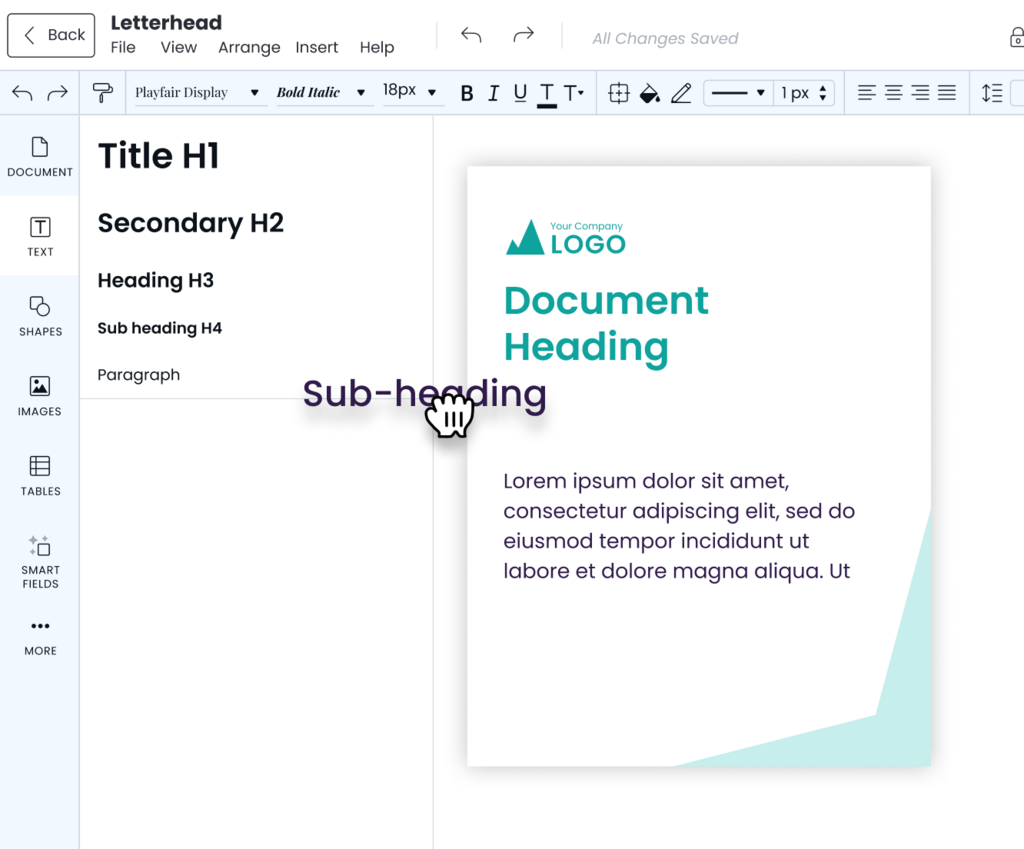
Customizing a template is simple. Click on any element to change it. You can swap out photos, edit text, and change colors to match your vision. It's a simple, powerful way to get started.
Example: Customizing an Instagram Post
- Search for "Instagram post" and select a template you like.
- Click on the placeholder text and type your own message.
- Go to 'Elements' and search for a photo that fits your post. Drag it over the template's existing photo to replace it.
- Click on a colored shape and use the color tool at the top of the editor to pick a new color.
- When you're happy, click the 'Share' button to download your design.
What is the primary function of the Canva dashboard?
Where in the navigation menu can you find all of your previously saved work?
With these fundamentals, you have everything you need to start creating. The best way to learn is by jumping in and trying it out for yourself.