Canva Design Fundamentals
Getting Started
Your First Steps in Canva
Canva is a design platform that makes it simple to create professional-looking visuals, even if you have no design experience. From social media posts to presentations, it offers tools and templates to help you get started quickly. Its drag-and-drop interface is intuitive, letting you focus on your ideas rather than complex software.
Canva is an incredibly versatile tool that allows even beginners to quickly and easily create great graphics, social media posts, presentations, and much more–without having to be a graphic design expert.
Creating an Account
To begin, you'll need to create a free account. Head to the Canva website and look for the sign-up option. You can register using an email address, or for faster access, you can connect your Google, Facebook, or Apple account. The process is straightforward and takes just a minute.
Signing up gives you access to a vast library of free templates, photos, and design elements to start using right away.
Navigating the Dashboard
Once you're logged in, you'll land on the Canva dashboard. This is your home base for all your design projects. It might look busy at first, but it's organized to help you find what you need.
At the top, you'll see a large search bar. You can use this to find specific templates, like "Instagram post" or "business card." Next to it is a "Create a design" button, which lets you start a project from scratch with custom dimensions.
On the left side, a navigation menu helps you keep track of your work. "Projects" is where all your saved designs live. "Templates" takes you to Canva's massive library of pre-made designs you can customize.
The Design Editor
When you select a template or create a new design, you'll enter the design editor. This is where the magic happens. The workspace is divided into three main areas.
-
The Toolbar (Left Side): This is your main toolkit. Here you'll find everything you need to add to your design. "Elements" contains shapes, lines, graphics, and photos. "Text" lets you add headlines and body text. "Uploads" is where you can add your own images or logos.
-
The Canvas (Center): This large area in the middle is your actual design. It's where you'll arrange all your text and elements. What you see here is what your final design will look like.
-
The Top Menu Bar: Above the canvas, you'll find options for the specific element you've selected. For example, if you click on a piece of text, this bar will show you options to change the font, size, color, and alignment.
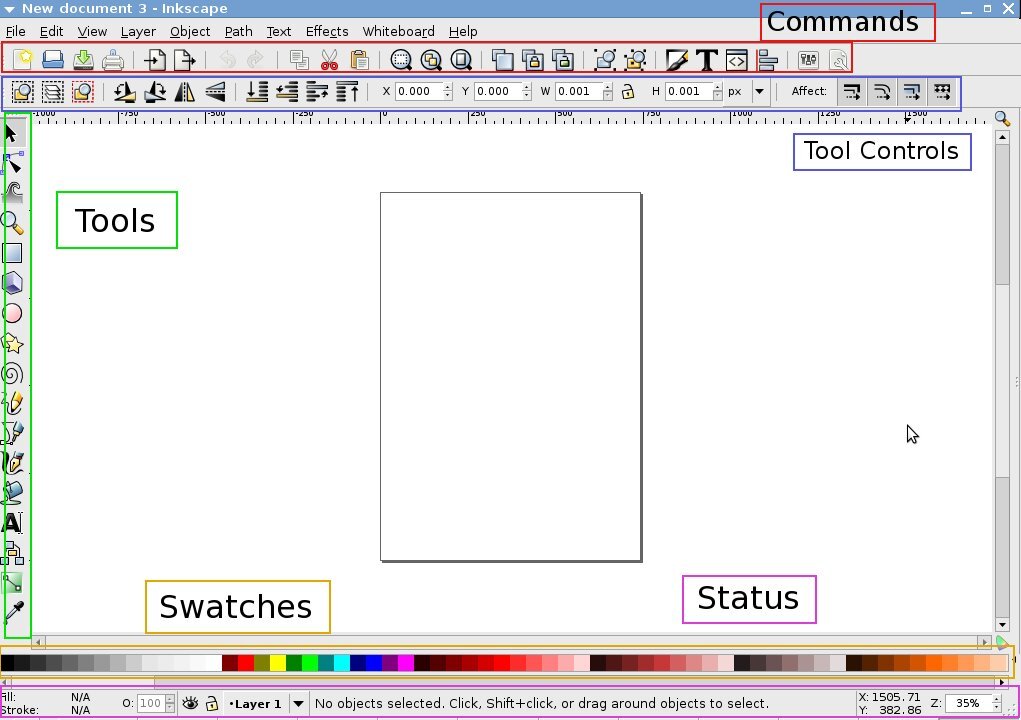
Experiment by dragging different items from the toolbar onto your canvas. Click on them to see what customization options appear in the top menu bar. Don't worry about making mistakes; you can always undo any change with the back-arrow button at the very top of the screen.
What is the primary purpose of Canva?
When you log in, where on the Canva dashboard can you find all your saved designs?
Now that you've covered the basics of getting around Canva, you're ready to start bringing your ideas to life.