Bash Scripting for Automation
Introduction to Bash
Talking to Your Computer
Think of your computer's graphical user interface (GUI) — the world of icons, windows, and cursors — as a restaurant menu. You can point to what you want, and the kitchen (the operating system) makes it for you. It's easy, but your options are limited to what's on the menu.
The command-line interface (CLI) is different. It's like talking directly to the chef. You can make specific requests, combine ingredients in unique ways, and get things done much faster if you know the language. The program that lets you have this conversation on Linux and macOS is a shell called Bash.
Bash stands for "Bourne Again Shell." It's an improved version of the original Unix Bourne Shell (sh), created by Stephen Bourne.
A shell is a command-line interpreter. It takes the commands you type, figures out what you mean, and tells the operating system to perform the actions. Because it's the default on so many systems, learning Bash is a fundamental skill for anyone who wants to automate tasks or manage a computer more efficiently.
Bash scripting provides a powerful tool for automating tasks on a Linux system.
The Command Prompt
You access Bash through an application called a terminal or terminal emulator. When you open it, you won't see any icons. Instead, you'll see the command prompt, which is a short line of text that waits for your input. It usually looks something like this:
username@hostname:~$
This isn't just random text; it gives you important information at a glance. Let's break it down.
username: The account you're currently logged in as.hostname: The name of the computer you're working on.~: Your current location in the file system. The tilde~is a shortcut for your home directory.$: The prompt symbol. This indicates that the shell is ready to accept a command from you. If you see a#instead, it means you're logged in as the superuser, or "root," who has administrative privileges.
Everything you type will appear after this prompt.
Your First Commands
Let's try a few basic commands. The simplest is echo, which just prints text back to the screen. Think of it as the shell's way of saying something back to you. Type this and press Enter:
echo "Hello, Bash!"
The shell will display Hello, Bash! on the next line. Now, let's find out where we are in the computer's file system. The pwd command stands for "print working directory."
pwd
This will show you the full path to your current directory, like /home/username. To see what's inside this directory, use the ls command, which means "list."
ls
You'll see a list of all the files and folders in your current location. To move into one of those folders, you use the cd command, for "change directory." For example, to move to your Desktop, you would type:
cd Desktop
If you run pwd again, you'll see your location has changed. To go back up one level, you can use two dots.
cd ..
These simple commands for printing text, checking your location, listing files, and moving around are the building blocks for navigating and interacting with your system.
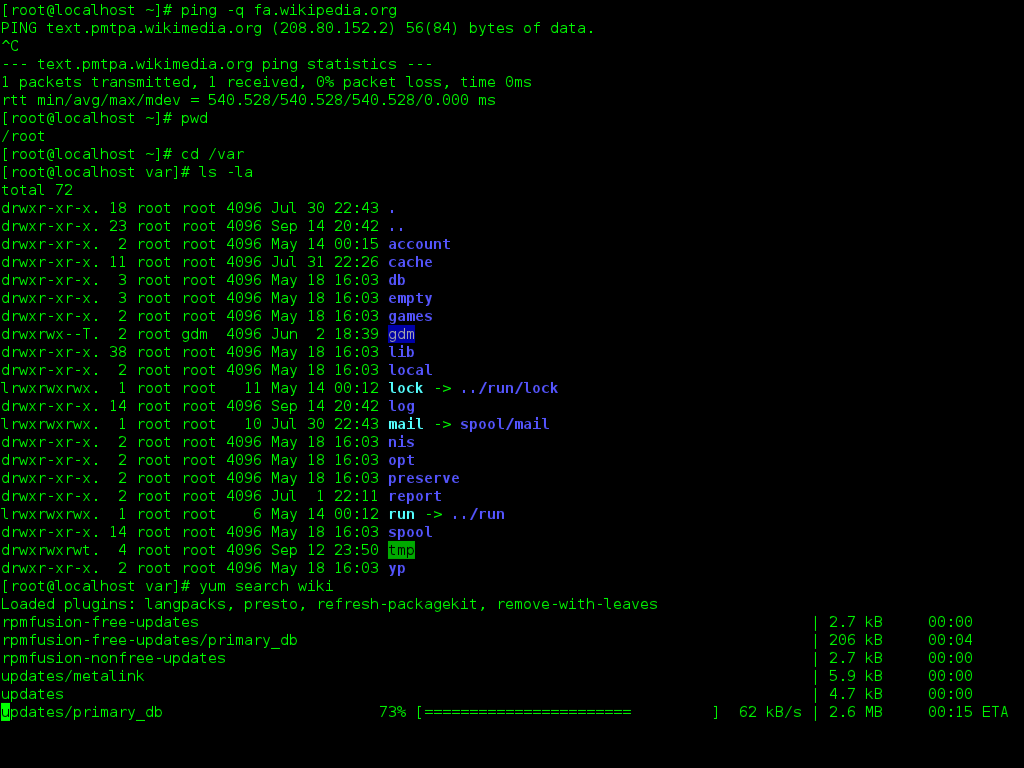
With these commands, you've already taken the first steps. You've learned how to see where you are, what's around you, and how to move. This is the foundation of working with the command line.