Advanced Data Analysis with Python and Power BI
Configuring Python Power BI
Pointing Power BI to Python
Before you can run a single line of Python code in Power BI, you need to tell Power BI where your Python installation lives. Power BI is pretty good at detecting this on its own, but it's crucial to know how to check and set it manually to avoid issues.
To do this, navigate to File > Options and settings > Options. In the dialog box that appears, select Python scripting from the global settings list. Here, you’ll see a field for the Python home directory. This path needs to point to the folder containing your python.exe file. If Power BI detected multiple installations, you can use the dropdown to select the one you want to use. If it's blank or incorrect, you'll have to set it yourself.
On Windows, enable "Add Python to PATH" for easier command-line access.
Using a dedicated virtual environment for your Power BI projects is a best practice. It isolates the specific libraries and versions your project needs, preventing conflicts with other Python projects on your system. If you're using one, you would point the home directory to the Scripts folder within that environment's directory.
Verifying Your Libraries
Power BI's Python integration relies on a few key libraries to function, primarily for data manipulation and visualization. You need to ensure these are installed in the Python environment that Power BI is pointed to. The most critical ones are pandas, for handling data structures, and Matplotlib, for creating visuals.
You can install or check for these libraries using pip, Python's package manager, from your command line or terminal. Make sure you're using the terminal associated with the correct Python environment.
# Install pandas and Matplotlib
pip install pandas matplotlib

# Scikit-learn is common for machine learning tasks
pip install scikit-learn

# To see a list of all installed packages
pip list
Choosing a Smarter Script Editor
While you can write Python scripts directly in Power BI's built-in editor, it’s a very basic text box with no advanced features like syntax highlighting or code completion. For anything more than a few lines, you’ll want to use an external Integrated Development Environment (IDE).
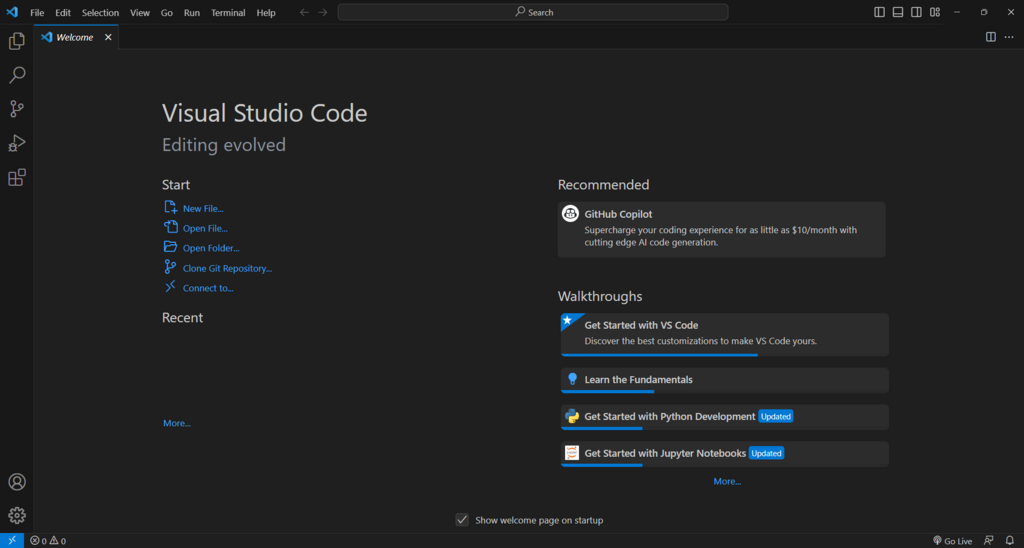
In the same Python scripting options window, you can select your preferred IDE. When you launch the Python script editor from within Power Query or the Python visual, Power BI will open your script in the chosen IDE. This makes writing, testing, and debugging your code much easier. Popular choices include VS Code and PyCharm.
Handling Data Source Privacy
One of the most common roadblocks when running Python scripts in Power BI is related to data privacy settings. Power BI's engine has security levels that restrict how different data sources can interact with each other to prevent sensitive data from being unintentionally exposed.
Because a Python script is considered a dynamic data source, it often can't run if its privacy level conflicts with other sources in your query. To fix this, you may need to adjust the privacy settings. Go to File > Options and settings > Data source settings. For the data sources your script will interact with, you might need to edit their permissions and set the privacy level to 'Public'. Be mindful of the security implications, as this bypasses some of Power BI's data protection features.
A common symptom of a privacy level issue is an error message that says something like "Formula.Firewall: Query references other queries or steps, so it may not directly access a data source."
With these configurations in place, your Power BI environment is ready to leverage the analytical power of Python.