
navis n4 programming language
Welcome! I'm excited to help you dive into the world of Navis N4 customization and programming.
Before we design our learning path, I'd love to know more about what you are aiming to build.
What specifically are you looking to build or achieve with Navis N4 (e.g., writing custom Groovy Code Extensions, integrating via Web Services/APIs, or learning the underlying Java architecture)?
Writing custom Groovy Code Extensions
It's great to hear you are focusing on writing custom Groovy Code Extensions! Navis N4 relies heavily on Groovy to let developers inject custom business logic directly into its execution flow.
Before we construct our exact learning path and dive into the code, I have one quick question about your programming background so I can tailor the examples perfectly for you.
What level of experience do you have with Java or Groovy programming?
how to create a navis n4 API to power BI
Connecting Navis N4's massive terminal data stream to Power BI is a brilliant way to unlock real-time shipping analytics, but we need to choose our architecture carefully.
N4 is a complex system, and there are two completely different ways we can build this bridge. How we build it depends entirely on whether you want N4 to actively push data out when events happen, or if you want Power BI to periodically pull data in.
I want Power BI to pull data using N4 APIs/Web Services
To make Power BI pull data smoothly, we'll design a custom RESTful API directly inside N4. This approach lets Power BI query Navis using standard web requests to fetch exactly the terminal data it needs.
Before we write our first lines of Groovy code, I want to make sure I tailor the code complexity to your current background.
How experienced are you with Java, Groovy, or building REST APIs?
I'm a complete beginner to Java and Groovy.
That is completely fine! Starting from scratch with Java and Groovy is a fantastic adventure, and building a RESTful API is actually one of the most satisfying ways to learn.
Before we write our first script, let's lock in our target data so we can build a highly focused learning path. What specific terminal data (such as container status, vessel schedules, or gate events) do you want Power BI to pull from Navis N4?
I want a mix of container and vessel data
A mix of container and vessel data is the perfect starting point! To pull that data out of Navis N4, we'll write Groovy code that interacts directly with N4's internal database of ships and shipping containers.
Since you are starting fresh, let's look at our game plan to build this API from the ground up.

The JVM Family
Let's look at a quick comparison. In traditional Java, if you wanted to print a simple message, you would have to write a rigid class wrapper: public class Main { public static void main(String[] args) { System.out.println("Hello N4"); } }. In Groovy, you can discard all that scaffolding and simply write:
println "Hello N4"
Notice how Groovy doesn't require semicolons, classes, or complex system print commands. It is designed to get straight to the point, which is exactly what we want when extracting container data.
Continue to variables, data types, and simple methods in Groovy
Let's dive straight into how Groovy handles variables and data. In programming, a variable is simply a named storage container for holding data—just like a labeled shipping container holds cargo.
The def Keyword and Dynamic Typing
Because you are beginning your programming journey, you will love Groovy's flexibility. Unlike rigid languages where you must declare exactly what kind of data a container will hold before you use it, Groovy offers dynamic typing using the .
When you use def, Groovy looks at the value you assign to the variable and figures out the data type automatically. Let's look at how we declare basic data types using def below:
// A text string (String)
def containerId = "TGHU1234567"

// A whole number (Integer)
def containerWeight = 24000

// A true/false value (boolean)
def isHazardous = false
Even though Groovy is smart enough to figure these types out for you, you can still be explicit and declare the exact type if you want to make your code easier to read for others. For example, you can write String containerId = "TGHU1234567" or boolean isHazardous = false. In Navis N4, we often use explicit types to make sure the server knows exactly what kind of data we are processing.
Variables in Action
Let's look at a quick, concrete scenario. Imagine we want to calculate the total weight of a shipping container, including the steel box itself (the tare weight) and the actual cargo inside. We can easily store these in variables and add them together:
def cargoWeight = 18500
def tareWeight = 4000
def totalWeight = cargoWeight + tareWeight

println "The total weight is: " + totalWeight
This script will calculate the sum and print out The total weight is: 22500. Before we look at how to package this math into a reusable method, do you want to try a quick challenge to test your variable skills?
Yes, give me a quick variable challenge
You bet! Let's put your variable skills to the test with a real terminal scenario.
def status = "In Yard"
 Skills
Spot on! That is exactly correct. Declaring def status = "In Yard" tells Groovy to create a variable named status and assign the text value to it, automatically figuring out that it is a String behind the scenes.
Packaging Logic into Methods
Now that you can store container data in variables, the next step is learning how to bundle your code into reusable blocks. In programming, we do this using , which are sometimes called functions. Think of a method like a pre-programmed automated machine in your yard: you feed it some inputs, it performs a set of instructions, and it spits out a result.
In Groovy, defining a method is incredibly simple. We use the def keyword followed by the method's name, parenthesized inputs (called parameters), and curly braces {} to hold the code. Let's look at how we can write a simple method to calculate container weights:
def calculateTotalWeight(cargo, tare) {
    return cargo + tare
}

// Calling our method with real numbers
def total = calculateTotalWeight(18500, 4000)
println "Result: " + total
The return keyword is how the method sends its final calculation back to the rest of the script. Because Groovy is so flexible, we do not have to specify what types of data cargo and tare are; Groovy figures it out when we pass the numbers in. This reusability is key when we begin querying thousands of containers in N4.
Running Code in the Application Server
Since your goal is to pull this data into Power BI, it is vital to understand how these Groovy scripts actually run. Unlike standalone programs that run on your laptop, Groovy scripts in N4 execute directly inside the Navis N4 . This means your script runs inside the same active memory space as the core terminal operating system itself.
When a request comes in (say, from Power BI), N4 compiles your Groovy script on the fly into Java bytecode, runs it directly against its database to gather the container and vessel records, and returns the result instantly. This dynamic execution is what makes Groovy Code Extensions so incredibly fast and flexible.
Continue to Navis N4 Extension Architecture
You are making incredible progress! Now that you have the Groovy basics down, let's step into the core architecture of Navis N4 to see where our custom code will actually live.
Code Extensions vs Web Service Extensions
While a standard Code Extension modifies behavior inside the physical yard (like stopping a crane if a container lacks customs release), a Web Service Extension acts as an open window. It listens for an outside knock from Power BI, runs our logic, and hands back the fresh shipping data.
Extension Points and Execution Context
N4 is highly secure and organized. It won't let you run arbitrary code anywhere you want; instead, you must attach your script to a designated . Think of this as a pre-cut slot in a power strip where you are allowed to plug in your custom device.
When your script runs at an extension point, N4 provides it with an execution context. This is a special, invisible bucket of live objects containing details about the event. For example, if your script runs when a container is gated in, N4 hands your script a context object containing the container ID, its weight, and the truck driver's name.
Before we dissect the exact anatomy of a real N4 Groovy script, let's make sure this architectural framework makes sense. Would you like to visualize how Power BI and N4 interact through this Web Service extension point?
Make me a diagram of the N4 Web Service architecture
I would love to help you visualize that! Let's map out exactly how your custom Web Service script acts as the bridge between Power BI and the Navis N4 core system.
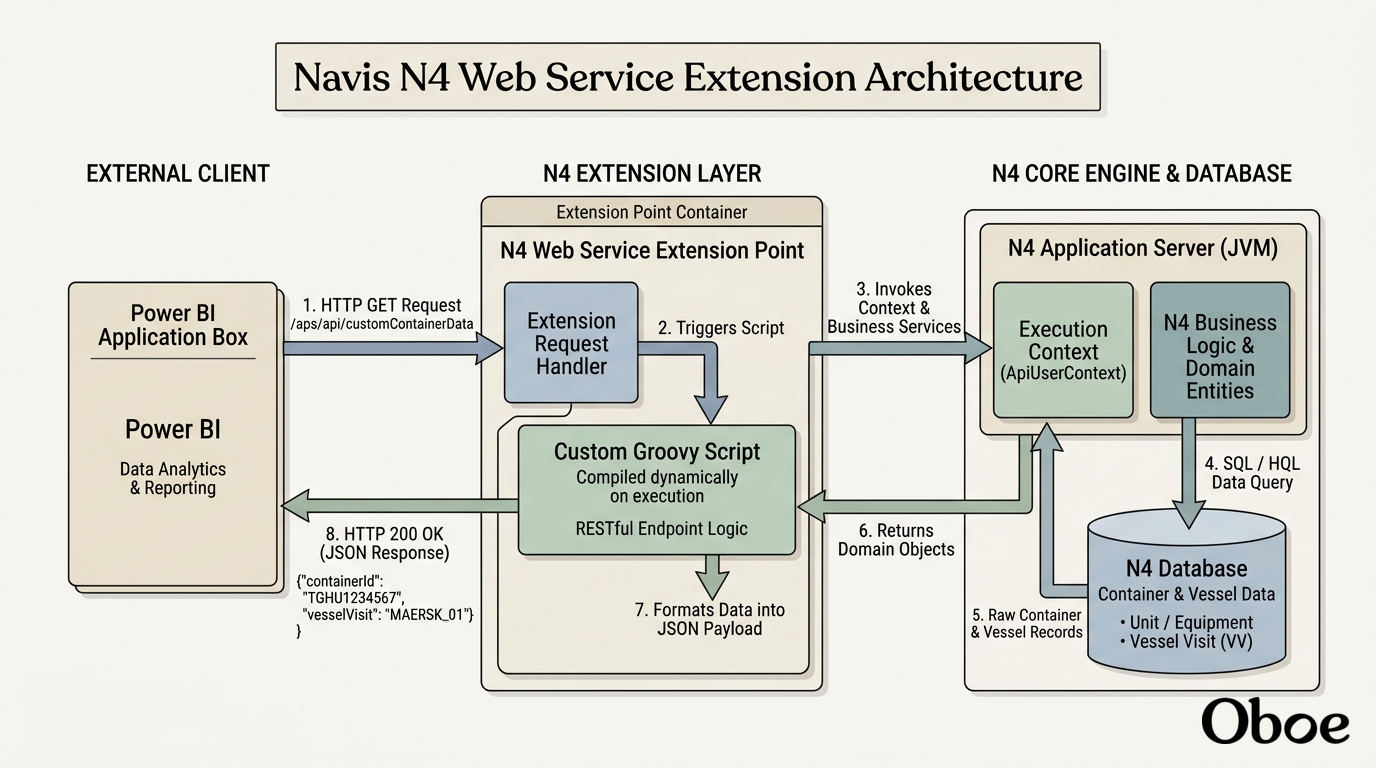
I've kicked off the creation of a diagram to illustrate this flow. As you can see, the custom Groovy script we'll write acts as the active gatekeeper at our custom extension point.
When Power BI sends a standard web query, N4 immediately runs our script inside its active memory, pulls the requested data, and passes it right back. Now that you can see how the architecture links up, are you ready to explore the actual structure and anatomy of one of these N4 Groovy scripts?
Continue to the anatomical structure of an N4 Groovy script
Let's open up the hood of a real Navis N4 Groovy script and see exactly how it is put together. Because you are new to programming, you'll be happy to know that every single N4 Groovy extension follows the exact same basic structure.
The Anatomy of an N4 Extension
Every Groovy Code Extension we write for Navis is structured as a . Think of a class as a master blueprint. Inside this blueprint, we must define a specific method named execute that N4 calls whenever our extension is triggered.
Let's look at the absolute minimum skeletal structure of a custom N4 Groovy script below:
package custom.extensions

import com.navis.carina.framework.logging.CarinaLogging

class ContainerRestService {

    void execute(Map parameters) {
        // Our custom logic goes here!
        CarinaLogging.log("Web Service triggered successfully!")
    }
}
Let's break this anatomy down line-by-line so it makes perfect sense:
| Component | What It Does | Analyst's Analogy |
|---|---|---|
package | Organizes your code into a specific directory space inside N4. | The shipping zone or postal code. |
import | Pulls in helper tools and libraries provided by Navis. | Bringing specialized crane tools onto the dock. |
class | The wrapper containing all our variables and methods. | The outer steel walls of the shipping container. |
execute() | The mandatory entry point method N4 calls to run your code. | The main gate where all cargo must enter. |
The execution parameter Map
Look closely at Map parameters inside the execute method signature. This parameter is the actual physical suitcase N4 hands to your script when it runs. Because this is a , it contains 'key-value' pairs of real-time data, like [containerId: "TGHU1234567", weight: 24000].
By reading from this Map, our script can instantly access the operational context—such as what container is being gated, or what parameters Power BI is requesting. Ready to see how we pull a real value out of this parameters suitcase inside our code?
What is CarinaLogging used for?
That is a great question to ask before we go any further. Think of as the black box flight recorder of your Navis N4 application server.
Since your custom code runs deep inside the server's memory rather than on your computer screen, you can't use standard commands like println to see what is happening. If you did, those messages would vanish into the background. Instead, we use CarinaLogging.log() to write troubleshooting notes directly into N4's central system files.
Accessing the Suitcase Parameters
Now, let's look at how we combine logging with the execution parameter Map. When N4 triggers your script, it passes a Map variable named parameters. We can pull values out of this map using their 'key' names and log them to see exactly what data N4 is sending us:
package custom.extensions

import com.navis.carina.framework.logging.CarinaLogging

class ContainerRestService {

    void execute(Map parameters) {
        // Extracting the container ID from N4's suitcase map
        def targetContainer = parameters.get("unitId")

        // Logging the container ID to the server logs
        CarinaLogging.log("Power BI requested data for container: " + targetContainer)
    }
}
By writing parameters.get("unitId"), we reach into that parameters suitcase, grab the value associated with the key "unitId", and store it in our variable. We then log it so any developer looking at the server logs can trace exactly what container Power BI asked for.
Continue to Querying N4 Container/Vessel Data
Welcome to your first major milestone! We are moving directly into the live operational heart of the terminal, where we will learn to query actual shipping cargo.
Introducing Navis N4 Domain Entities
When you write code inside Navis N4, you aren't writing abstract math; you are manipulating digital representations of real, physical objects sitting out on the terminal dock. In the software world, we call these central business objects .
To build your Power BI API, you will primarily interact with three critical domain entities that form the backbone of Navis N4 operations:
| Entity Name | Technical Java Class | What It Represents |
|---|---|---|
| Unit | com.navis.argo.business.unit.Unit | An active shipping container, trailer, or chassis moving through the terminal. |
| Equipment | com.navis.argo.business.reference.Equipment | The physical steel container box itself, containing its tare weight, type, and size. |
| Vessel Visit | com.navis.vessel.business.operation.VesselVisit | A specific scheduled docking event of a ship at your terminal. |
Think of the Equipment entity as the permanent blueprint of a physical box (e.g., "This container is a 40-foot dry van that weighs 8,000 pounds empty").
The Unit entity, on the other hand, is the active, living record tracking what is happening right now with that box (e.g., "This container is currently loaded with 15 tons of electronics, is sitting in Yard Row B, and is assigned to the vessel Maersk Antwerp").
When we write our database queries, we will target these specific Java classes to instantly pull the container and vessel variables Power BI needs.
Why does Navis separate Unit and Equipment?
That is one of the smartest questions you can ask, and understanding this separation is the absolute key to writing clean queries in Navis N4.
The Box vs The Shipment
Think of it as the difference between a physical (the steel box itself) and the actual transaction or cargo shipment it is carrying right now.
To make this clear, let's look at why Navis separates these two concepts in its database structure:
| Concept | Entity | What It Tracks | Lifecycle |
|---|---|---|---|
| The physical container | Equipment | Dimensions, tare weight, owner (e.g., Maersk), max weight, manufacture date. | Permanent. Exists in N4 forever. |
| The active cargo record | Unit | Position in yard, current cargo weight, destination, hazardous status, booking number. | Temporary. Active only while inside the terminal. |
Imagine a physical steel box owned by Ocean Network Express with the ID ONEU1234567. That box is the Equipment. It will always be 40 feet long, and its empty steel frame will always weigh exactly 8,200 pounds.
Today, that box enters your terminal carrying 20 tons of electronics destined for Chicago. N4 creates a Unit record for this specific visit.
Two weeks later, the box is emptied, leaves the port, and returns next month stuffed with 15 tons of auto parts. The physical box (Equipment) has not changed at all, but N4 will create a brand-new Unit record to track this brand-new cargo journey.
By keeping these separate, N4 prevents cluttering its database. It links the temporary Unit record to the permanent Equipment blueprint. When we build our Power BI queries, we will navigate from the Unit to its Equipment to pull the complete picture.
Can a Unit exist without an Equipment record?
The short answer is yes, absolutely! In Navis N4, a can exist in the system without being paired with an active, physical record. This is a common and necessary occurrence in day-to-day port operations.
Virtual Units and Pre-Advised Cargo
To understand how this works, consider two common operational scenarios where a Unit has no physical equipment attached yet:
-
Pre-Advised Records: When a shipping line sends an electronic manifest (EDI) stating that a container is scheduled to arrive next Thursday, N4 immediately creates a Unit record. At this point, the physical steel box hasn't arrived, so no physical Equipment verification has occurred. The Unit exists in a "pre-advised" state.
-
Virtual or Dummy Units: Sometimes ports need to track cargo that isn't in a standard container box at all—like a massive yacht or a locomotive engine being loaded directly onto a ship. N4 creates a "virtual" Unit record to manage the logistics, without needing a standard physical Equipment profile.
The Hibernate and E2B Framework
To retrieve this data for Power BI, we must write queries that search N4's database. Instead of writing raw SQL database commands, Navis uses a specialized database framework called , which stands for Entity to Business. E2B is built on top of , a standard Java framework that maps database tables directly to Groovy and Java objects.
When we want to search for container or vessel records, we will use N4's DomainQuery API. This API is an object-oriented builder tool that lets us construct search criteria step-by-step using Groovy code, which the E2B framework compiles into safe, fast database queries.
Continue to DomainQuery and search criteria basics
It is great to have you back! Now that we understand how N4 maps its physical yard to digital objects, we are ready to write our very first database queries.
The DomainQuery API
To retrieve container records without writing raw database code, Navis provides the , which is a specialized object-oriented search builder. Instead of writing SQL tables and joins, you build queries by telling N4 exactly which business object you want to find and what conditions it must meet.
To construct a search, we use a helper factory class named QueryUtils. Think of this factory as the master key to N4's database filing cabinet. Let's look at the basic syntax to start a search for active units (containers):
import com.navis.argo.QueryUtils
import com.navis.argo.business.api.ArgoFinderMethods
import com.navis.framework.query.DomainQuery

// 1. Create a query targeting the Unit entity
DomainQuery query = QueryUtils.createQuery(ArgoFinderMethods.UNIT)
By calling QueryUtils.createQuery(ArgoFinderMethods.UNIT), we create a search template that specifically looks for container records. In our next step, we'll learn how to add filters (like searching for a specific container ID) so we don't accidentally retrieve every single container in the entire terminal database!
What is ArgoFinderMethods used for?
Think of ArgoFinderMethods as your directory of target maps, specifically telling N4's database search engine which core table or object type you want to explore.
The Entity Locator
When we run a database query, Navis N4 needs to know exactly which category of data we are looking for. The class is a built-in helper utility filled with static references that represent N4's primary database tables.
When you write ArgoFinderMethods.UNIT, you are passing a specific constant value that acts like a targeted homing beacon. It tells the QueryUtils.createQuery() method: "Don't search for vessels, truck drivers, or invoices right now—set up a search grid exclusively for container transaction records."
Now that our query is pointed directly at the correct entity, we need to learn how to add search filters—like specifying a specific container ID—so we only retrieve the exact records Power BI needs. Ready to dive into building filter criteria using predicates?
Make me a study guide for N4 database querying
I'd love to! Providing a solid reference tool is a great way to anchor these database concepts before we write our first query.
I've kicked off the creation of your study guide! It will serve as a handy roadmap summarizing everything we've discussed about Navis N4's database layers, entities, and the query initialization process.
Now that you have a reference guide in hand, let's tackle the next logical step in our path: how do we actually narrow down our search so we don't fetch all terminal records at once?
Continue to building filter criteria using Predicates
To narrow down your database searches so you don't overwhelm the N4 application server, you must apply specific criteria. In Navis N4, we do this using , which act as the precise logical filters of your query.
The Predicate and Equivalence Builders
To construct a filter, N4 uses helper factory classes like PredicateFactory or the specialized . These utilities let you translate English business requirements (like "find container TGHU1234567") into structured code that the database understands.
Let's look at how we construct a filter to find a specific container ID. We use QueryUtils.createKey() to point to the field we want to search, and Equivalence.equals() to define our match requirement:
import com.navis.argo.QueryUtils
import com.navis.argo.business.api.ArgoFinderMethods
import com.navis.framework.query.DomainQuery
import com.navis.framework.portal.query.Equivalence
import com.navis.argo.business.atoms.UnitField

// 1. Initialize the query
DomainQuery query = QueryUtils.createQuery(ArgoFinderMethods.UNIT)

// 2. Build the exact match predicate
// We want to find a unit where the Unit ID equals "TGHU1234567"
def predicate = Equivalence.equals(UnitField.UNIT_ID, "TGHU1234567")

// 3. Add the predicate to our query
query.addFilters(predicate)
In this snippet, UnitField.UNIT_ID tells N4 exactly which database column to inspect, while "TGHU1234567" is our target value. Adding this predicate to our query means the database will skip thousands of other rows and zoom straight in on our target container. Now that we have built our filtered query, are you ready to see how we actually execute it to fetch the data in Groovy?