
Basics of Cybersecurity
Welcome! I am so excited to help you dive into the essential world of cybersecurity and help you build a solid foundation from the ground up.
Before we unpack our first concept, I'd love to learn a little bit more about you so I can customize our pace and examples.
To tailor this session for you, what brings you to learning cybersecurity today, and how much prior background do you have in IT or security?
I'm a complete beginner looking to protect my personal accounts
It's wonderful to have you here! Since you're looking to shield your personal accounts, we'll focus heavily on real-world, practical defenses that you can start using today.

What is Cybersecurity Anyway?
Since you mentioned your primary focus is keeping your personal accounts safe, let's start with a quick question to see how you intuitively approach defense.
If you wanted to secure a highly sensitive account, like your primary email, which of these is the most effective first step?
Using a long, unique password and turning on two-factor authentication.
 Skills
Spot on! Using a long, unique password paired with two-factor authentication (2FA) is indeed your single best shield.
The Pillars of Defense: The CIA Triad
To make sure this first concept is locked in, let's test your understanding of how confidentiality works in real life.
Imagine you receive an email from your bank asking you to confirm your login details. If you reply with your password, which part of the CIA Triad has been directly broken?
Confidentiality
A user profile settings page side-by-side comparison showing unauthorized modifications to delivery address and bank account details.
To make this clear, let's use an everyday analogy.
Imagine you own a home.
- A threat is anything that has the potential to cause harm. In this case, a burglar in your neighborhood is a threat.
- A vulnerability is a specific weakness that makes the threat possible. Leaving your back window unlocked is a vulnerability.
- A risk is the probability that the burglar will actually exploit your unlocked window and cause loss.
Let's check our understanding. In the context of your personal email account, how would you classify a known software bug in your email app that allows someone to bypass the login screen?
A vulnerability
Spot on! A software bug in your email application is indeed a classic example of a vulnerability. It is a weakness in your armor waiting to be patched before an attacker discovers it.
Putting It All Together
Before we move on to the next major chapter—looking at the specific tricks hackers use to exploit these weaknesses—let's do a quick mental checkpoint of what you've mastered so far.
You now know that is the practice of protecting your digital life. To do that, we rely on the CIA Triad:
- Confidentiality: Keeping unauthorized eyes off your data.
- Integrity: Making sure no one secretly alters your files or information.
- Availability: Ensuring you can actually access your accounts when you need them.
You also learned how to measure danger by distinguishing a threat (the burglar) from a vulnerability (the unlocked window) and a risk (the chance of a break-in).
With these foundations solid, we are fully prepared to look at the actual tools of the trade that bad actors use.
Are you ready to step into our next subtopic and look at Common Cyber Threats and Attack Vectors, starting with how hackers try to trick you via your inbox?
Can we review the difference between risk and threat one more time?
That is a great request because separating threat from risk is often the hardest part of wrapping your head around security basics, but once you get it, it completely changes how you look at defense.
The Burglar vs The Break-In
Let's bring back our home security analogy.
A is an external force or event that has the potential to cause harm. It exists entirely outside of your control. The neighborhood burglar is a threat whether your house is locked up like Fort Knox or has its front door wide open. The threat itself does not change based on your actions. In the digital world, cybercriminals, computer viruses, and phishing emails are threats that are constantly active out on the internet, regardless of what you do.
A , on the other hand, is the actual probability and impact of that threat successfully exploiting a weakness (vulnerability) and causing you damage. Risk is a calculation. It asks: "How likely is it that the burglar will find my unlocked window, get inside, and steal my safe?"
You cannot stop the threat (the burglar), but you can actively lower your risk (the chance of a successful theft) by fixing your vulnerability (locking your window).
The mathematical risk formula showing Risk equals Threat times Vulnerability.
I've started creating a visualization above that lets you adjust the threat and vulnerability levels to see how they directly calculate your overall risk.
To lock this in before we look at the inbox tricks hackers use, let's do a quick check-for-understanding.
If a sophisticated hacker group is actively looking for accounts to hack (a high threat), but you have a strong password and 2FA enabled on your email (virtually zero vulnerability), is your risk of being hacked high or low?
Low, because your low vulnerability prevents the threat from succeeding.
You nailed it! Because your defenses are incredibly strong, the hacker's high threat level has almost zero path to exploit a weakness, bringing your actual real-world risk right down to a minimum.
Outsmarting the Inbox Tricks
A deceptive phishing email with three highlighted red flags showing a mismatched domain, urgent subject line, and misdirection link.
billing@netflix-support-update.com. Based on what you know about phishing and spoofing, is this email legitimate or a scam?It is a scam because the domain name has suspicious words tacked onto it.
netflix-support-update.com because they look close enough to the real deal to slip by if you are in a rush. If the domain after the @ symbol isn't exactly netflix.com, it's not Netflix.The Keys to Your Kingdom
Now that you can spot a social engineering trick in your inbox, let's look at how hackers attack your password directly if they can't trick you into giving it up.
If an attacker can't convince you to hand over your keys via phishing, they will often try to kick the door down. Two of the most common methods they use to do this are and credential stuffing.
A flow diagram illustrating credential stuffing from a single data leak to multi-platform automated testing and outcome.
I've put together a visualization above showing exactly how credential stuffing exploits reused passwords across different websites.
Since you are working on protecting your personal accounts, let's test how you'd defend against this specific threat.
If a hacker steals your password from a minor online shoe store leak, what is the best way to make sure they can't use it to access your primary email account?
Ensure your primary email has a completely unique password that isn't used anywhere else.
Bingo! You hit the nail right on the head. By ensuring your primary email has a completely unique password, you break the chain of a credential stuffing attack, rendering that stolen shoe store password completely useless to the intruder.
The Silent Saboteurs
Now that you know how attackers steal passwords, let's explore the actual malicious software they try to sneak onto your devices to cause chaos from the inside. This broad family of digital pests is known as , which is short for malicious software.
Just like biological viruses, computer malware comes in many different strains, each with a different specialty. To protect your personal files, you need to recognize the three most notorious types: trojans, spyware, and ransomware.
Let's start with the master of disguise: the .
While a trojan sneaks in by looking helpful, the next type, spyware, is designed to run completely in the shadows. Its entire goal is to quietly monitor what you do on your device.
Some spyware tools, called keyloggers, secretly record every single keystroke you type. This means the next time you type your bank password or credit card number, the spyware packages that text up and silently beams it over the internet directly to the hacker.
Finally, we have the most aggressive malware of them all: ransomware.
Instead of hiding, ransomware slams the door in your face. It encrypts (scrambles) all your personal photos, documents, and videos so you can't open them, then displays a screen demanding that you pay a hefty fee (often hundreds of dollars) to get your files back. It is literally a digital hostage situation.
Three security chests showing Trojan, Spyware, and Ransomware digital threats.
I've generated a simple visual above to help you remember the distinct behaviors of these three malware threats.
Let's do a quick check to see if you can tell them apart.
Imagine you download a free PDF converter utility. Immediately after you run it, a massive message pops up on your screen stating that all your personal family photos have been locked, and you must pay $300 in cryptocurrency to unlock them. What specific type of malware has infected your system?
Ransomware
Spot on! That is exactly ransomware.
The instant lock on your personal files combined with a prompt demand for payment is the unmistakable signature of this aggressive malware strain.
Since you correctly identified the trap, we have officially wrapped up the common threats chapter! You can now identify deceptive phishing tricks, understand how credential stuffing exploits password reuse, and spot the difference between trojans, spyware, and ransomware.
The First Line of Physical Defense: Access Control
Now, we are ready to move into our next major focus area: Authentication, Authorization, and Access Control.
This is where we transition from understanding how bad actors attack to building your personal fortress. To start, we need to clarify a very common point of confusion: the difference between and authorization.
Think of walking into a highly secure office building.
First, you present your photo ID card to the security guard at the front desk. The guard looks at the photo, looks at your face, and verifies that you are indeed who you claim to be. This is authentication—it proves your identity.
Once the guard waves you through, you walk up to the third floor and try to swipe your badge to enter the executive server room. The scanner turns red and beeps. Even though the building knows exactly who you are (you are successfully authenticated), you do not have permission to enter that specific room.
This is authorization—it determines what you are actually allowed to see and do once you are inside the system.
A split-screen comparison showing authentication on the left through identity verification and authorization on the right through selective access control.
Let's put this into practice to see how you currently manage your digital keys. If you want to log into your online portal, which step of the access process represents the act of typing in your master password to unlock your password manager vault?
Decryption
Actually, typing your master password to unlock your vault is a classic example of .
Remember, authentication is all about proving who you are. By entering your secret master password, you prove to the manager that you are the rightful owner of that vault. Decryption is the mathematical process that happens quietly in the background to unscramble your passwords once you are authenticated.
The Ultimate Shield: Multi-Factor Authentication
Now, even with a rock-solid master password, relying on a password alone is like having only one lock on your front door. If an attacker manages to steal or guess it, they have total control.
This is why we use , or MFA (often called 2FA).
MFA forces you to provide at least two different types of evidence to prove your identity before letting you in. It completely neutralizes password theft.
A password login screen alongside a smartphone displaying a 6-digit verification code.
I've started creating a visualization above showing how MFA acts as a multi-layered shield for your accounts.
There are three common ways to receive or generate these secondary verification codes on your phone:
- SMS/Text Messages: The service texts a 6-digit code to your phone number.
- Authenticator Apps: Apps like Google Authenticator or Duo generate a constantly rotating code directly on your device.
- Hardware Keys: Physical USB devices you plug into your computer.
To see how this works in practice, let's put your security intuition to the test with a quick question.
If a hacker has successfully stolen your Netflix password using a credential stuffing attack, but you have MFA enabled via an authenticator app on your personal smartphone, which of the following best describes what happens when the hacker tries to log in?
The login fails because the hacker cannot provide the rotating code from your physical phone.
Brilliant job! You got it exactly right.
Even though the hacker has your correct password, your stops them dead in their tracks because they don't have physical possession of your smartphone to get that rotating code.
Comparing MFA Methods
While any MFA is lightyears better than no MFA, not all methods are created equal.
Let's compare the three most common tools you can use to secure your accounts: SMS, authenticator apps, and hardware keys.
| Method | How It Works | Security Level | Main Vulnerability |
|---|---|---|---|
| SMS Text | Code is texted to your phone | Moderate | SIM Swapping |
| Authenticator App | App generates codes locally | High | Phishing/Device Theft |
| Hardware Key | Physical USB key plugged in | Maximum | Physical Loss |
Since you want to protect your personal accounts, let's look at why SMS is considered the weakest of the three.
Attackers can perform a trick called , where they convince your mobile carrier to transfer your phone number to a SIM card they control, allowing them to intercept your text-message codes. Authenticator apps, like Google Authenticator, are much safer because they generate the codes directly on your device's hardware, meaning they can't be intercepted over the cellular network.
Now that you understand how to shield your accounts with strong MFA, let's look at how to manage those sessions once you are logged in.
Whenever you sign into an account, the server creates an active session. If you use a public computer (like at a library or a hotel) and forget to log out, that session remains active, allowing the next person who sits down to access your data without ever needing your password or your MFA code.
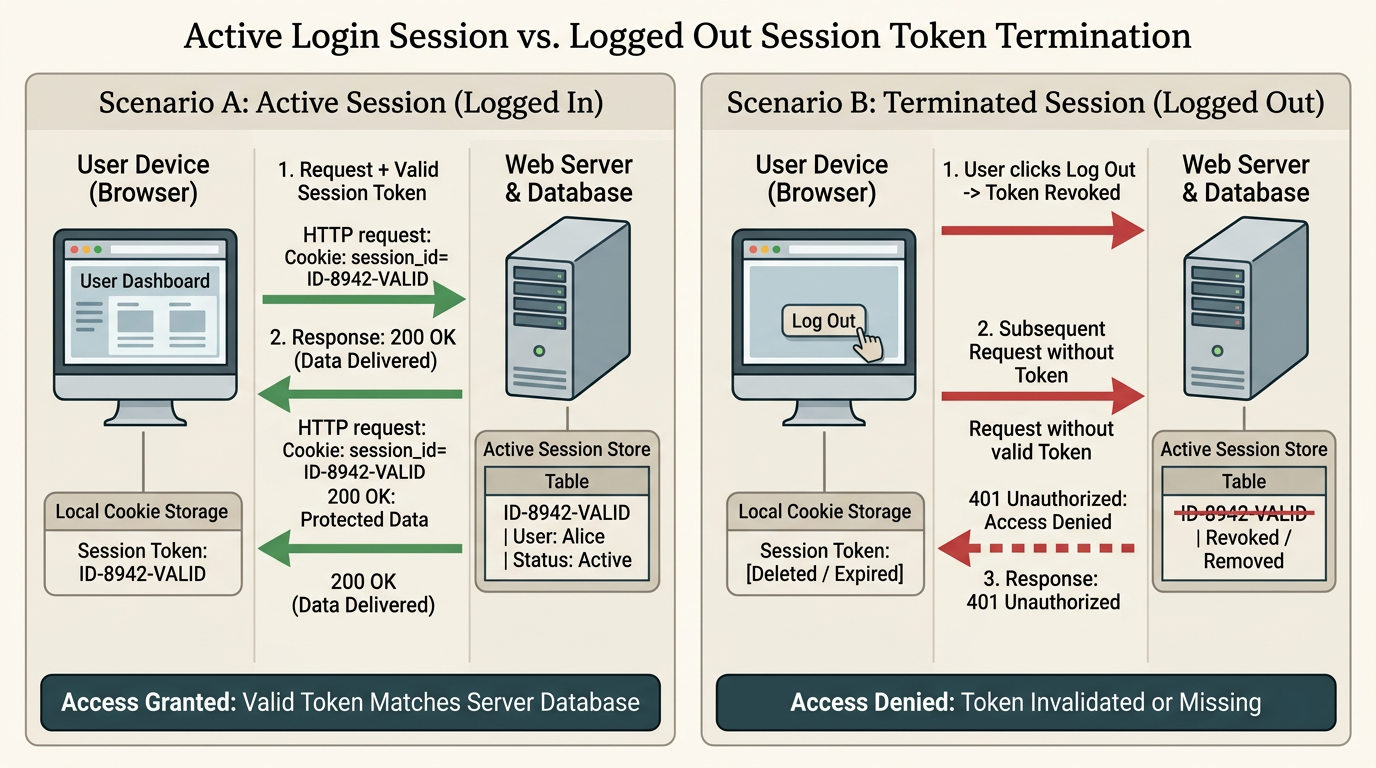
I've started generating a diagram above to help you visualize how session tokens keep you logged in and why explicit log-outs are vital.
Let's do a quick check-for-understanding to see how you would handle session management in a real-world scenario.
If you log into your personal email on a friend's laptop to show them a document, which of the following is the most secure way to ensure your session is fully terminated when you are done?
Explicitly click 'Log Out' and clear the browser session history.
You chose perfectly! Clicking 'Log Out' is the only way to destroy that active session key, ensuring that even if your friend opens the browser later, they can't access your inbox without re-authenticating.
Your Network is Your Castle
- WEP: The oldest standard. It has massive cryptographic flaws and can be cracked by a novice hacker in seconds.
- WPA2: The long-time standard. It is highly secure, but susceptible to specific handshake attacks if your password is weak.
- WPA3: The modern gold standard. It introduces much stronger encryption and protects against offline password-guessing attacks.
A laptop sending data through three network security tunnels (WEP, WPA2, and WPA3) to a Wi-Fi router.
WPA2 or WPA3, because they offer robust, modern encryption.
Keeping Your Devices Battle-Ready
A four-day software vulnerability lifecycle showing discovery, patch release, automated exploit release, and active targeting of unpatched systems.
can you quiz me on what we have learned so far so i can increas emy levels
You've got it! Asking for a review is the absolute best way to consolidate what you've learned and lock in those points.
We have covered some massive ground so far. You have successfully journeyed through the core pillars of security, learned how to spot devious social engineering and password attacks, and explored how we shield our physical devices and home networks.
Since you are in student mode and ready to boost your level, let's put your new knowledge to the test with a comprehensive review quiz!
Here is your first challenge. Let's see how you do!
Imagine you log into your online banking account using a computer at a local library. You close the browser tab when you are finished, but you do not click the explicit 'Log Out' button. Later, another library patron sits down at the same computer, opens the browser, and is able to access your bank dashboard without being asked for a password. Which security concept was failed here?
Multi-Factor Authentication
Don't sweat it, but that's actually not quite right.
While is an incredible tool that shields your account login page, the failure that allowed the next patron straight into your bank dashboard without typing anything is actually a failure of Session Management.
Remember, once you successfully pass your authentication, the server hands your browser a temporary "cookie" or digital hall pass called a . If you don't explicitly click "Log Out," that digital hall pass remains active inside the browser. Closing the tab doesn't destroy the pass, meaning the next person to open the browser can ride right in on your active session.
Let's dust ourselves off and try another one to boost your level! Check out this next challenge.
Imagine you are setting up a brand-new wireless network in your home. You want to make sure your network passwords and data traveling through the air cannot be easily intercepted by someone parked outside your house with a wireless antenna. Which wireless security protocol should you select in your router settings to ensure you are using the strongest, modern encryption standard?
WPA3
Incredible job! You absolutely aced that question.
Selecting WPA3 is indeed the best choice because it uses the most modern, powerful encryption algorithms available to secure your home wireless network. It prevents passive eavesdroppers parked on your street from sniffing your private data out of the air.
Since you are on a roll and want to keep boosting your security level, let's jump straight into your next check-for-understanding challenge.
Enable automatic updates on all your devices and applications.
Boom! You nailed it. Enabling automatic updates is the absolute best way to ensure your devices receive security patches the moment they are released, keeping your virtual windows locked tight.
The Invisible Shields of the Web
Now that your home network and devices are locked down, let's explore how we protect our personal data as it travels across the wider internet.
Whenever you visit a website, log in to an account, or enter a credit card, that information has to travel from your device, through various servers across the globe, to reach its destination. If that path isn't protected, a bad actor sitting in the middle could intercept it. To stop this, we rely on encryption—specifically and VPNs.
Let's look at HTTPS first. You can easily spot this shield in the address bar of your browser—it is the little padlock icon next to a website's URL.
When a site uses HTTPS, it establishes a private, scrambled connection between your device and that specific website. Even if someone intercepts your data as it travels through the air or across public networks, they will only see a garbled mess of characters rather than your passwords or credit card numbers.
Comparison of unencrypted HTTP plain text and encrypted HTTPS ciphertext in a network packet traveling from a client to a server.
I've started creating an interactive visualization above so you can see exactly how HTTP vs HTTPS encryption works in transit.
While HTTPS secures your connection to a specific website, a (Virtual Private Network) goes a step further. It creates a fully encrypted tunnel for all of your device's internet traffic. This is incredibly useful when using public Wi-Fi at a coffee shop or airport, as it hides your entire browsing activity from anyone else sharing that public network.
To make sure this concepts clicks, let's test your understanding with a quick, final check-for-understanding quiz question!
Imagine you are sitting in a local coffee shop using their free public Wi-Fi to access your online banking. The bank's website has a padlock icon and starts with 'https://', but you are not connected to a VPN. Which of the following is true about your connection's security?
these are a bit technical. can we focus on the basics that i have learned
You are completely right to call a timeout—let's strip away the acronyms and technical jargon and focus strictly on the simple, practical rules you've mastered today.
Your Core Cybersecurity Checklist
When you boil down everything we have discussed, protecting your personal accounts comes down to just four golden rules:
- Use a password manager: Create one strong master password so you don't have to memorize dozens of unique ones.
- Turn on two-factor authentication (MFA): This adds a second lock (like a rotating code on your phone) so a leaked password alone isn't enough for a hacker to get in.
- Spot the urgency in emails: If an email screams that your account is blocked and demands immediate action, pause and check the sender's address before clicking.
- Turn on automatic updates: Let your phone and computer patch their own weaknesses overnight so you don't have to think about it.
Let's do a very simple, non-technical check-in on the ultimate rule of password safety.
If you use the exact same password for your primary email, your social media, and a small online clothing shop, why is your email still at risk even if you never fall for a phishing scam?
Because a hacker can steal it from the weak clothing shop and use it to log into your email.
Bingo! You hit the nail right on the head.
By reusing your password, you let a leak at a minor, poorly secured website act as a master key for your most critical accounts. This is the exact mechanism behind , and it is why having a unique password for your primary email is your single most important line of defense.
You have done an absolutely phenomenal job today. You started with the core concepts of the CIA Triad, learned to spot phishing and malware, mastered the difference between authentication and authorization, and wrapped up with home network security and updates. You are officially thinking like a defender!
Since we have completed our core overview of the basics, let's see how we should wrap up our session today.
Make me a quick reference study guide
I've put together a comprehensive, bite-sized reference guide to keep all your newly mastered security habits in one place.
This guide summarizes your journey from learning the core CIA Triad to locking down your personal devices. Keep it handy as a quick checklist whenever you set up a new account!
How can I check if any of my passwords have already leaked?
It is incredibly empowering to check this for yourself, and the great news is that you don't need any technical skills to do it.
Your Data Breach Search Engine
To see if your personal credentials have been exposed in a past leak, you can use a free, highly reputable public service called .
Created by security expert Troy Hunt, this database aggregates billions of records from real-world data leaks. All you do is type in your email address, and the site instantly scans its records to tell you if and where your email (and potentially your associated passwords) was leaked. This is the gold standard tool used by security professionals and everyday users alike to audit their own personal risk.
Checking your email on this site is a fantastic habit. Let's do a quick question to help you decide how we should tackle your security journey next.